Multi-Factor Authentication (MFA) Guide
Last updated: July 10, 2026
Multi-Factor Authentication (MFA) adds an extra layer of security to your exaCare account by requiring a second verification step at login, in addition to your password.
This guide walks through:
How MFA works in exacare
How to Enable MFA
How to Set up MFA for the First Time
Recommendations for your IT and Security Teams
Getting Support
1. How MFA works in exacare
MFA is controlled at the Organizational-level in exacare’s Org-Wide Settings.
When your Organization turns MFA ON, all users will be required to enroll in MFA the next time they access exacare (upon sign-in, refresh, or clearing cache).
Supported methods:
Authenticator app (required, and always enabled by default)
Email verification (optional, can be turned on in addition to authenticator app)
Only users with Superadmin permissions can change this setting.
2. How to Enable MFA
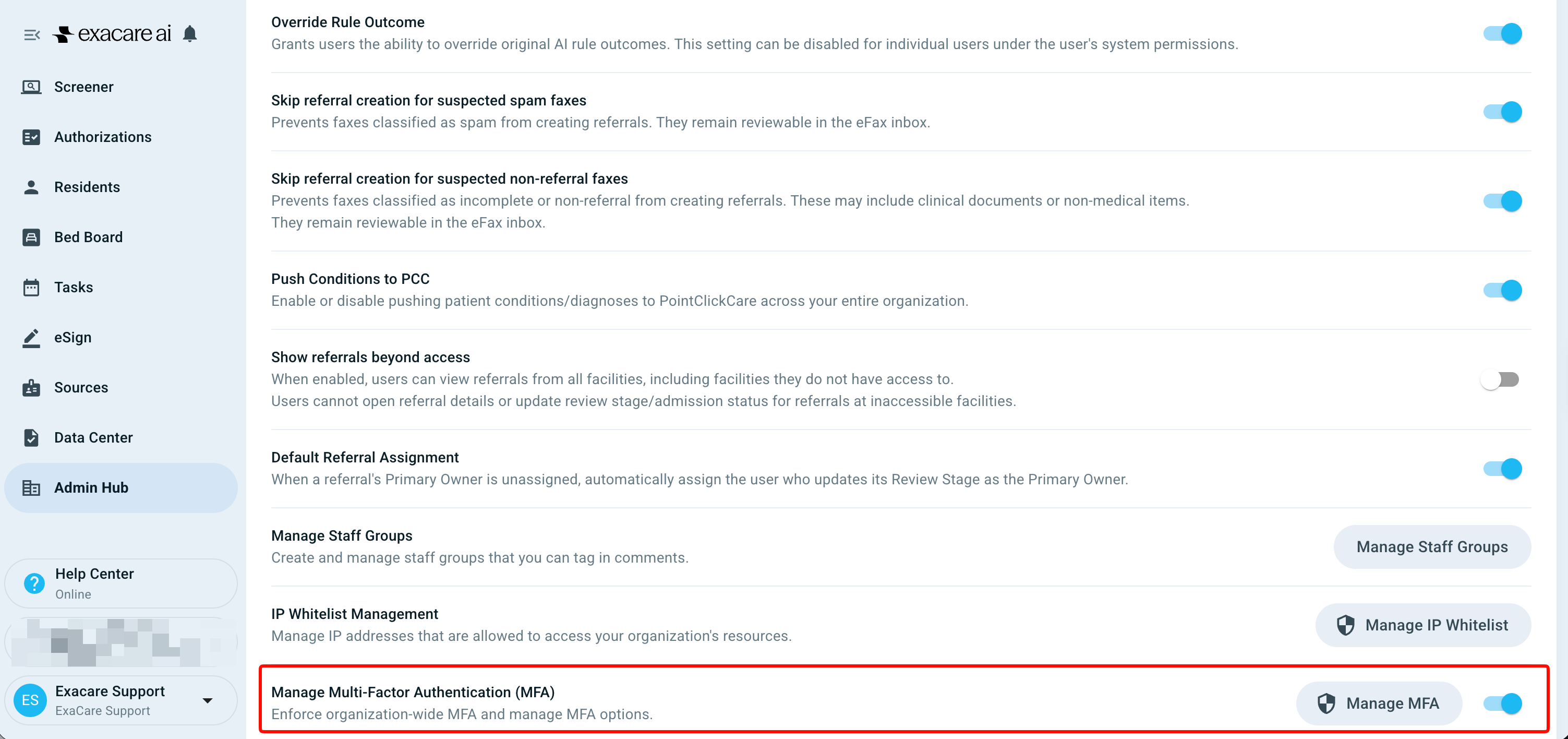
Step 1: Navigate to Org-Wide Settings
Log in to exacare.
Go to the Admin Hub.
Open the Org-Wide Settings page. You’ll see a Multi-Factor Authentication (MFA) section.
Step 2: Turn on MFA
In the MFA section, toggle ‘Manage MFA’ ON.
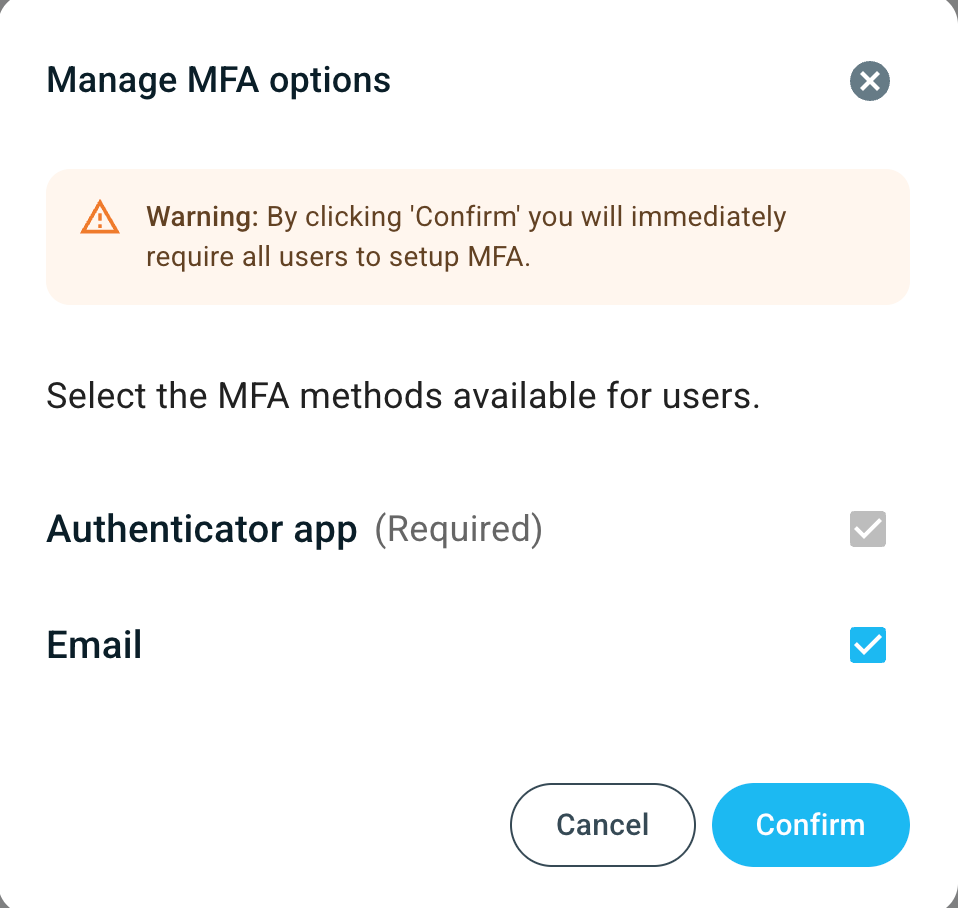
A popup will appear asking you to confirm your choice. If you click ‘Confirm’ MFA is enabled and will be required for all users in your organization on their next login.
Step 3: Confirm MFA
In this window you can select whether you want to enable email-based MFA in addition to the Authenticator app (this is checked by default and cannot be disabled)
Check the ‘Email’ box to configure email-based MFA. Note that only users with verified emails will be able to use this type of MFA.
Authenticator app MFA will apply to all users.
Click Confirm to save.
After you click Confirm:
MFA is now enforced org-wide.
Any user who logs in next will now be required to complete MFA enrolment in order to access the exacare ai platform.
3. How to Set up MFA for the First Time
Once your organization turns on MFA, you will be prompted to set up MFA the next time you log in to exacare ai.
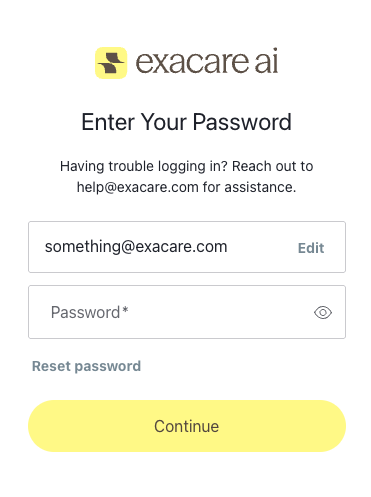
Step 1: Log in
Go to the exacare login page.
Enter your email and password.
After your credentials are accepted, you will be prompted to set up MFA.
Step 2: Set up MFA
With an Authentication App or Email Verification
A) Authentication App
Install an authenticator app on your phone (for example: Google Authenticator, Microsoft Authenticator, or another Time-Based One-Time Password-compatible app).
Scan the QR code on the MFA setup screen in exacare with your authenticator app.
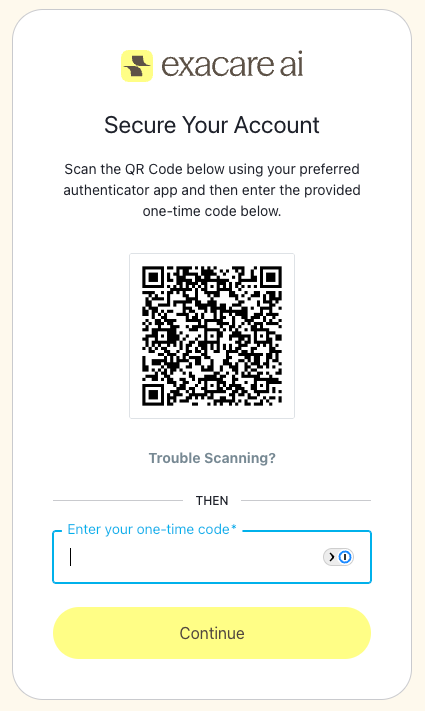
Your authenticator app will generate a 6-digit code.
Enter your 6-digit code into exacare when prompted to complete setup.
Save any backup codes provided during enrollment in a secure place (for example, a password manager).
Trouble Scanning the QR Code?
Make sure you have the authenticator app downloaded and installed. Select ‘Trouble Scanning?’
Copy the code provided manually into your app and it will output a one-time code for you to input in the field below.
The code provided is not the one-time code — this is the code you manually enter into your authentication app to provide you the one-time code!
B) Email Verification
To use this method, Superadmin must enable Email Verification as an MFA method. Users can only use this method if they are a verified user.
New users will receive a verification email at the same time as their credentials.
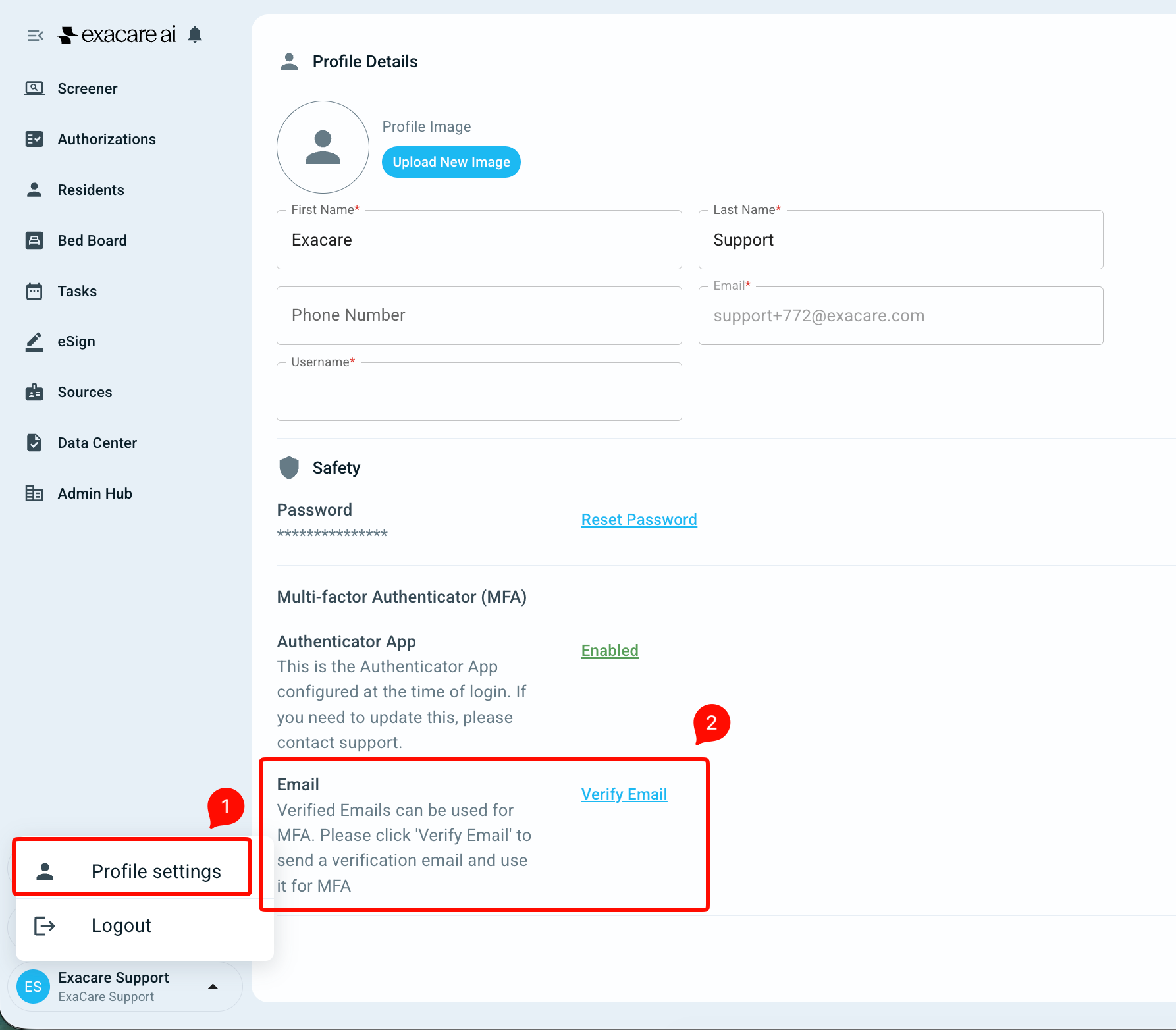
Existing users can verify their email in ‘Profile Settings’.
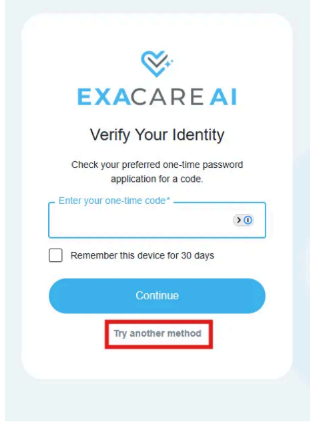
Users login with username & password
Select ‘Try another method’
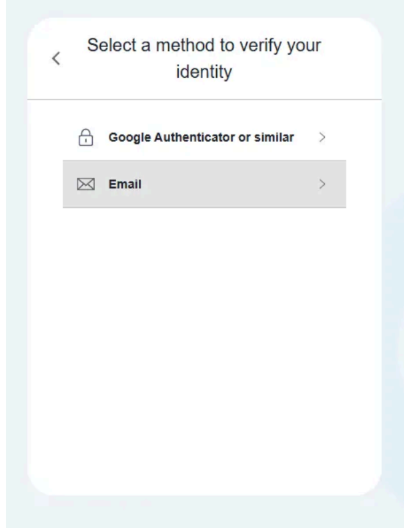
Select ‘Email’
Proceed to your email inbox and locate the MFA code.
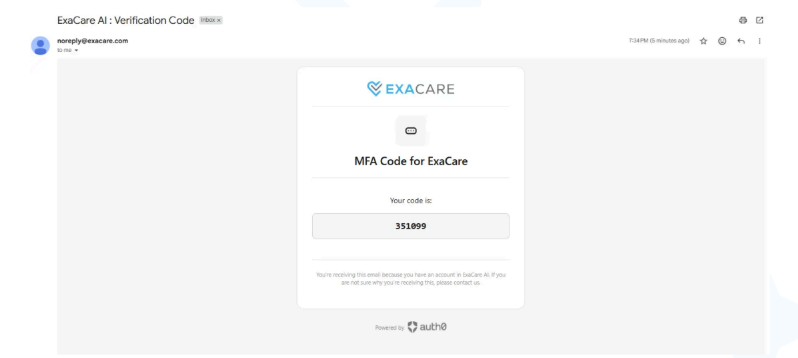
Copy and paste it into the field in exacare.
Step 3: Future logins
After you enroll:
You will log in with username & password
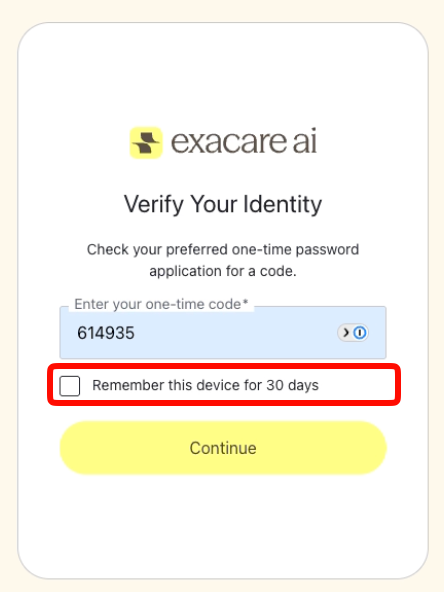
You will be asked for your MFA code (from the authenticator app or email based on your choice).
Enter the code to login.
You can opt for your device to be remembered for the next 30 days as to not be reprompted for MFA upon each sign-in for 30 days.
4. Recommendations for your IT and Security Teams
Notify your users ahead of time before you enable MFA since it will apply to all users immediately.
Recommend that staff:
Install the authenticator app in advance (Microsoft, Google, etc.)
Store backup codes securely!
For critical users (Org Leads, Admins), confirm they have successfully enrolled during the rollout window.
6. Getting Help
If your team encounters issues setting up or using MFA (for example, users not receiving codes, lost devices, or lockouts), please reach out to your exacare point of contact or our help desk. We will work with you to safely reset MFA and restore access.