Adding New Users
Last updated: June 11, 2026
You can only add users who have a user role that is the same as or with less permissions than your own.
Please refer to the training video below for a tutorial on How to Add Users:
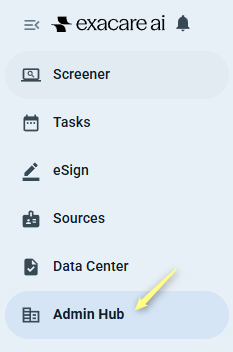
Click Admin Hub on the left-hand navigation menu.
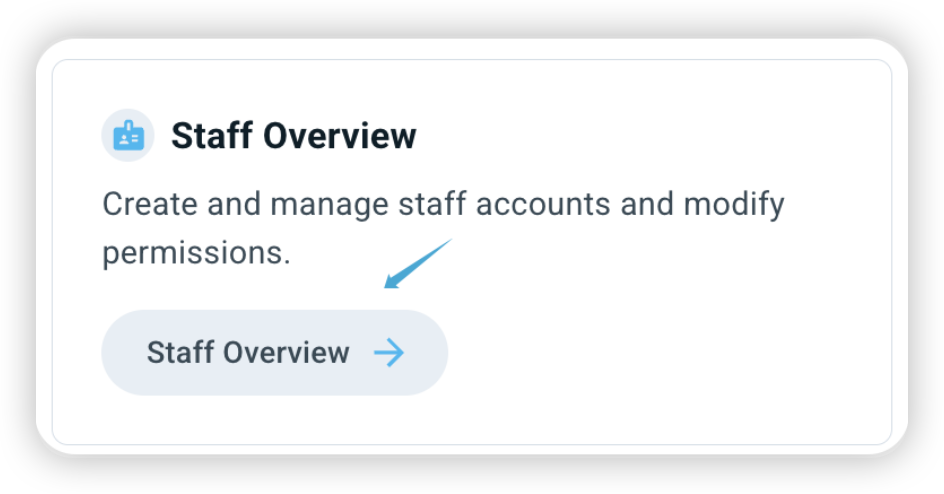
Click Staff Overview in the Admin Hub page.
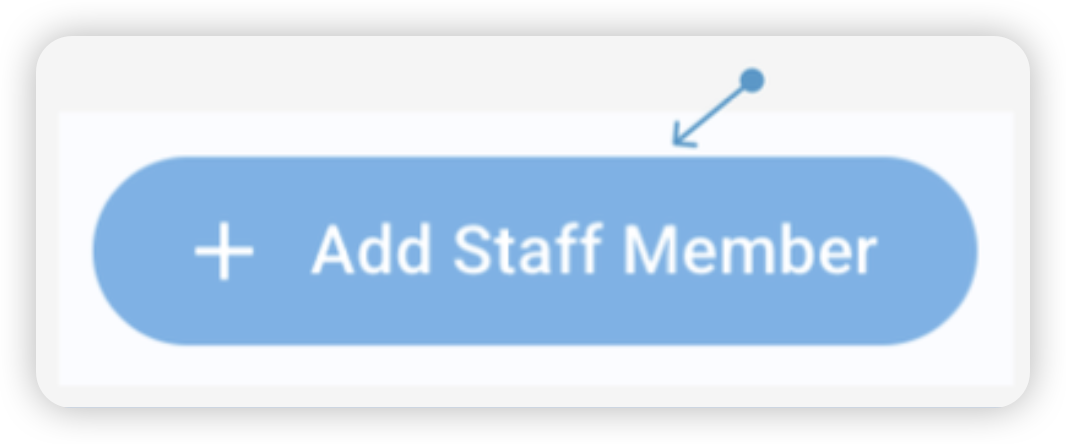
Click + Add Staff Member in the top right corner of the Staff Overview page.
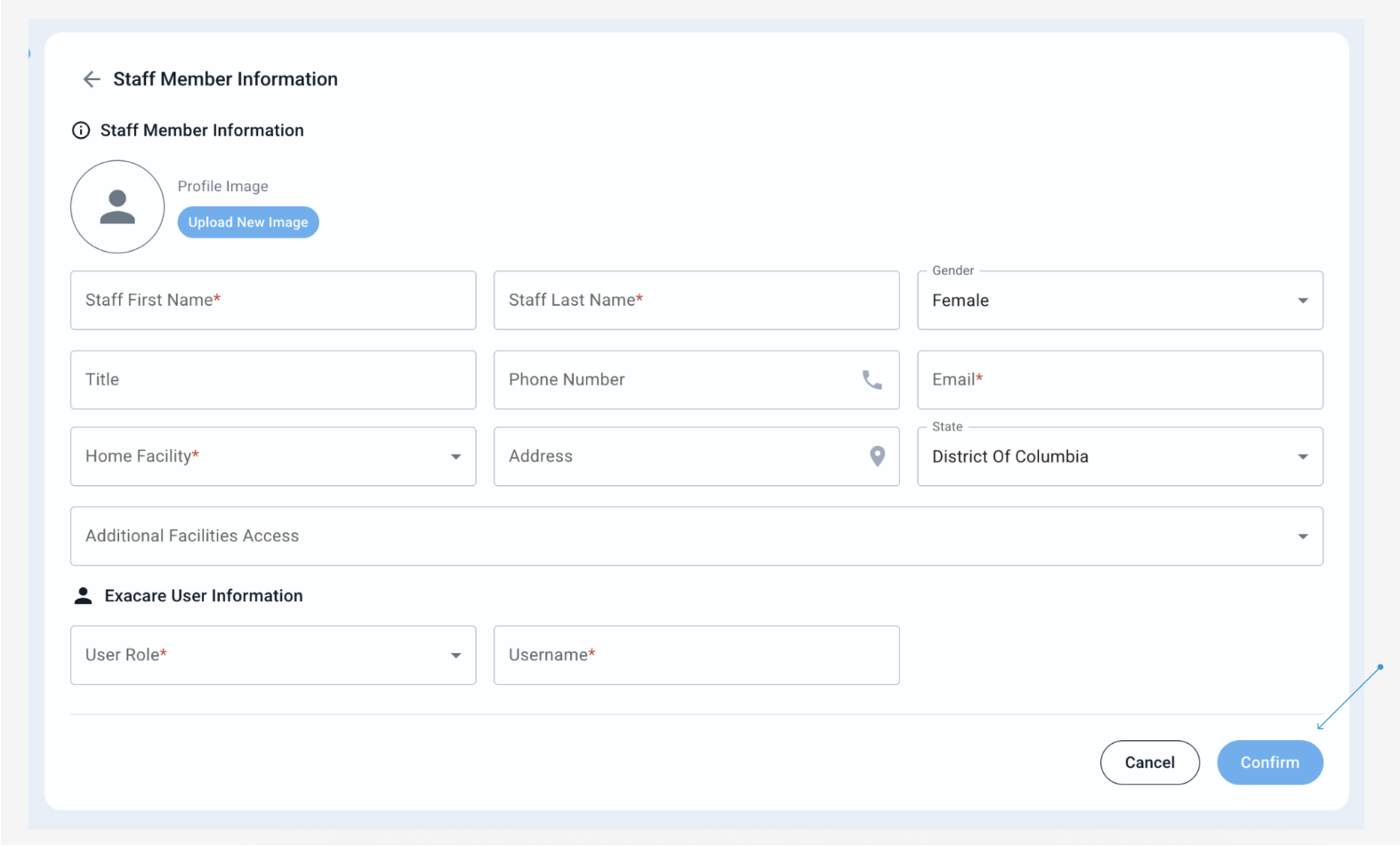
On the Staff Member Information page, complete all required fields (marked by *).
Under User Role, choose the role that fits the permissions you would like to give to this new user (see "User Roles”).
Adding a user who's email already exists in an existing organization
To add a user who uses the same email across multiple organizations you need to add a “+[org name]” to the email.
Ex. The customer uses jane-doe@health.com at Organization “Health Center” and wants to use the same email for organization “Care Center”. To create new credentials add “Care Center” and “+[org name]” to the email “jane-doe+CareCenter@health.com.
Be sure to use different username for each account.
Ex: Health Center username is jdoe and Care Center username is jane.doe
The user will now be able to log into both organizations using emails and the associated username:
jane-doe@health.com for organization Health Center
jane-doe+CareCenter@health.com for organization Care Center
The user will not be able to toggle from one organizations facility to the other organizations facility
All notifications from both organizations will be sent to jane-doe@health.com