Screener Table
Last updated: June 30, 2026
Please refer to the training video below for a Screener Overview:
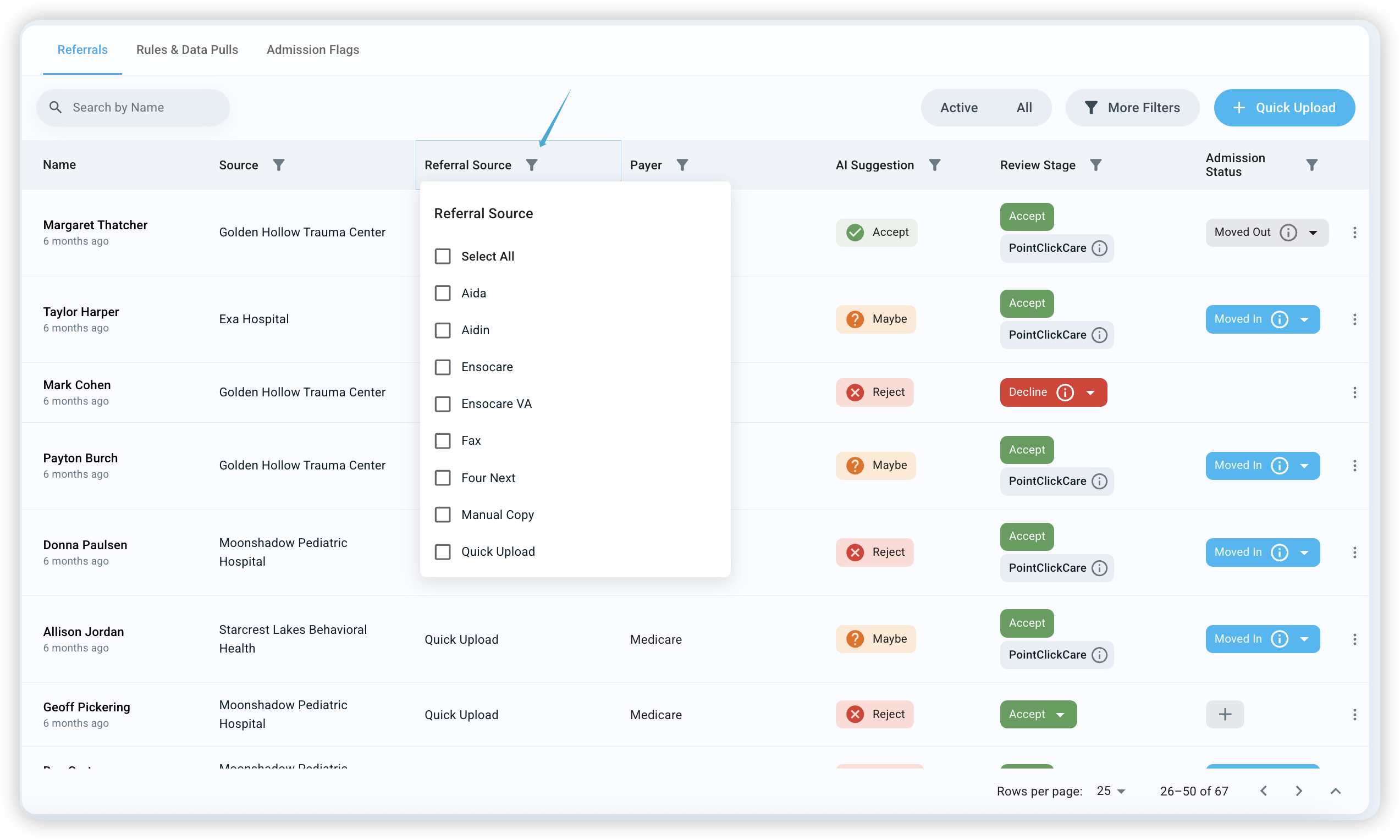
Column Headers

Name : Name of the referral
Source: Name of the hospital the referral is coming from
Referral Source: Referral platform the referral was received from
Payer: Insurance payer that the referral has
AI Suggestion : AI suggestion based on the Rule criterion set by your team
Review Status: The decisions you make about the referral. Options include:
Referral Received
Needs More Info
Accept
Decline
Referrals are automatically marked as New when they first appear in the Screener
Admission Status: The stage after selecting Accept or Reject. Options include:
Booked
Moved-In
Lost
How to use Filters
Navigate to https://app.exacare.com/crm/screener/leads
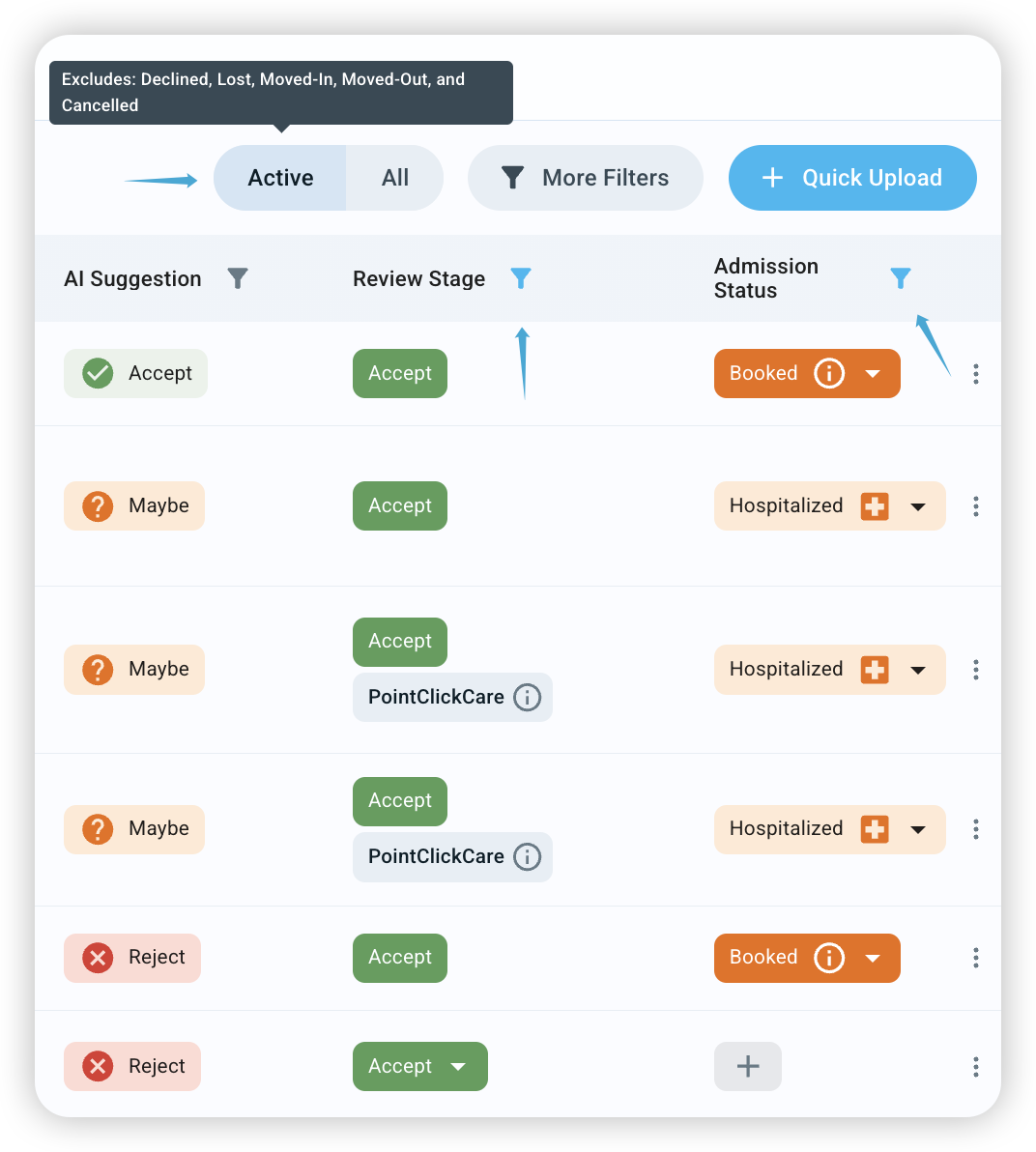
Click on any column with the filter icon to apply filters
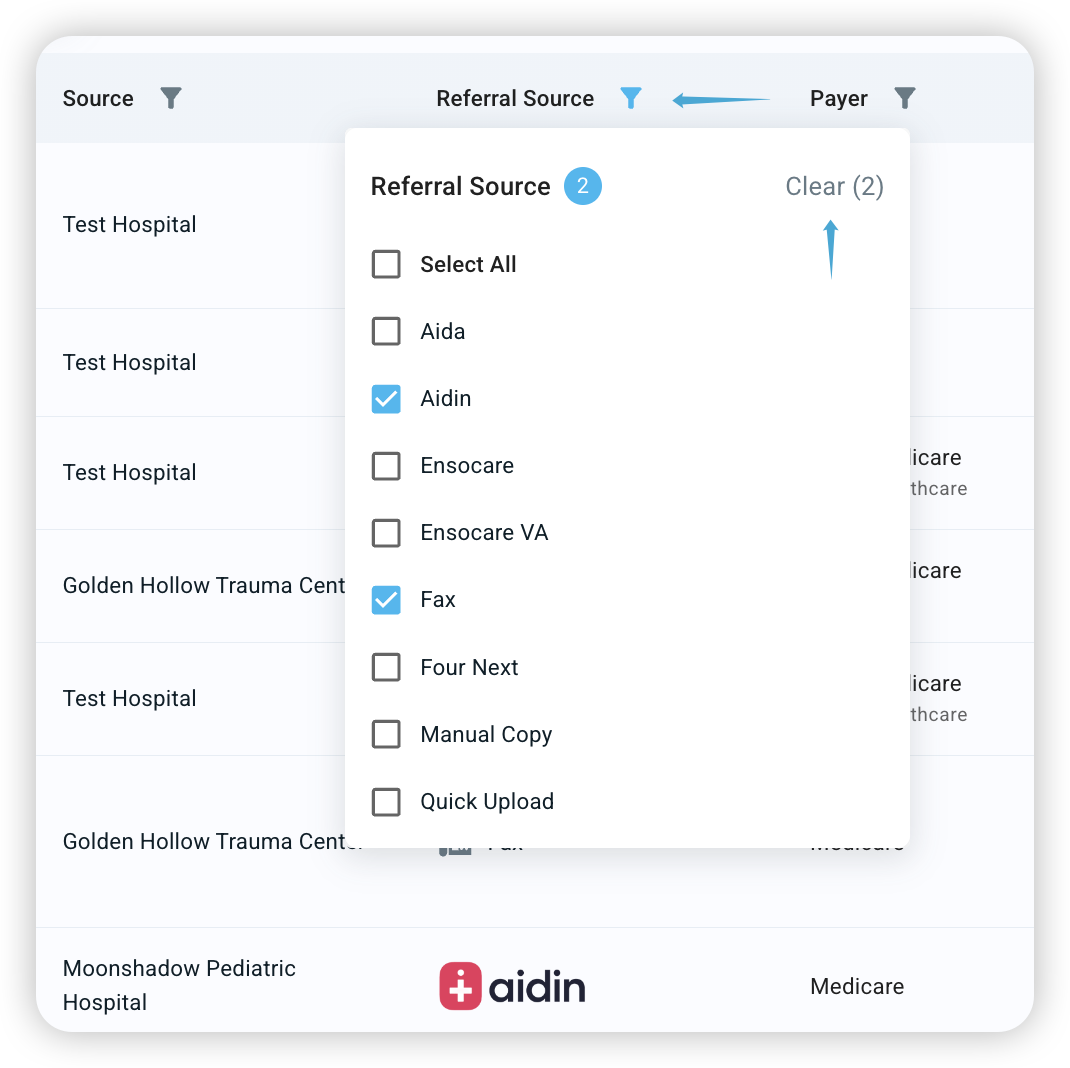
You can apply multiple filters in a column, and filter multiple columns at once
When filters are applied, the icon will turn blue and the option to Clear filters will appear in the pop-up
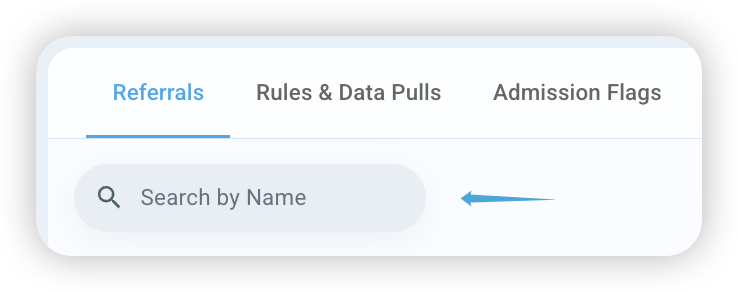
Use the Search bar in the top left to search referrals by name
Click the All button in the top right corner to reset any applied filters
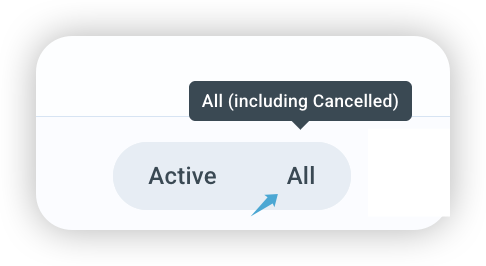
Click the Active button in the top right corner to excludes: Declined, Lost, Moved-In, Moved-Out, and Cancelled referrals
To display all Active referrals, filters are automatically applied to the Review Stage and Admission Status columns
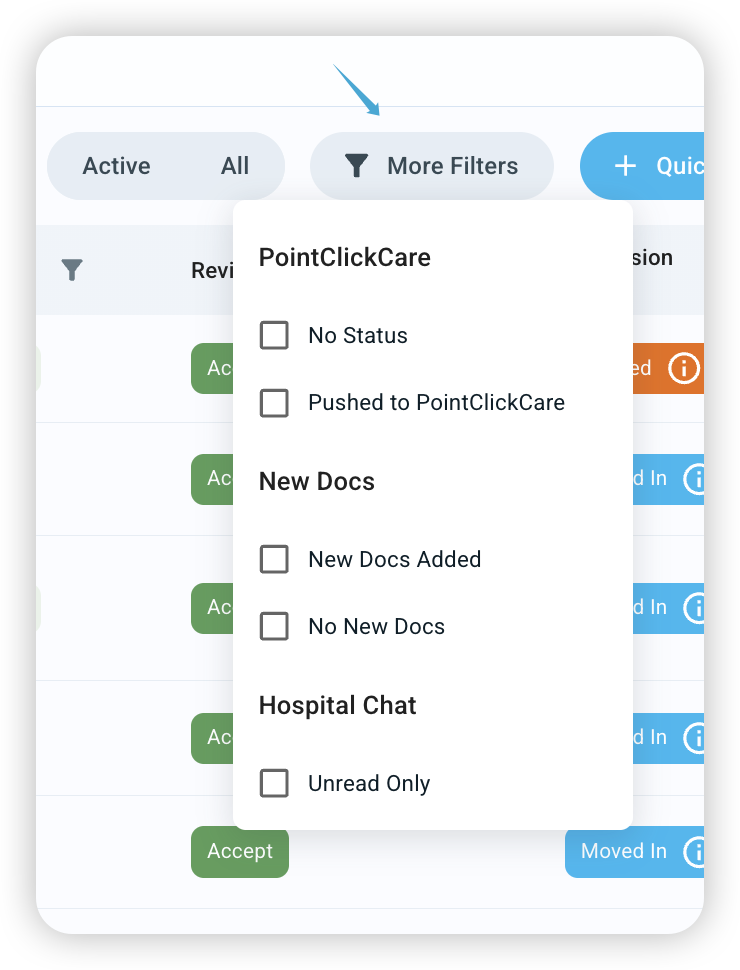
Click More Filters in the top right corner to filter for referrals that have been pushed to PointClickCare, have New Docs Added (or not), or have Hospital Chat Notifications
Facilities using MatrixCare, the PointClickCare section is replaced with MatrixCare
Hover your mouse between columns to adjust their size

How to setup User Specific Filters
Click on any column with the filter icon to apply you desired filters.

Click “Save Current Filter View” when the option appears.

Give your view a name and select confirm.
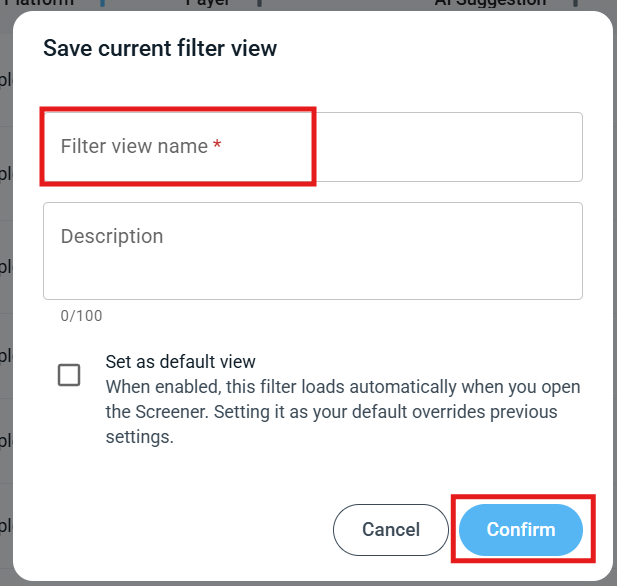
Users can optionally add a description
Users can optionally set this view as default, so it automatically loads when you open exacare.
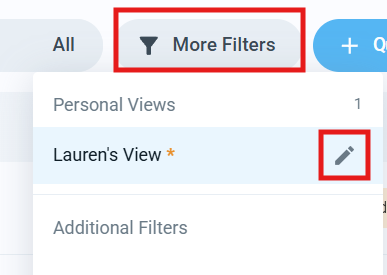
Saved filters can be accessed and edited anytime under the More Filters icon.
Instances
Instances are multiple referrals in exacare for the same patient at the same facility. They match based on First Name, Last Name and DOB. They occur in these scenarios:
When the same referral is uploaded or pulled into exacare multiple times, such as:
Quick uploading the same patient documents more than once
The same referral coming through multiple channels (e.g., eFax and a referral platform)
Accidental re-uploads of the same patient information
Referral Assignment
What is Referral Assignment?
Referral Assignment helps your team keep ownership clear by linking team members to each referral. Each referral supports two types of assignees:
Primary Owner: The team member responsible for managing the referral from intake to decision. Each referral can have one Primary Owner
Source Liaison: Sales or marketing team members who should receive credit for bringing in the referral. A referral can have multiple Source Liaisons
All assignment activity is automatically logged in the referral's Activity tab, giving your team a clear audit trail.
Where can I find Referral Assignment?
You can manage referral assignments in two places:
The Screener: Manually assign or reassign any referral via the assignee column next to the referral name
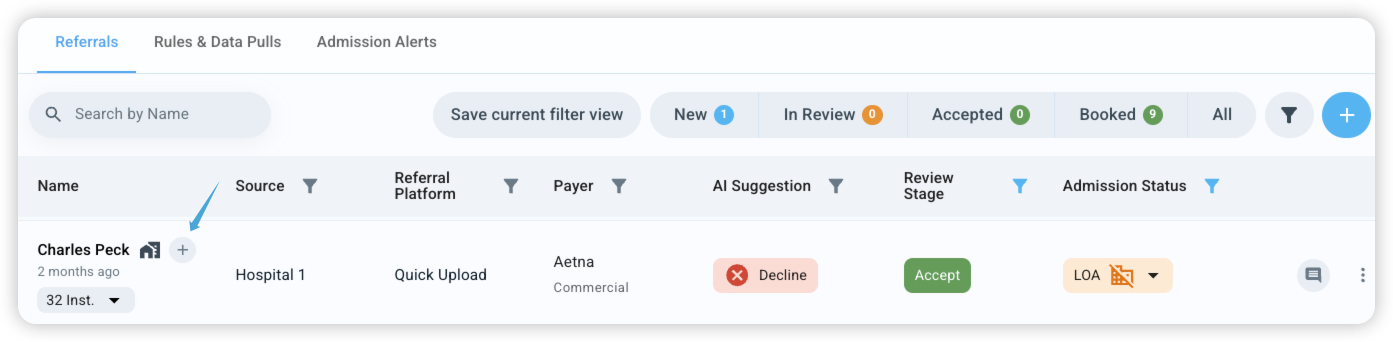
Workflow Settings: Create rules that automatically assign incoming referrals. Workflow Settings are available in the Admin Hub (for superadmins only)
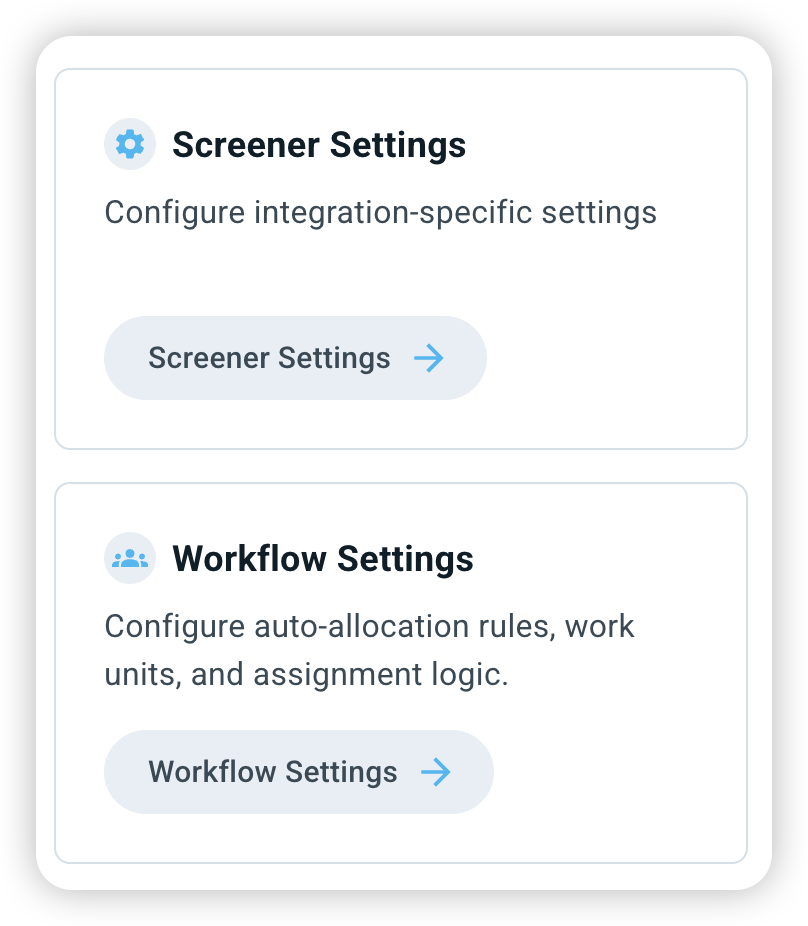
How can I assign referrals manually?
Find the (+) icon in the assignee column on the Screener
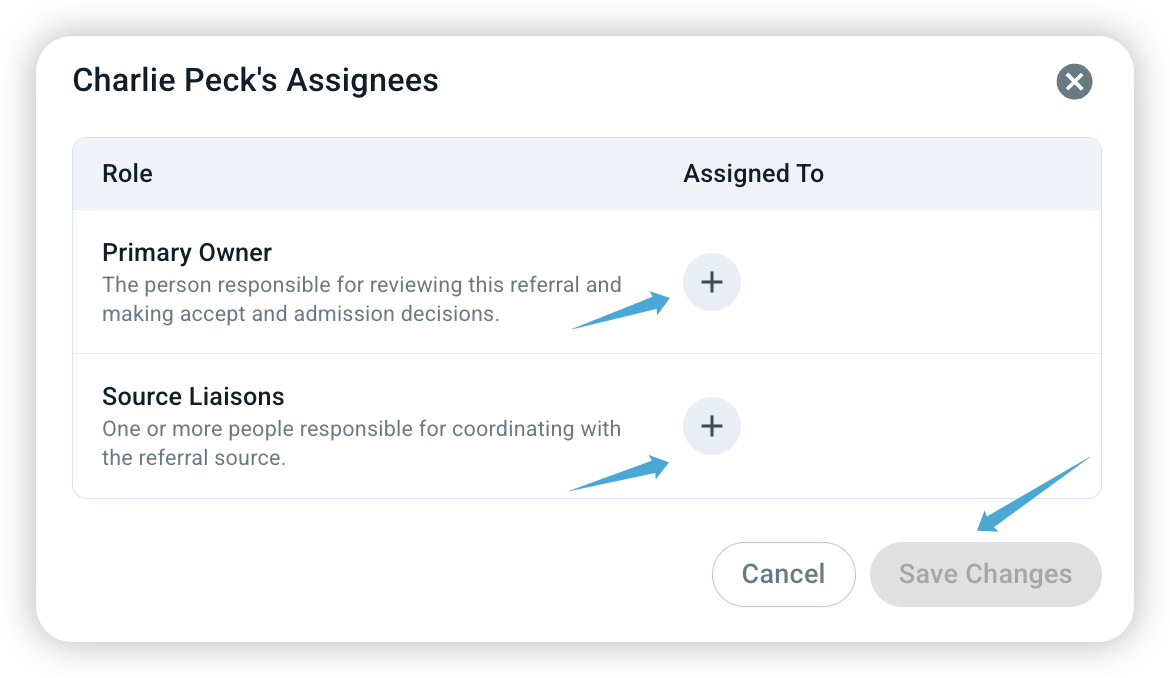
Click it (or click existing assignee badges) to open the assignment panel
Select a Primary Owner and/or Source Liaisons, then click Save Changes
Assigned users will be notified, and all activity is logged in the referral's Activity tab
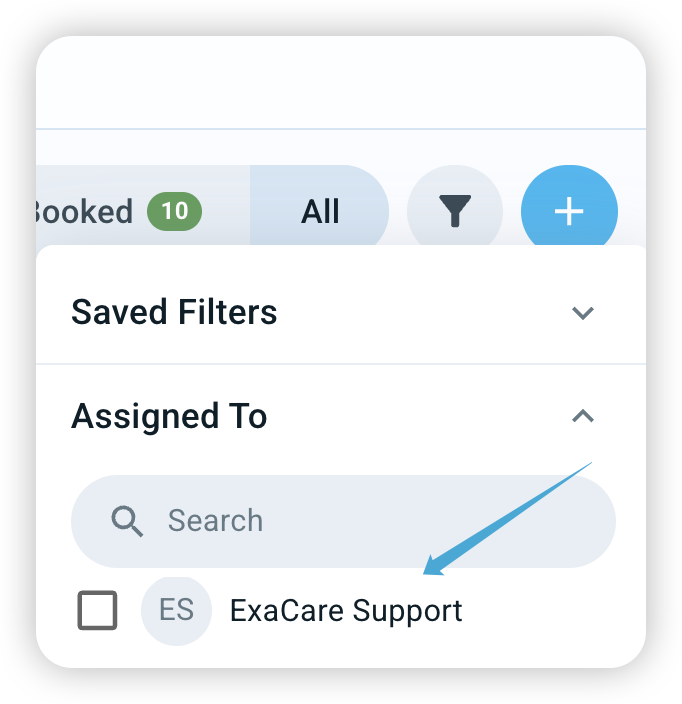
Use Screener filters to view referrals assigned to you or unassigned referrals
You can also use Screener filters to view referrals assigned to you or referrals that are currently unassigned.
How can I assign referrals automatically?
*Only superadmins can set up auto assignment rules

Go to Admin Hub → Workflow Settings
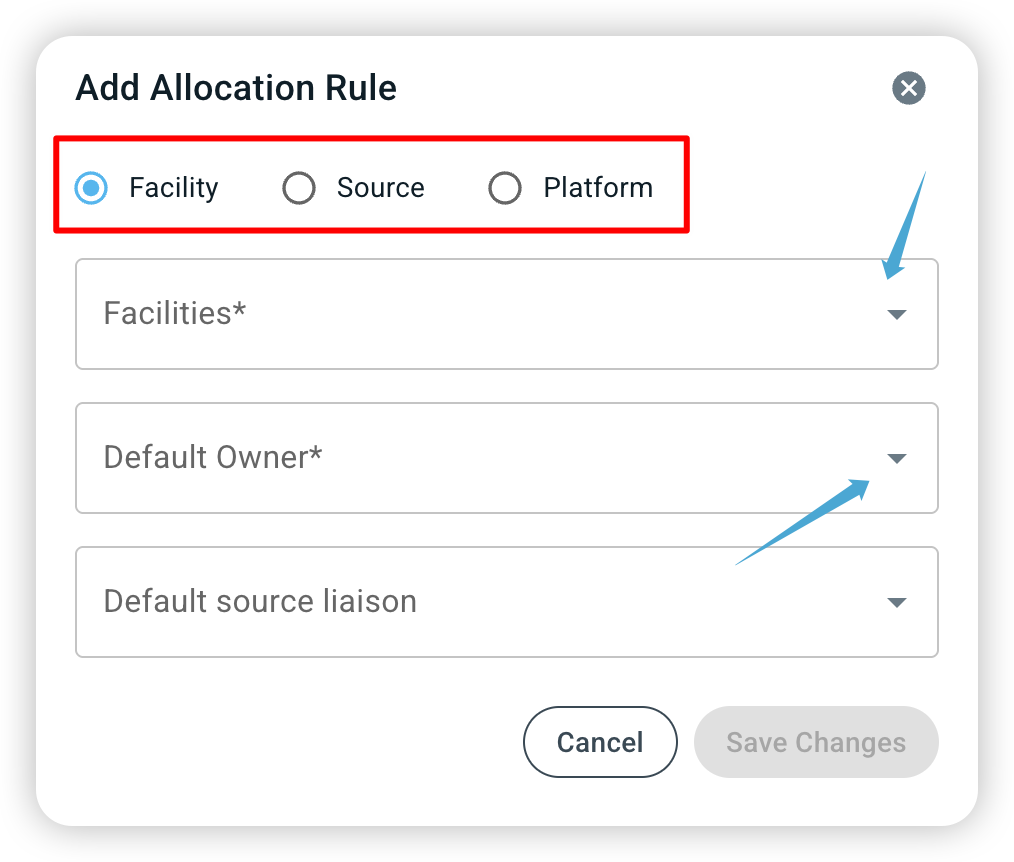
Click the (+) icon to add an allocation rule
Choose a rule characteristic: Facility, Source, or Platform
Select a Default Owner
Optional: select a Default Source Liaison
Click Save Changes
New incoming referrals that match the rule will be assigned automatically.
Note: Auto-assigned referrals can be manually reassigned.
Combine Referrals
What is the Combine feature?
The Combine feature lets you merge documents only from one or more referral instances into a single referral that you choose to retain as the main referral.
Only documents are merged
Other information (review stage, comments, tasks, activity log) is not merged
The selected referrals being combined are marked as Cancelled Instances
This action cannot be undone
Where can I find the Combine button?
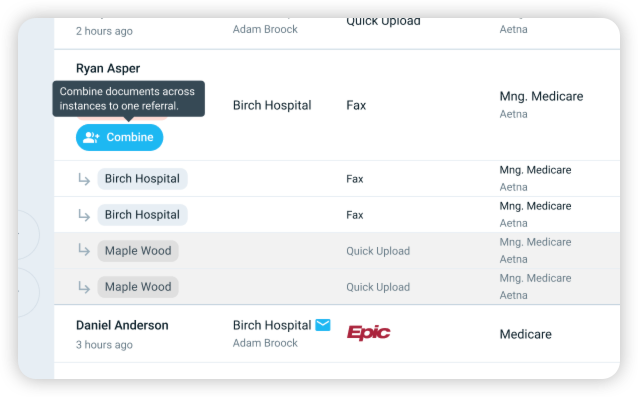
The Combine button appears on the Screener page when:
There is more than one uncancelled referral instance
All referrals belong to the same facility
At least one referral was created via Quick Upload, Manual Copy, or eFax
How do I combine referrals?
Click the blue Combine button on the Screener page
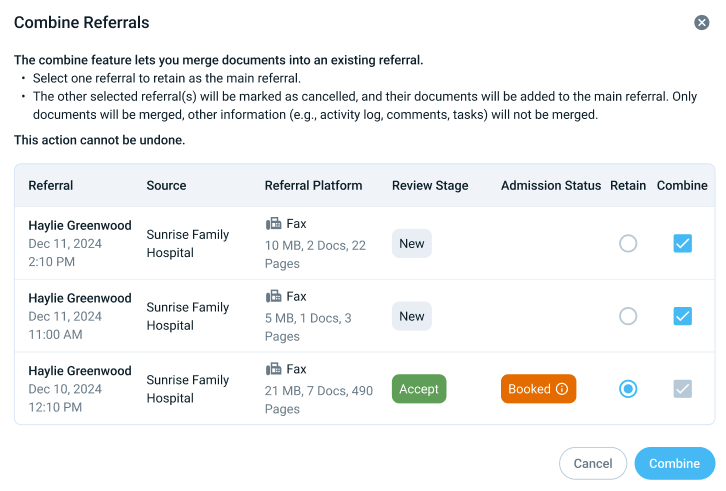
In the popup:
Select one referral to retain as the main referral (radio button)
Select one or more referrals to combine (checkboxes)
Confirm the action!
The popup will remind you that: “This action cannot be undone.”
Which referrals can be retained and combined?
All referrals can be selected to retain as the main referral.
Only select referrals can be selected to combine into the main referral, they cannot be combined if:
They have an Admission Status
Were created from other referral platforms
What happens after referrals are combined?
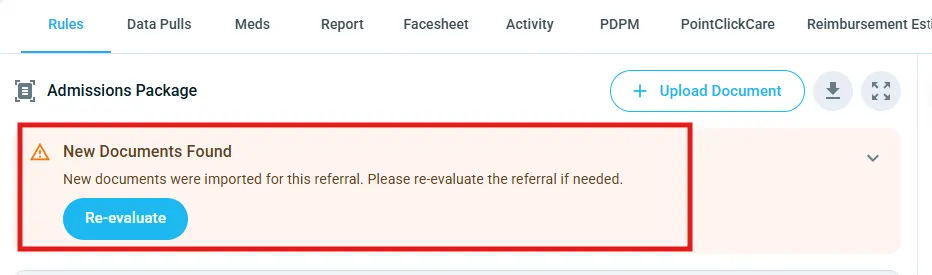
Main retained referral will have new documents added, users can choose to re-evaluate to re-analyze the referral with those documents included
Combined referrals will appear as Cancelled on the screener grid