Rule Outcome Override
Last updated: February 19, 2026
The Rule Outcome Override feature enables users to adjust individual rule outcomes.
Note: Any changes made to individual rule outcomes will also be reflected in the overall AI admission suggestion and tracked within the activity tab for audit purposes.
Please refer to this training video for an Overview on the Rule Override feature:
How does Rule Outcome Override work?
Users with the enabled system permissions can override any rule outcome by following the steps below:
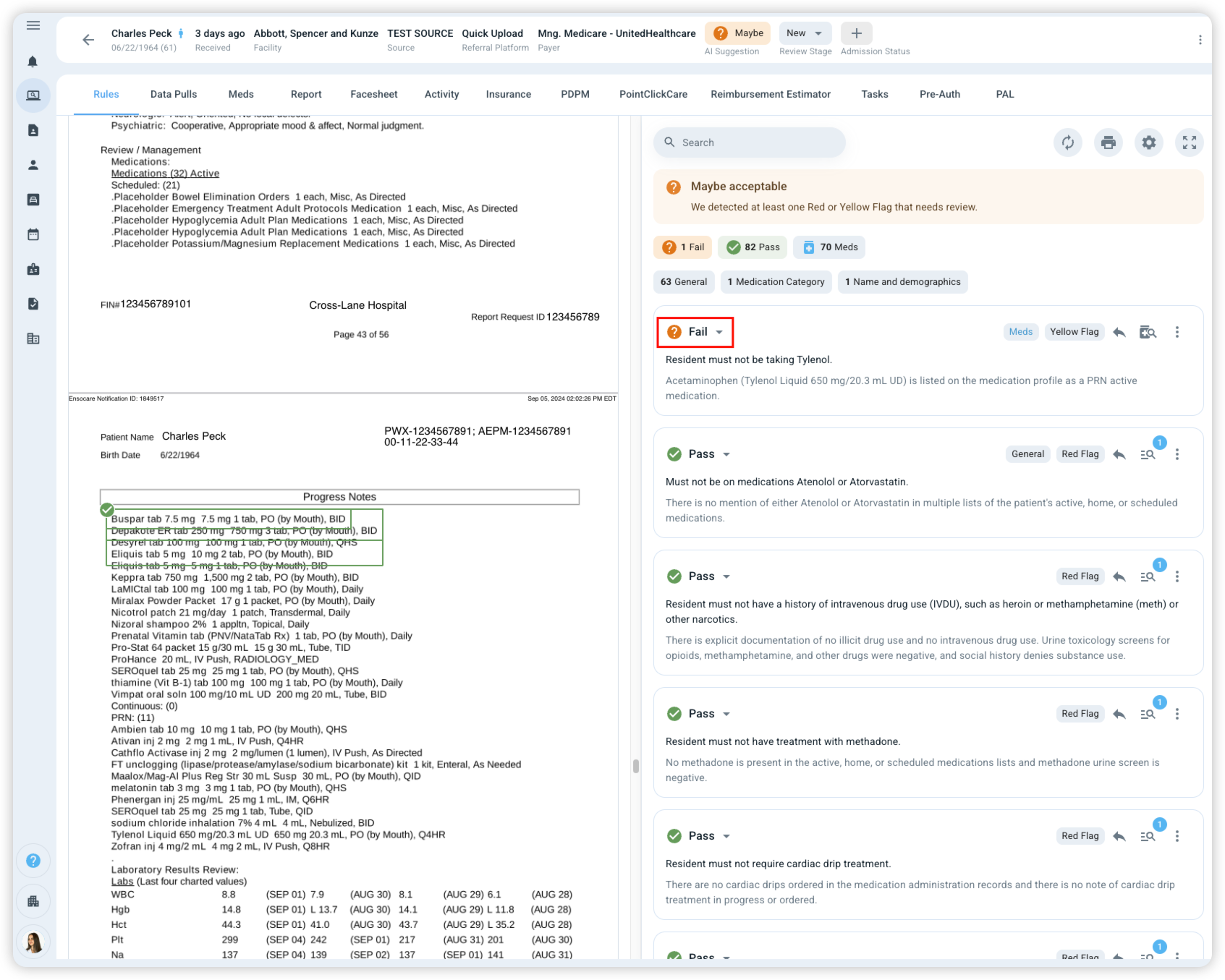
Navigate to the Rules tab within a referral and select the dropdown next to the rule you want to override
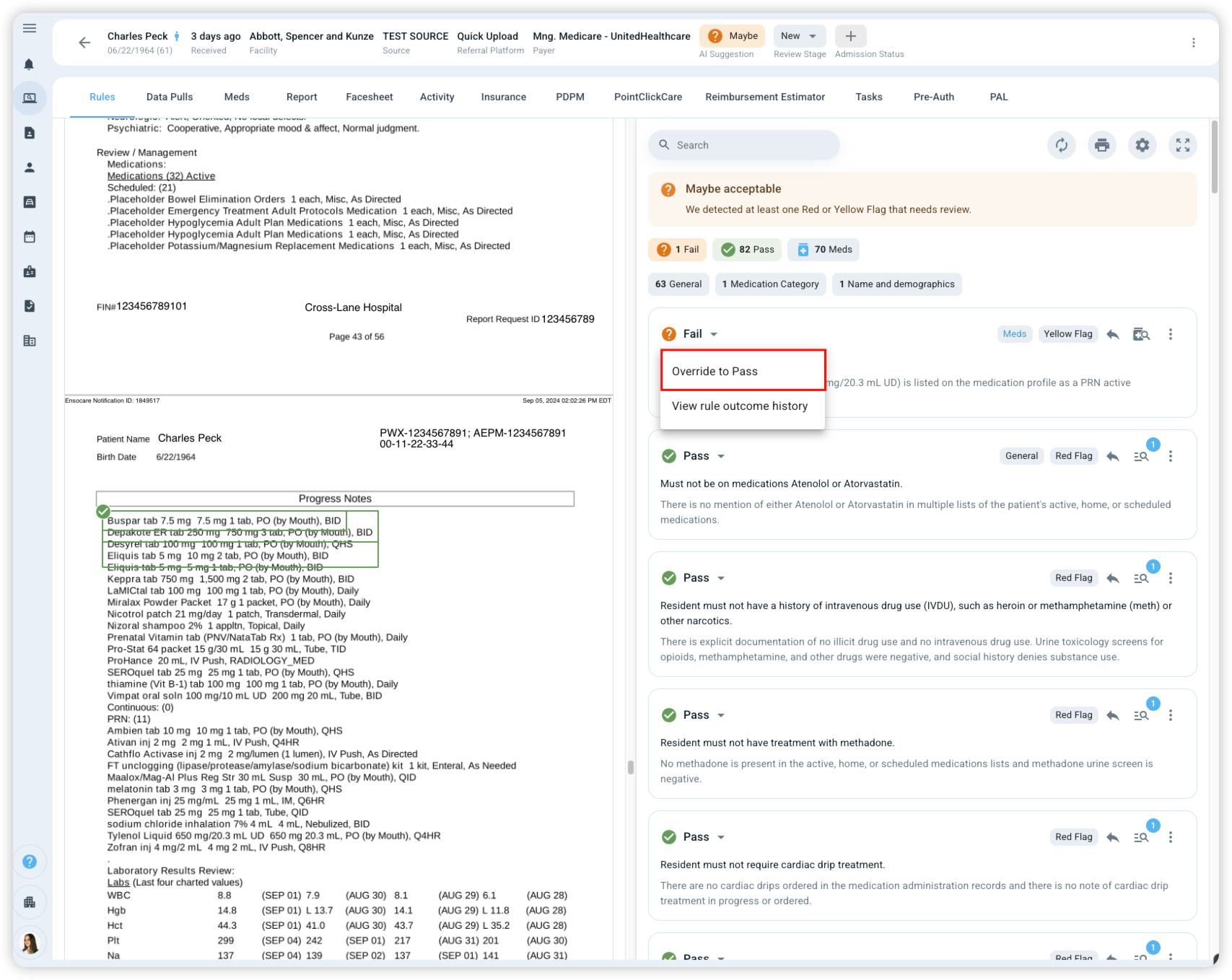
Select Override to ... and select the revised outcome (i.e., Pass, Fail)
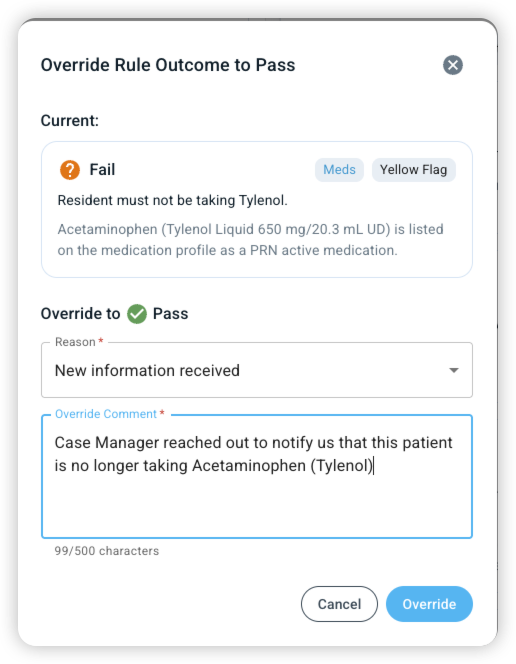
Select an Override Reason from the dropdown, and add additional detail regarding the reason for the override within the comment box
User Access & Permissions
Enabling across the organization
Rules Outcome Override is an optional feature that can be toggled on or off in the Org Wide Settings within the Admin Hub. When initially enabled, all users in your organization will be able to override rule outcomes by default.
Restricting user specific access
To limit this functionality to specific roles / people within the organization, configure these settings in the user's System Permissions under Staff Overview within the Admin Hub.
Rule Outcome Override FAQ
Q: Can I override a rule multiple times?
Yes, you can override the same rule as many times as needed. Each override creates a new entry in the rule's history, so you can track all changes made.
Q: Can I undo or revert a rule override?
Yes, you can revert an override at any time by overriding the rule again and changing it back to the original AI analysis outcome
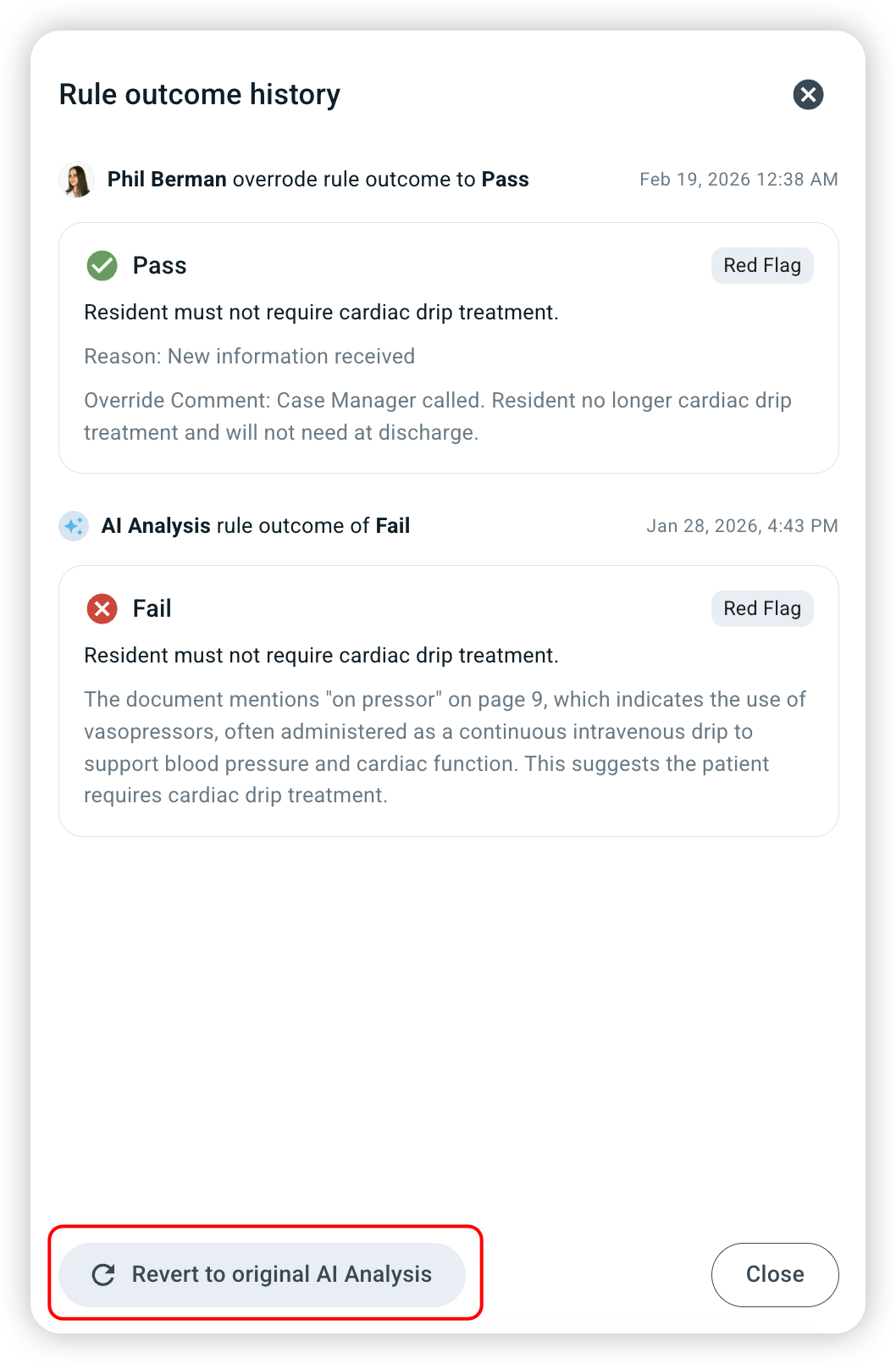
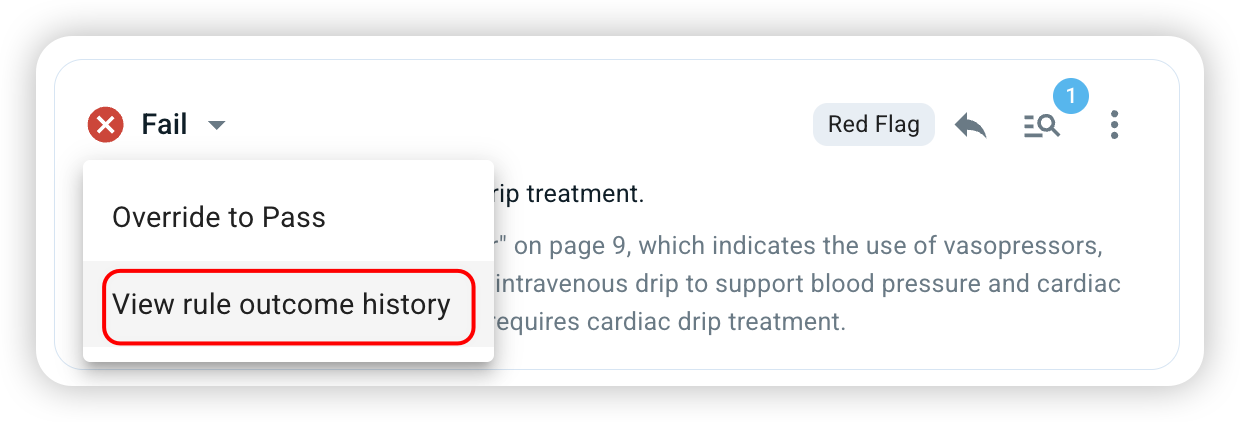
Q: How do I see the history of rule overrides?
You can see the history of rule overrides in the rule override drop down in the Rules tab or in the Activity log tab.