Meds Tab
Last updated: June 11, 2026
Please refer to the training video below for a Meds Tab Overview:
Using the Medications Tool
The Meds Tab helps you quickly identify high-cost drugs and estimate expenses for a potential new resident based on First Data Bank (FDB) pricing.
High-Cost Medications: While exacare provides an estimate, always consult with your local pharmacy for exact pricing on high-cost medications that might impact an admission decision.
How to find the Meds Feature
Click the Screener tool in your navigation bar to view all of your referrals.
Select the Patient Referral you want to review.
Select the Meds tab located at the top of the patient record.
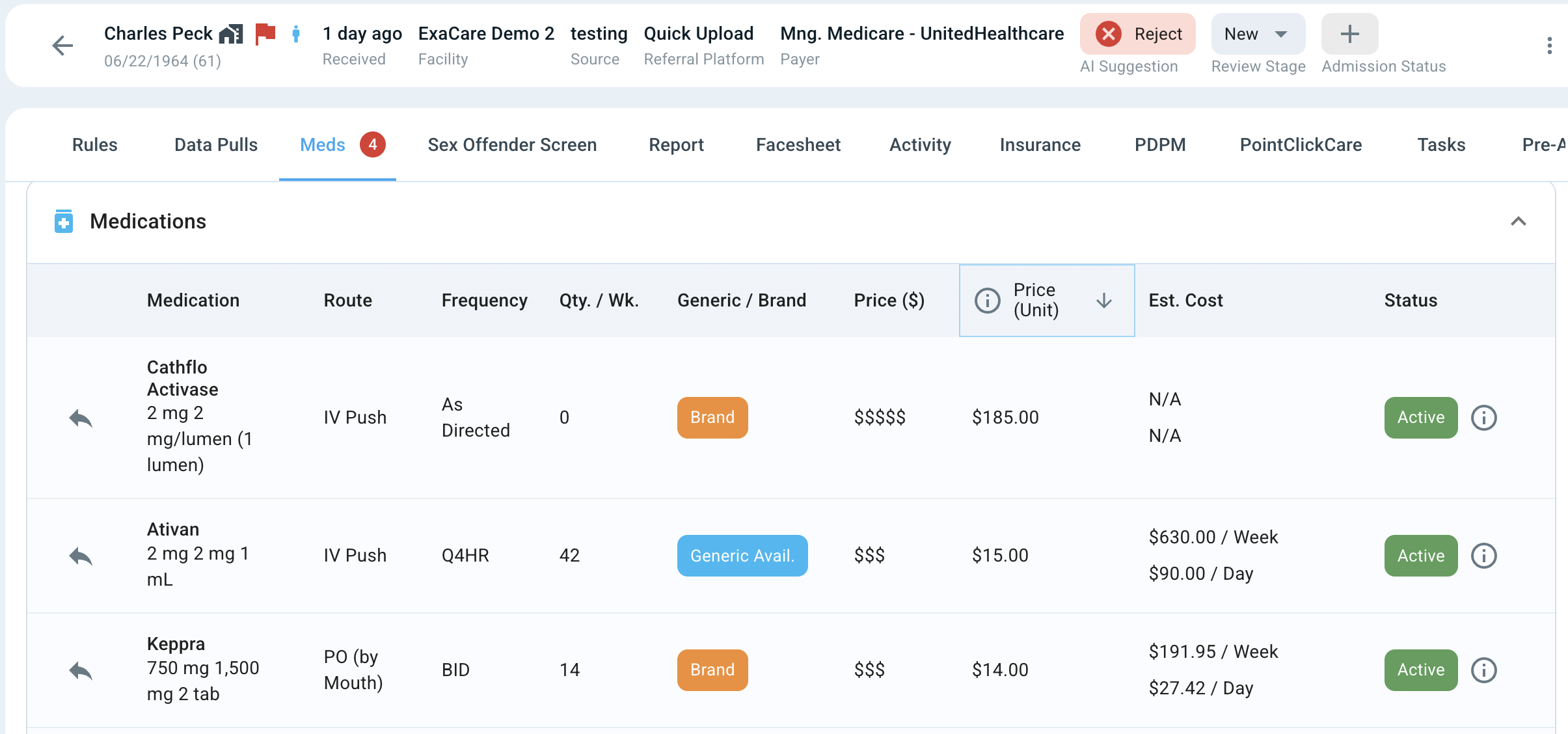
Understanding the Meds Table
Exacare's AI scans the referral documents to populate information about each of the patient's medications and then calculates the daily and weekly medication costs.
Column Headers
Column | Description |
Medication | The name of the prescribed drug. |
Route | How it is administered (e.g., Oral, IV, Tablet) |
Frequency | How often the patient takes it (e.g., Daily, Every 12 hours). |
Quantity per Week | A calculation of how much is needed weekly based on frequency. |
Generic/Brand | An icon showing if it is a generic or brand-name drug. |
Price Point | Dollar signs ($,$$) showing relative cost. More dollar signs indicate a higher cost. |
Est. Price per Unit | The estimated cost per dose based on the FDB drug database. |
Estimated Cost | The total projected cost based on quantity and price per unit. |
Status | Shows if the medication is Active or Historical. The (i) symbol indicates the reasoning behind the status. |
Missing information?
Price (Unit) and Qty/Wk are inputs used to calculate Estimated Cost. If one of these fields is empty, the estimated cost will show up as N/A because exacare doesn't have enough information to perform the calculation.
The ( - ) symbol indicates that our AI could not locate the specific information in the attached documents (often the information is not available in the documents provided).

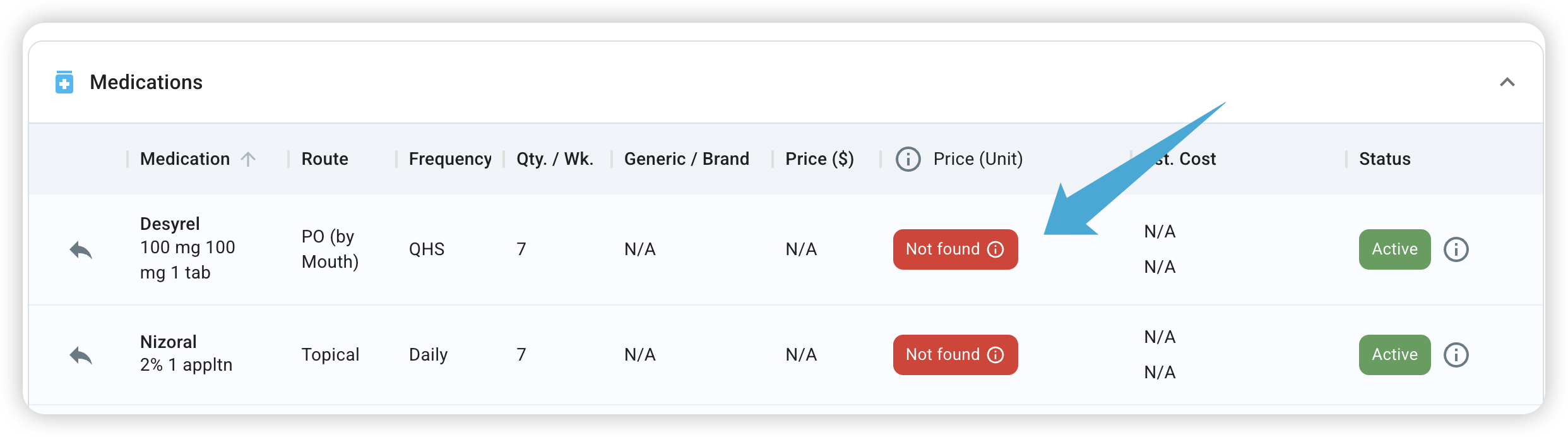
Not found indicates that the medication could not be matched in the FDB database, which may happen for uncommon medications.
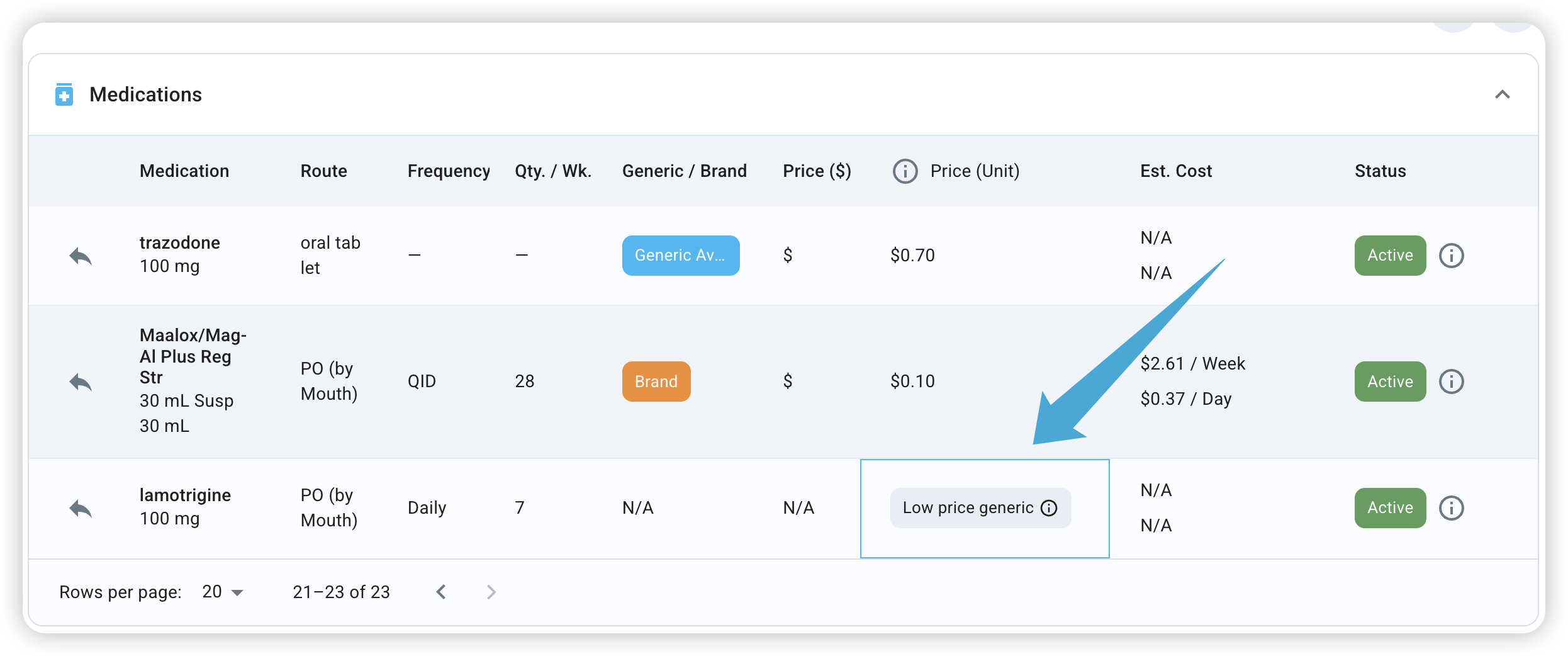
Low price generic will appear for very common medications where there is significant variation in pricing.
To locate the missing information, you can do a quick scan of your packet using the 'Data Pulls' or 'Report' tab or you can reach out to your source for more information.