Managing Personal Filter Views in exacare
Last updated: June 11, 2026
You can use filters to organize the way that your referrals are displayed in the main screener grid. You have the option to use preset filters (e.g., the Active filter) or make your own!
Please refer to the step-by-step instructions below to learn how to create your own custom filters:
Step-by-step instructions:
Go to the exacare Screener home page.
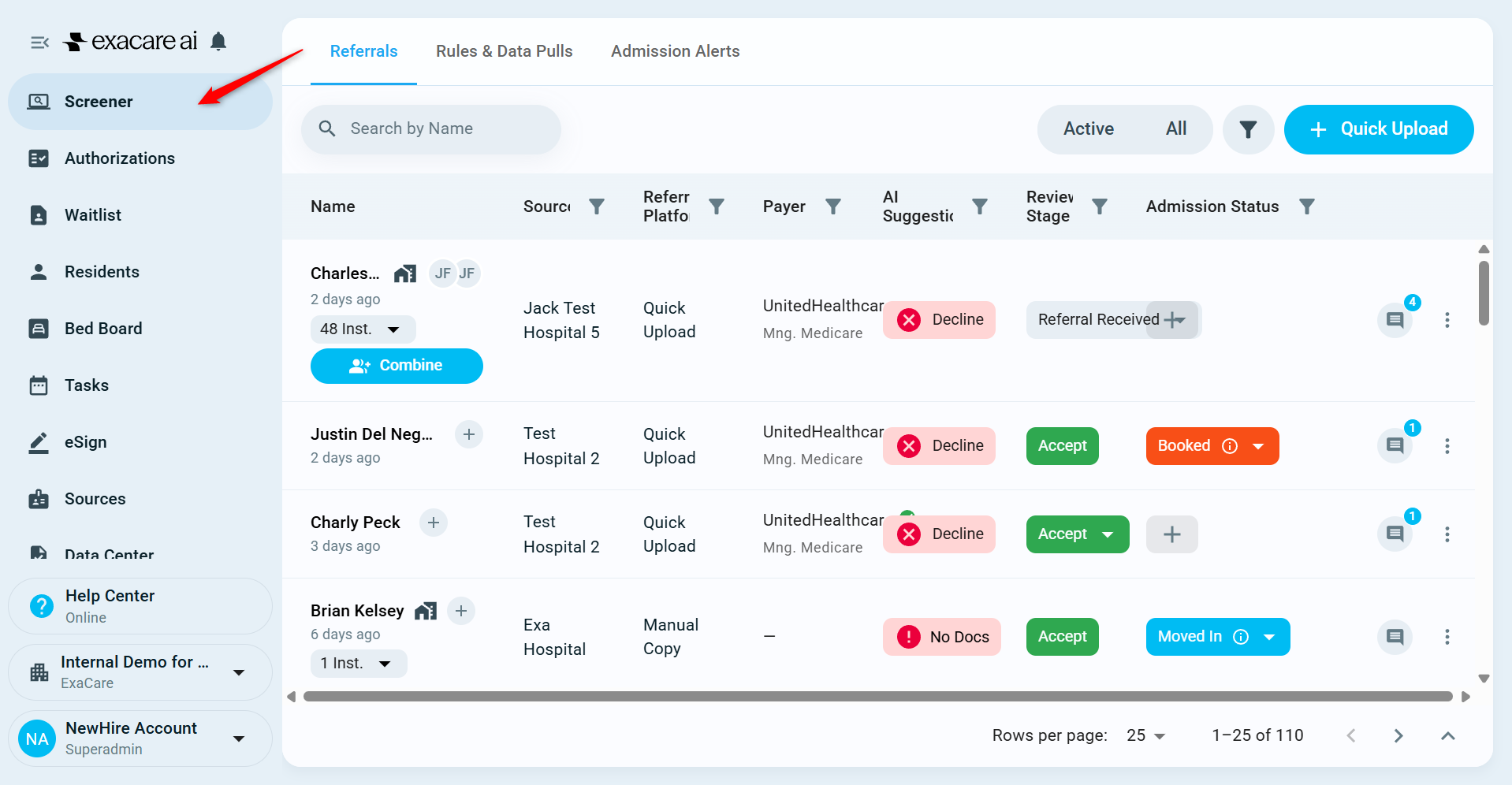
Open your desired filter. There's a filter available for each of the columns aside from 'Name'.
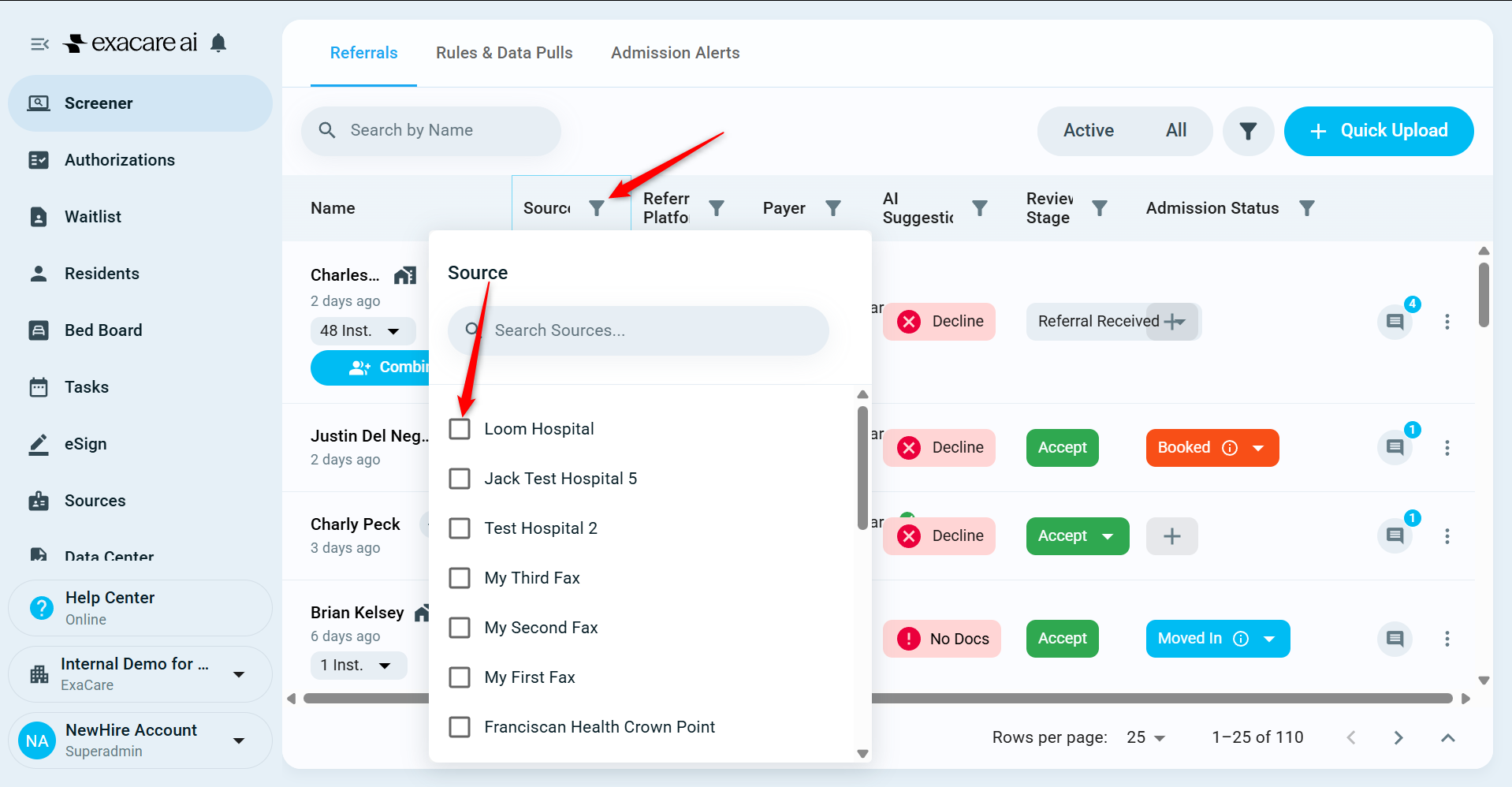
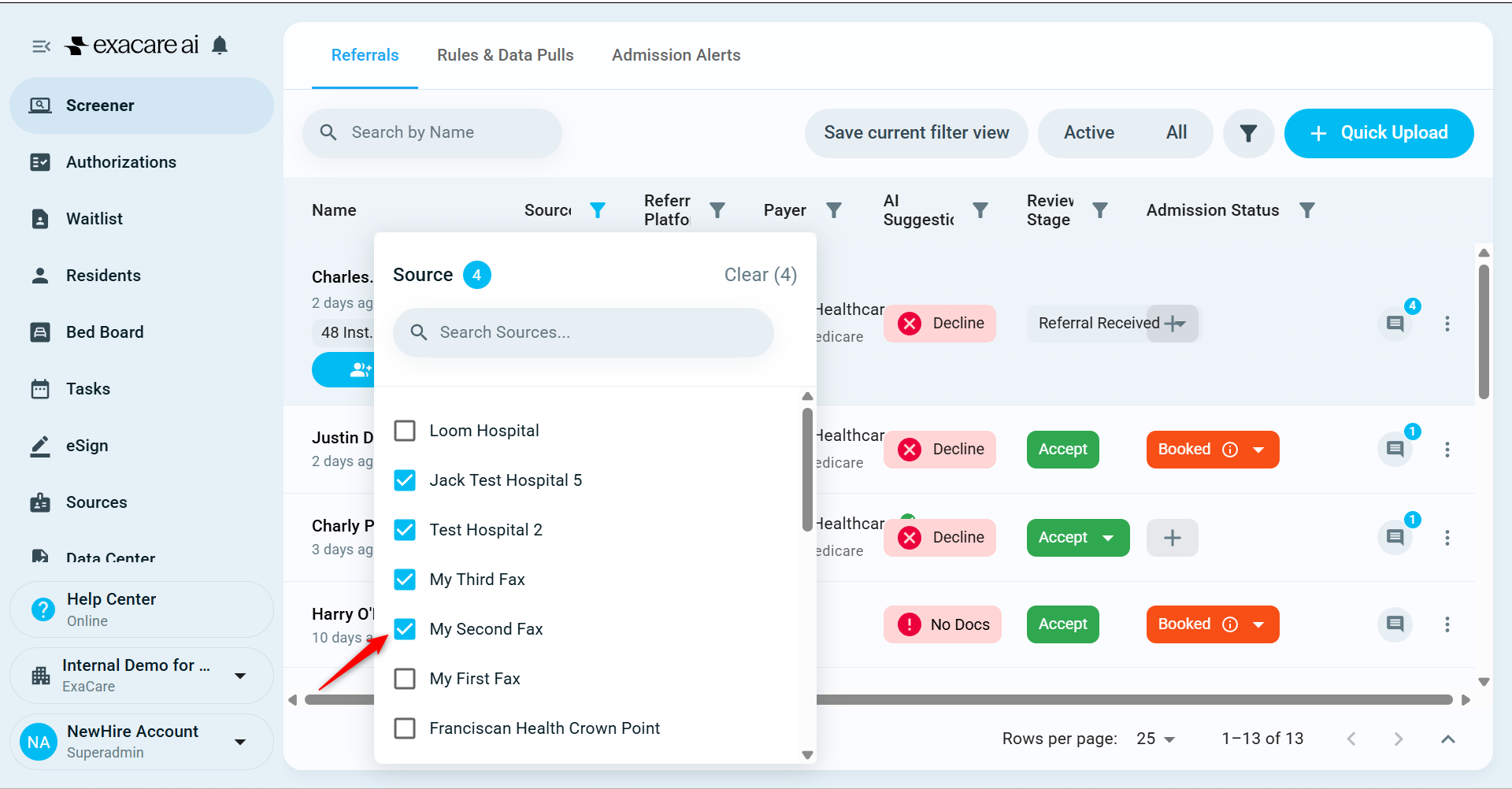
Select your desired filter categories. For example, you might want to filter for new referrals from the sources in your region. Note: You can filter multiple columns at once.
Filtering for sources:
Filtering for new referrals:
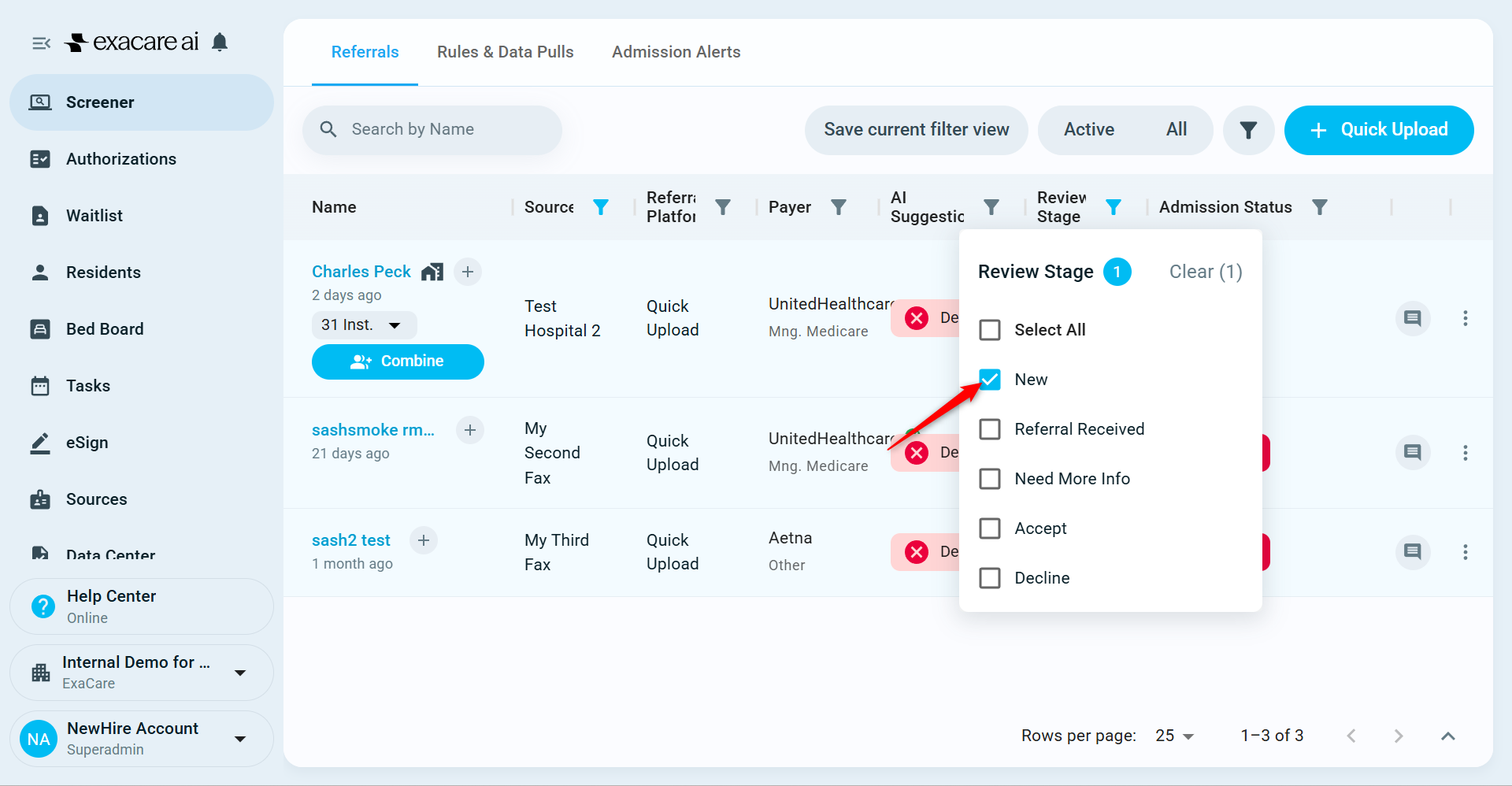
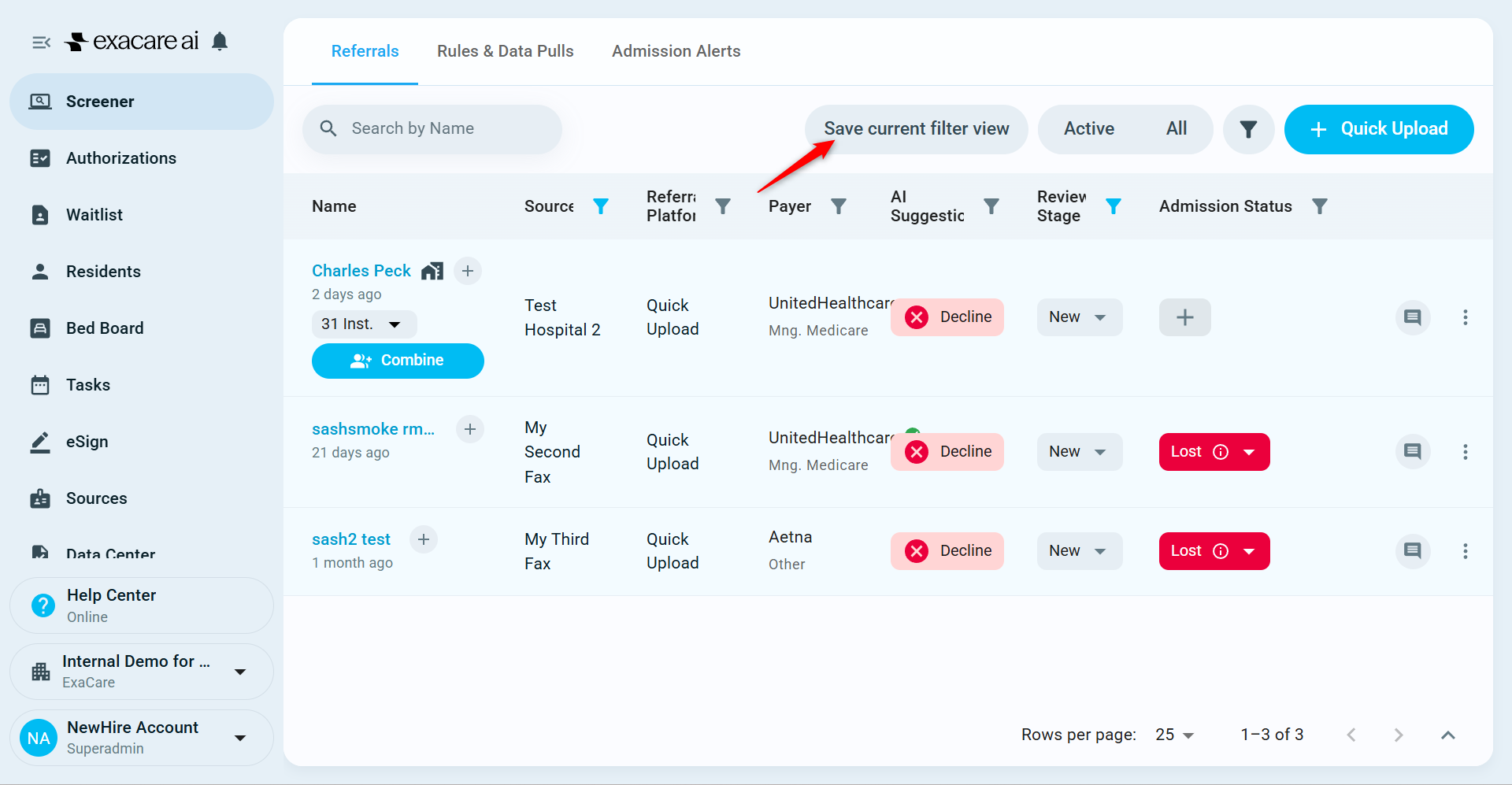
Click 'Save current filter view'.
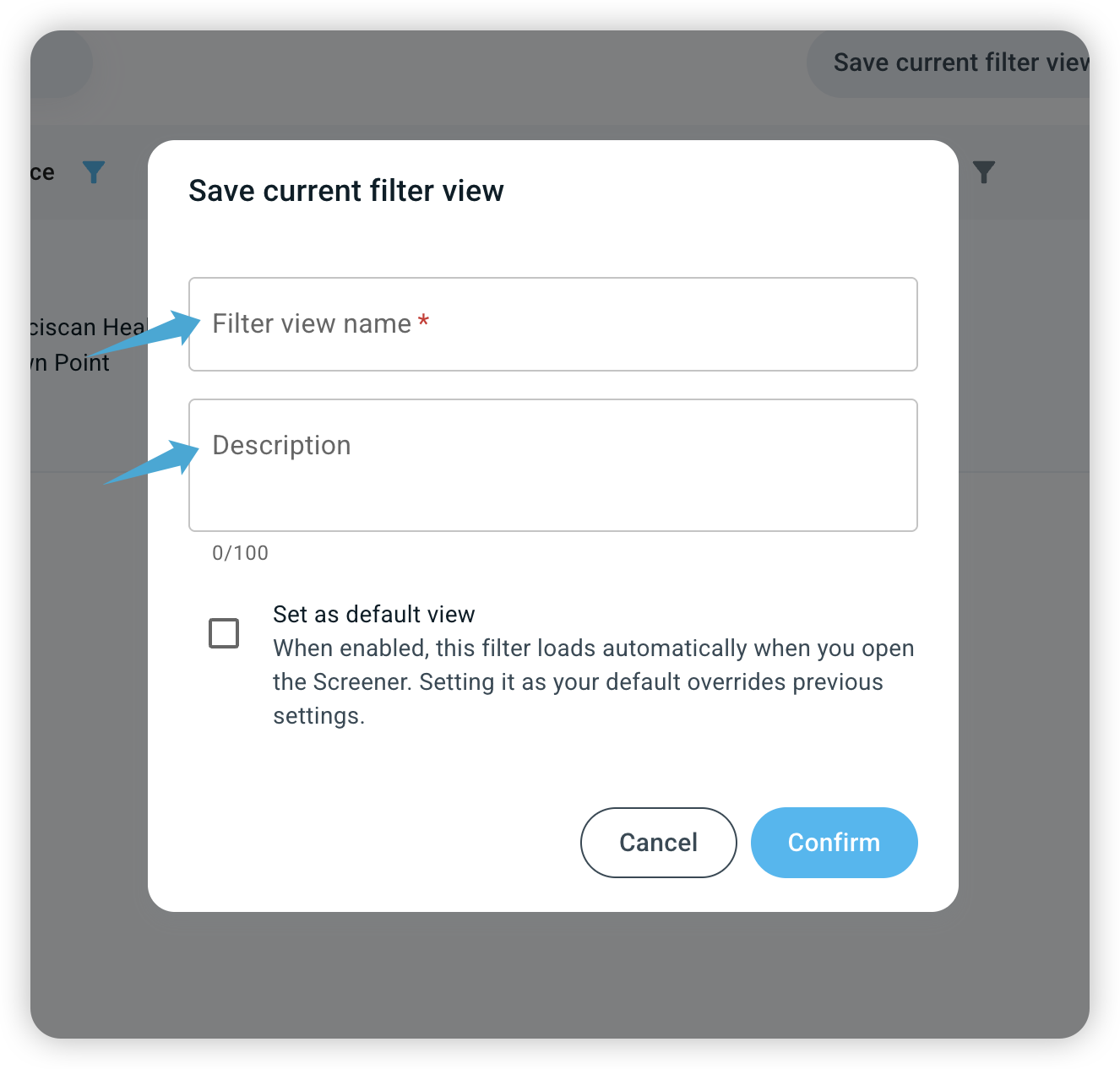
Name the filter. Add a description if needed.
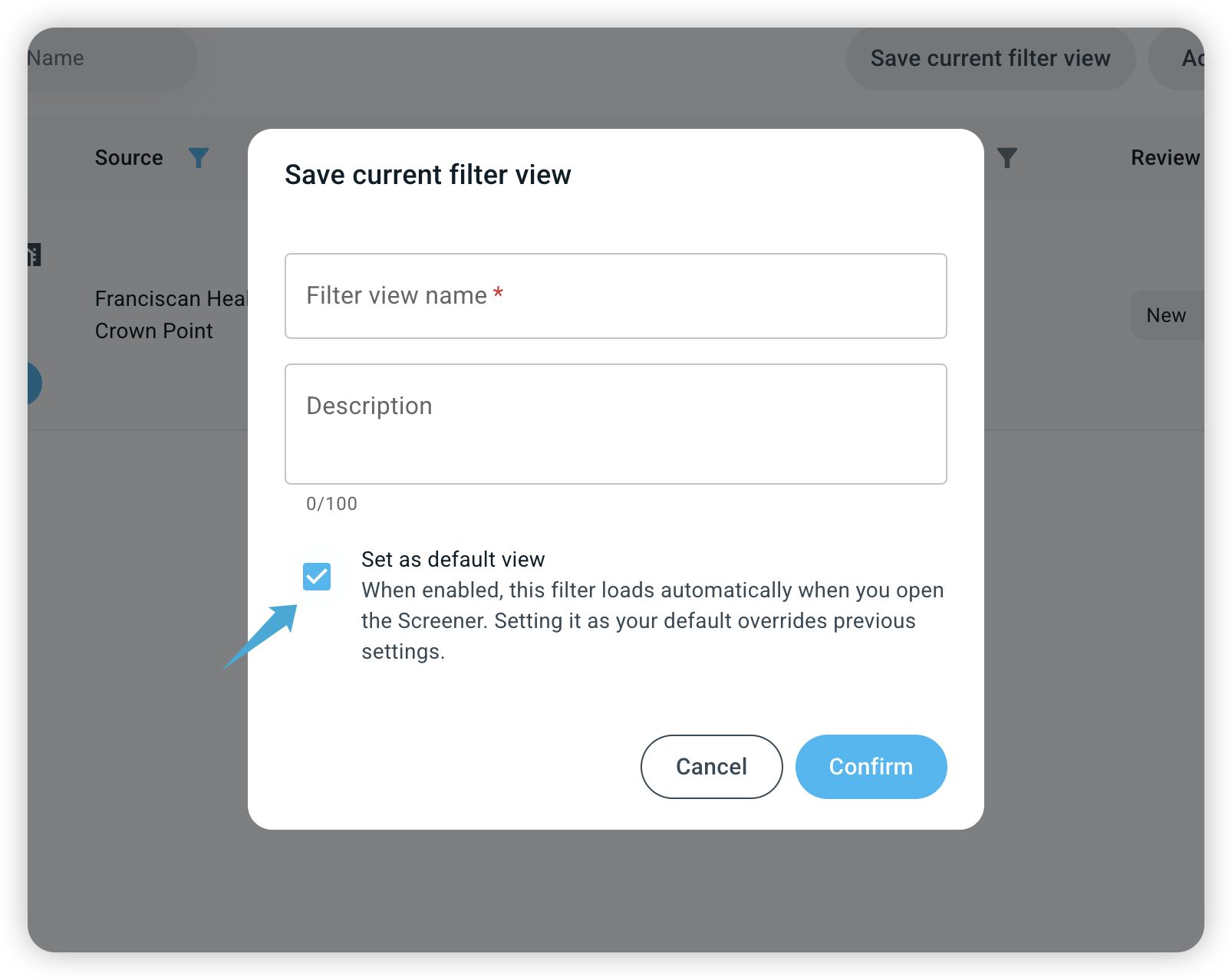
Set this view as your Default view if you want this filter applied automatically on login.
To find your saved personal filters:
Click the filter button.
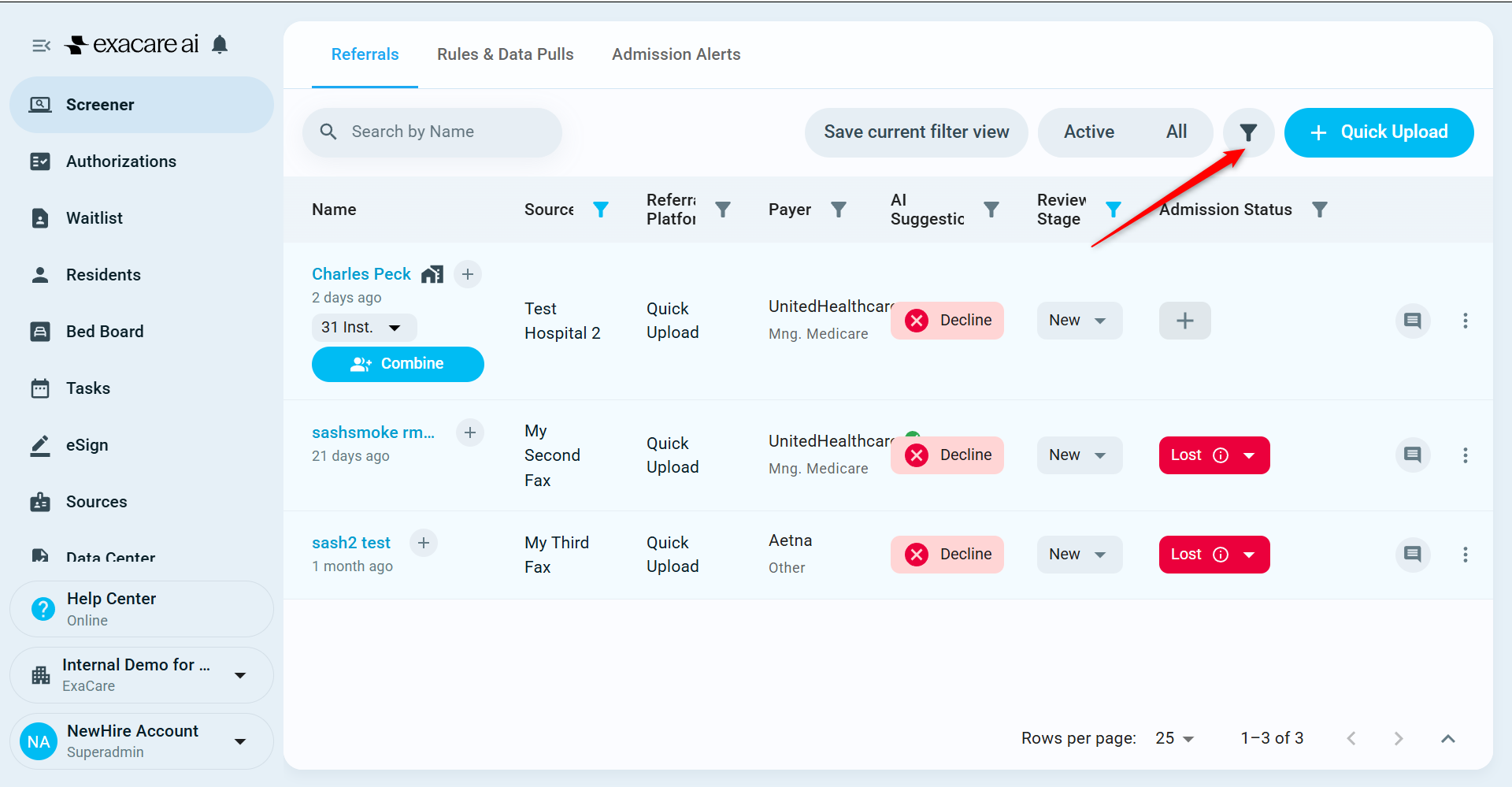
Select the filter you would like to view from the dropdown.
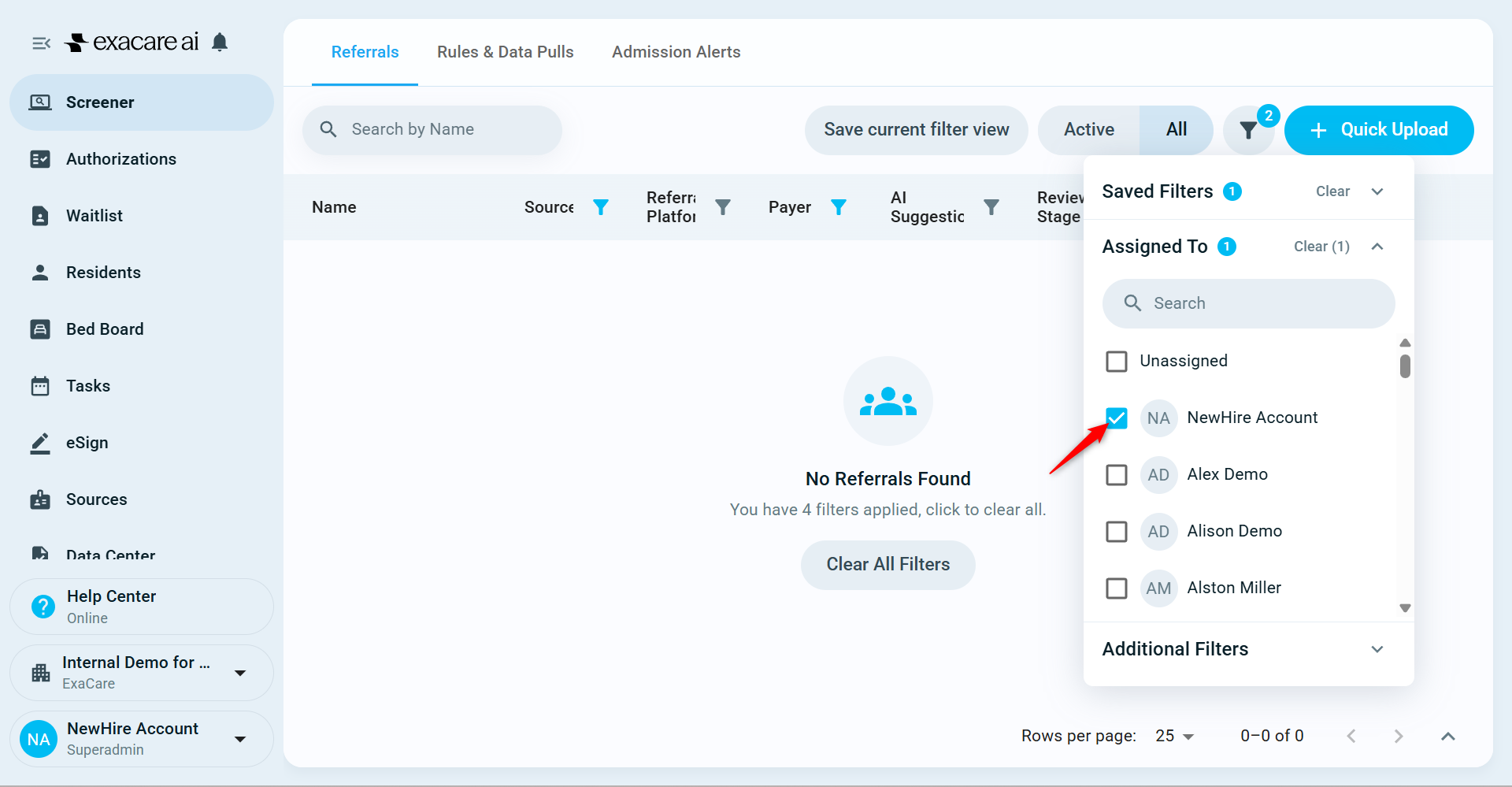
The filter will now be applied to your screener grid.
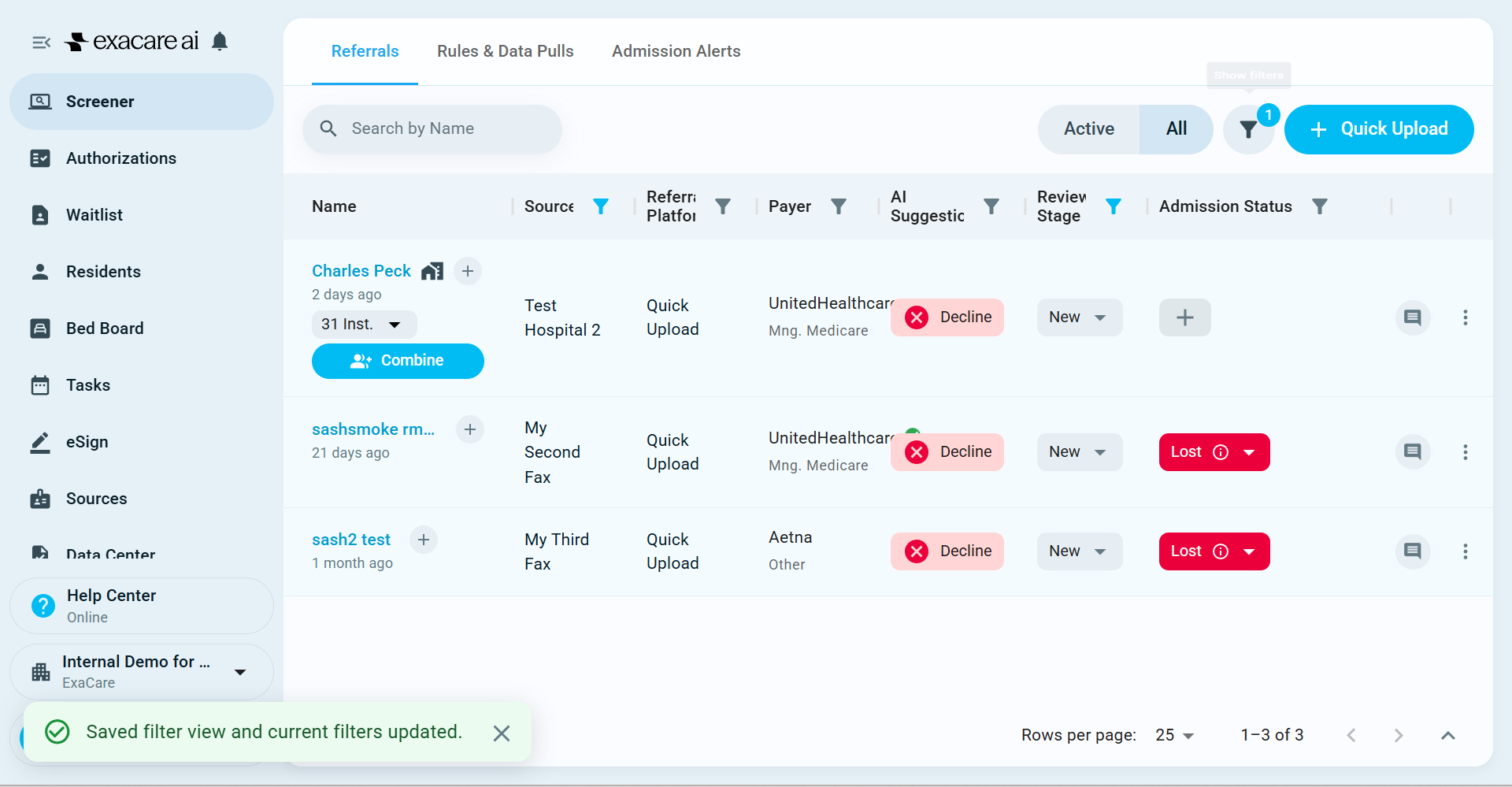
You can create multiple personal filter views, but only one default view.