Bulk update referrals
Last updated: June 11, 2026
Bulk update referrals lets you apply the same review stage or Lost decision to multiple instances of the same patient (matched by name and date of birth) in a single step.
This is useful when:
A referral has been sent to multiple facilities and you want to decline or accept across all of them at once
A referral has been sent multiple times to the same facility and you want to bulk update them
You want to move one referral as booked or moved-in and mark the rest as Lost
How to use it
The bulk update flow is triggered automatically when you update the review stage or mark a referral as lost and there are multiple referrals with a matching full name and date of birth.
Step 1: Update the review stage/mark as lost on any instance
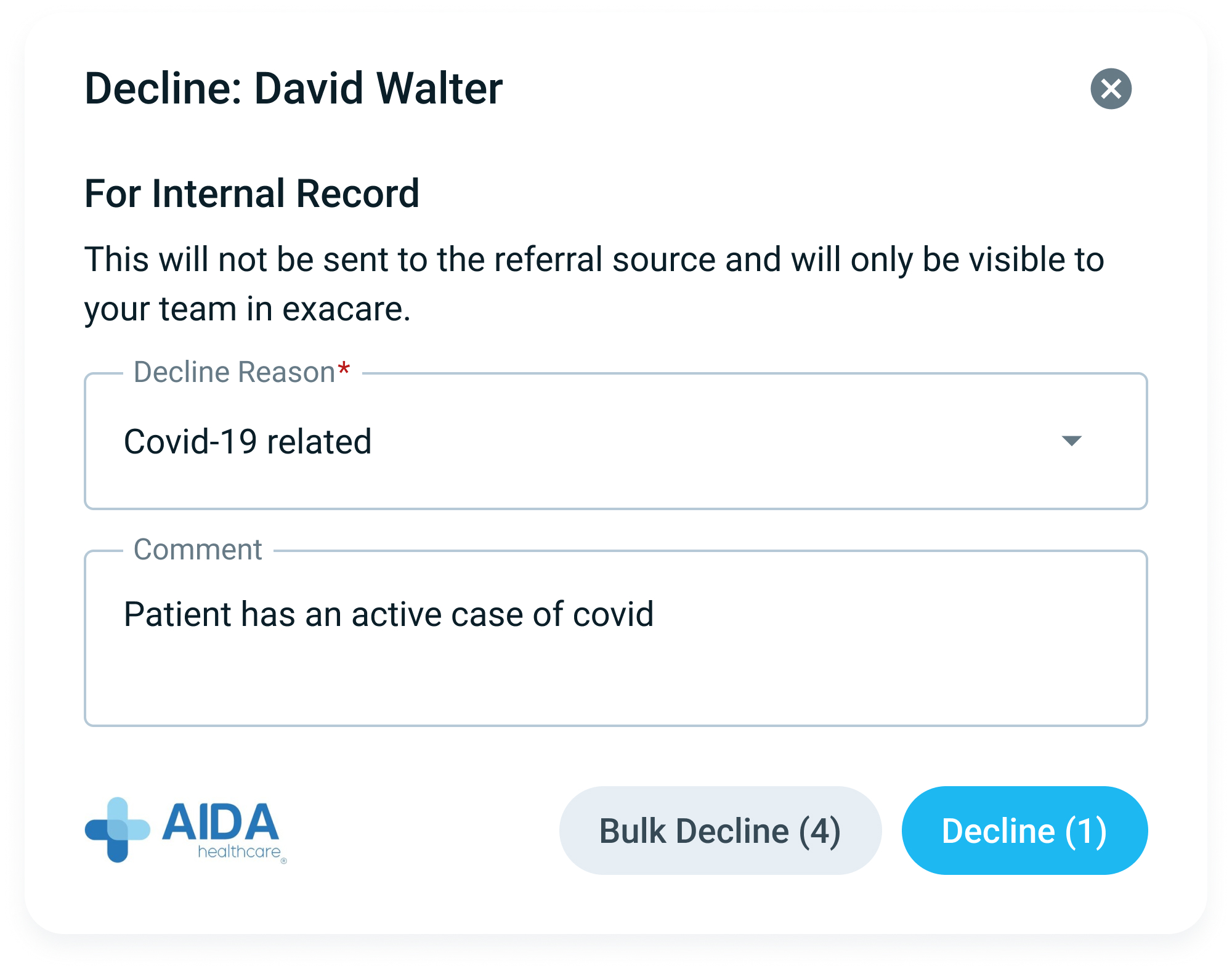
Click the Review Stage/Admission Status on a referral and fill in the details as usual (decline reason, comments, etc.).
Step 2: Choose to bulk update
If exacare detects other eligible instances for the same patient, a Bulk Update button will appear at the bottom of the modal. Click it to open the instance selection screen.
If no eligible instances exist, no button appears and the update applies to just the selected referral as normal.
Step 3: Select and confirm
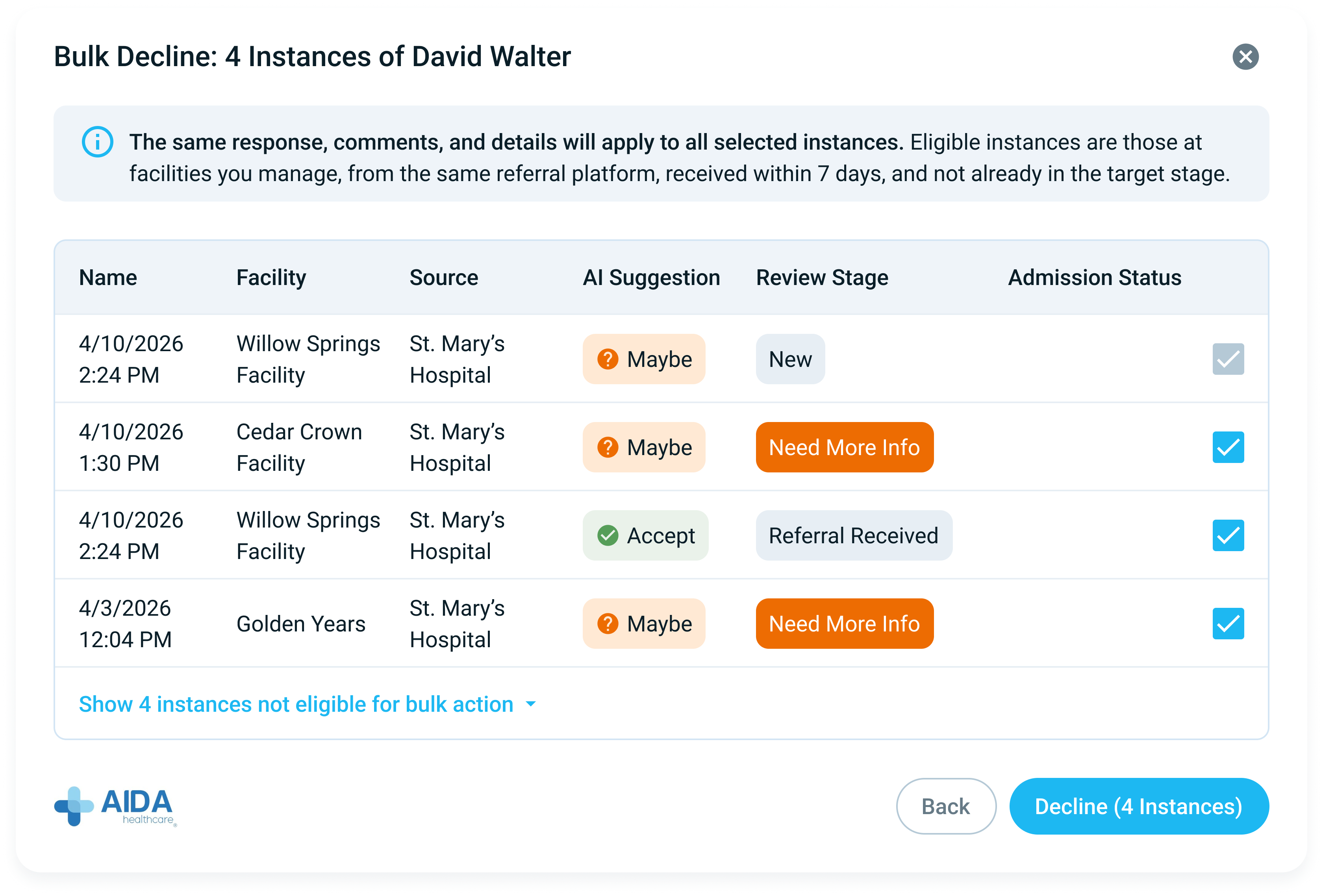
All eligible instances are pre-selected by default
Uncheck any you'd like to exclude
The instance you originally updated is always included and cannot be removed
The same notes, comments, and response details apply to every instance you select. If you need to customize the response for a specific instance, update it separately instead.
Which instances appear in the modal?
Exacare only shows instances that meet all of the following criteria:
Same referral platform as the instance you're updating. Instances from a different platform will not appear.
Received within the right time frame: the instance must have been received no more than 7 days before the selected instance, or any time after it
Same source as the selected instance
No final decision already applied (for review stage changes, not already Accepted or Declined)
Not already declined (for Mark as Lost only)
At a facility you have access to
Referral platform is currently connected (no temporary outage)
Instances that don't qualify
These appear in a collapsed section at the bottom of the modal labeled "Show [X] instances not eligible for bulk update." Hover over the ⓘ icon next to each one to see why it was excluded.
Common reasons:
Already has a final decision (accepted or declined)
Already declined (if you bulk update as lost)
Source is different
Already has an admission status
Referral platform connection is temporarily disabled
Permissions
The bulk update referrals option is available to any user who has permission to update the review stage. If you can action a single instance, you can bulk update across multiple instances - no additional permissions are required.
FAQs
Can I choose which instances to include?
Yes. All eligible instances are pre-selected, but you can uncheck any you don't want to include. The instance you originally updated will always be included.
What if I only want to update one instance?
Click the primary button (not the bulk update option) to apply the action to only the selected instance. The bulk update button is always optional.
Will my reasons and comments apply to every instance?
Yes. Whatever you enter in the review stage details will be applied to all selected instances. There is no way to customize per instance within a single bulk update.
Does this work across facilities?
Yes. Whether you are in all facilities view or a single facility view, the instance selection screen shows eligible instances across all facilities you manage.
Why don't I see the bulk update button?
The prompt only appears when exacare finds other eligible instances for that patient. The most common reasons it doesn't appear is because other instances:
Are from a different referral platform
Already have an Accept or Decline decision, or an admission status
Fall outside the 7-day time window
Have a different source
Can I undo a bulk update?
No. Once confirmed, the update is applied to all selected instances and cannot be reversed in bulk. If you need to make a correction, update each instance individually.
Can I bulk book or move-in referrals?
No, bulk updates are only available for Accept, Decline, Referral Received, Need More Info, and Lost.