Reports, Facesheet and Activity
Last updated: January 15, 2026
Navigating the Screener: Reports, Facesheets, and Activity
Please refer to the training video below for a tutorial on the Report, Facesheet and Activity tabs.
The Report Tab
The Report tab uses AI to generate a brief (2-3 page) patient summary which you can download and print.
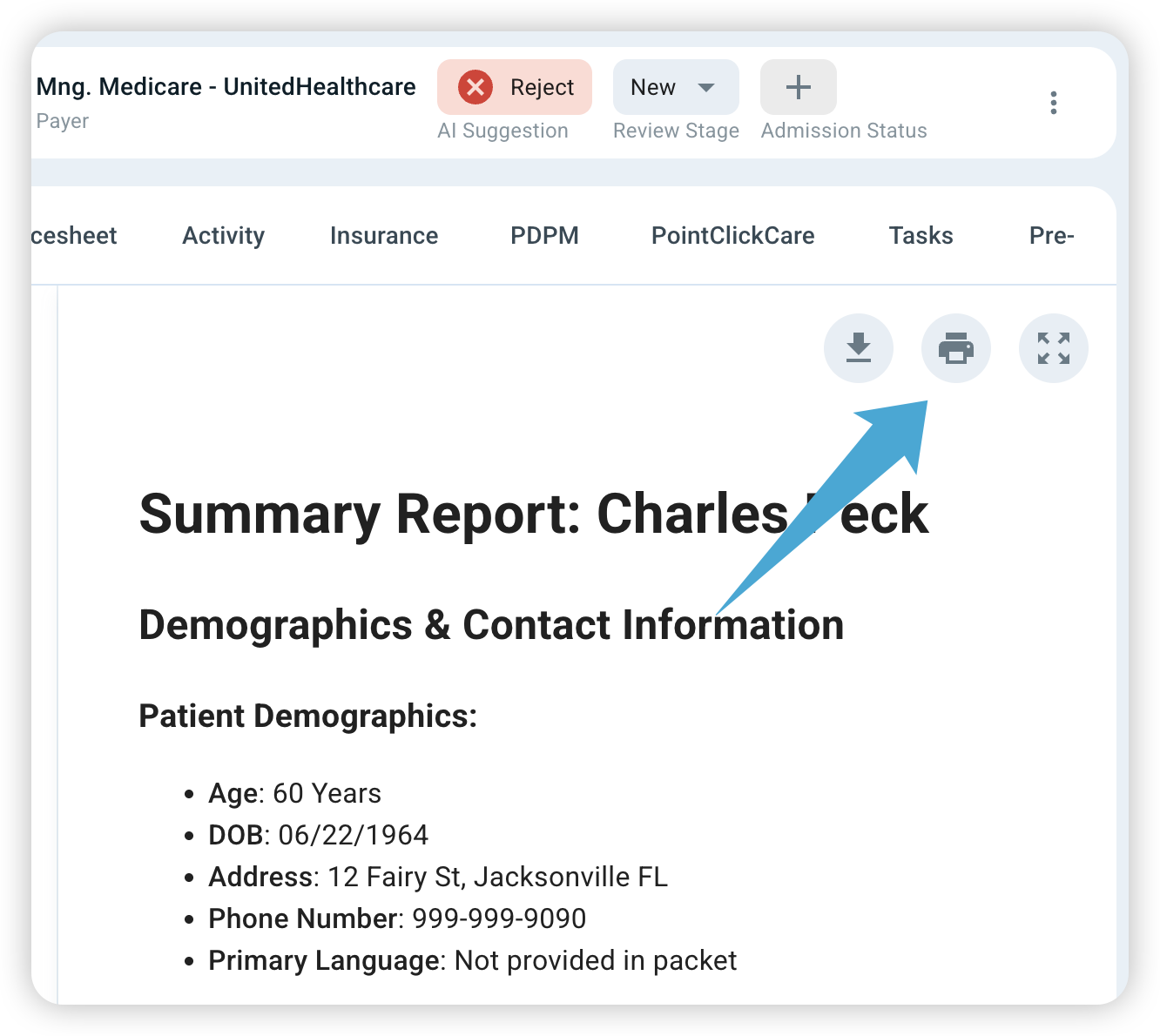
Key sections in the report include:
Demographics & Summary: A quick snapshot of the patient's personal information.
Patient 101: An overall view of the patient's current situation.
Admission and Hospital Course: Why they were admitted and what treatments they received.
Discharge & Care Plans: Specific requirements the patient needs upon discharge including therapy services, equipment, dietary needs, behavioral and cognitive status and follow-up appointments/outpatient services.
Diagnoses & ICD-10 Codes: Diagnoses with ICD-10 Codes and other medical conditions included in the packet.
Living Conditions & Social History: Insights into their prior living conditions and social habits.
Social & Insurance: An overview of key insurance details.
2. The Facesheet
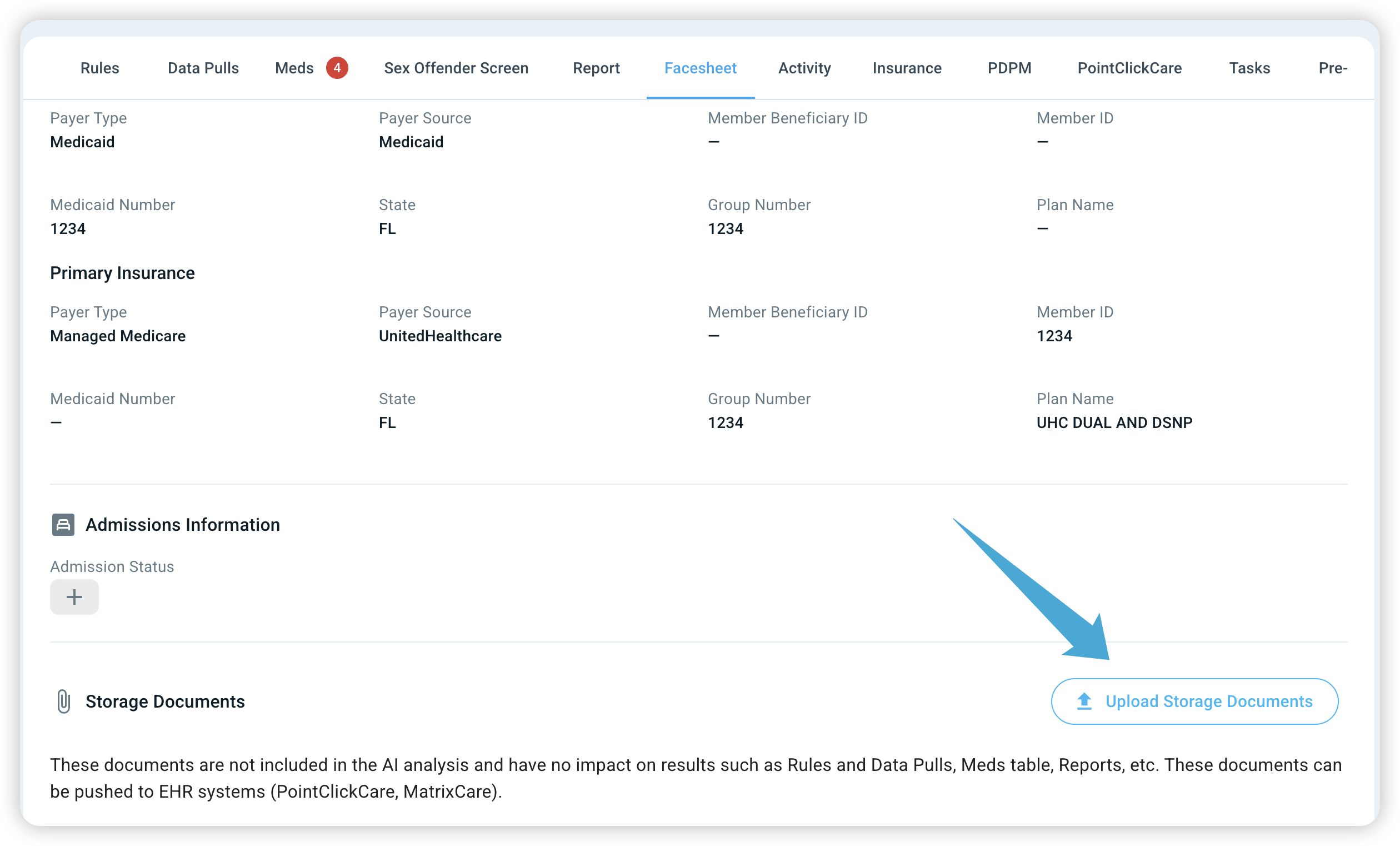
The Facesheet provides bite-sized information about the referral in a highly structured format.
Referral information: Displays basic patient details, the AI Suggestion and the Review Stage.
Additional information: Shows demographic details and contact information.
Insurance information: Provides key details about primary and secondary insurance.
Admissions Information: Shows information about the patient's Admissions Status in your facility.
If you want to add documents that will not be included in the AI's analysis and have no impact on results such as Rules and Data Pulls, Meds table, Reports etc. scroll to the bottom of the page and click 'Upload Storage Documents'. These documents can still be pushed to your EHR System (PointClickCare or MatrixCare).
3. The Activity Tab
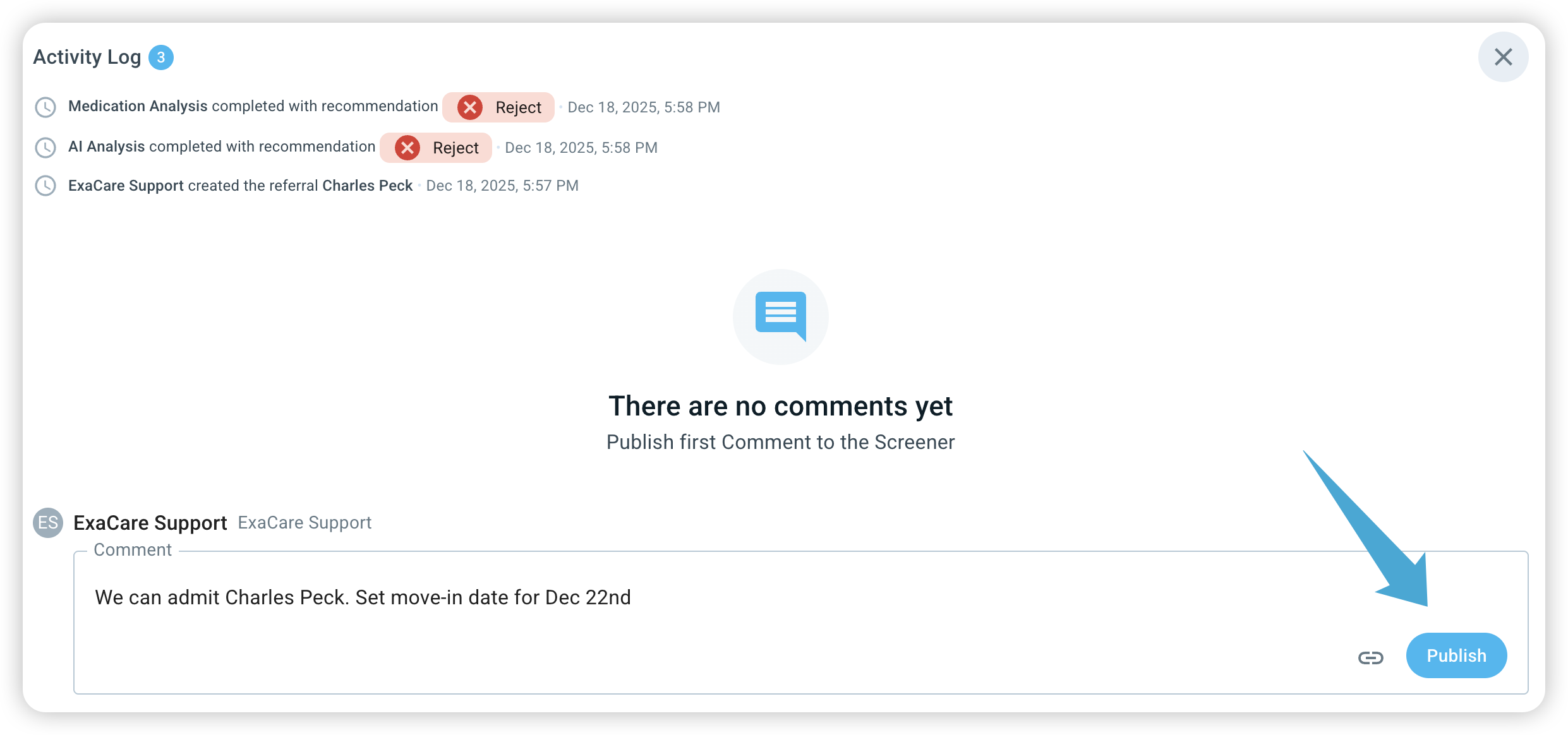
The Activity tab acts as a timeline for each referral. The 'Activity Log' tracks every action taken from the moment the referral was uploaded into ExaCare:
AI analysis completion
Status changes
Tasks
This is also a great internal collaboration tool. You can use the comment section below the Activity Log to discuss the referral with your colleagues.
AI Conversation Summary: As your team adds more comments, the AI will automatically generate a summary of your discussion. This allows anyone jumping into the referral later to catch up on the conversation in seconds.