How to Use the Discharge Calendar
Last updated: October 5, 2026
Who this is for: Discharge Planners and Social Workers, Admissions Directors, Administrators and Directors of Nursing who need to see upcoming discharges, and anyone who schedules discharges or sends referrals for residents leaving your facility.
Before you start
If you don't see Calendar in the left-hand navigation, contact your account lead.
To schedule a discharge, the resident must have Moved In status at your facility.
A calendar entry needs a date: a scheduled discharge, a completed discharge, or an open referral with a date.
What the Discharge Calendar is
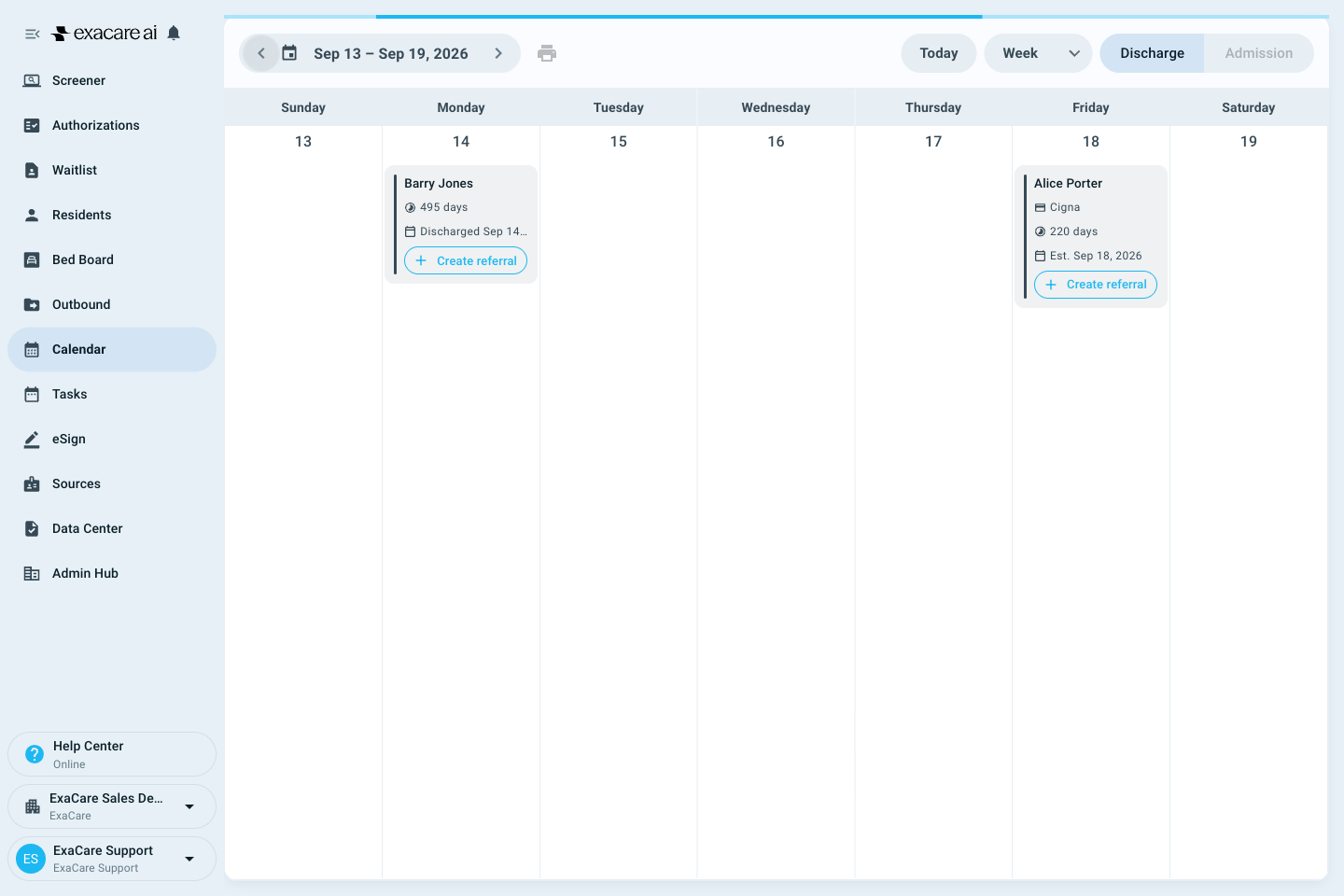
The Discharge Calendar brings scheduled and completed discharges into one view for your selected facility. Add a scheduled discharge date to show a resident's planned discharge, even if they don't need an outbound referral. Completed discharges appear on the day the resident left.
Understanding the Calendar view
How discharge is labeled in the app: use Scheduled Move-Out to enter a planned discharge date. To record a completed discharge, choose Moved-Out and enter the actual date in Moved Out Date. This article uses "discharge" in explanations and the exact app labels in the steps below.
Open Calendar in the left-hand navigation.
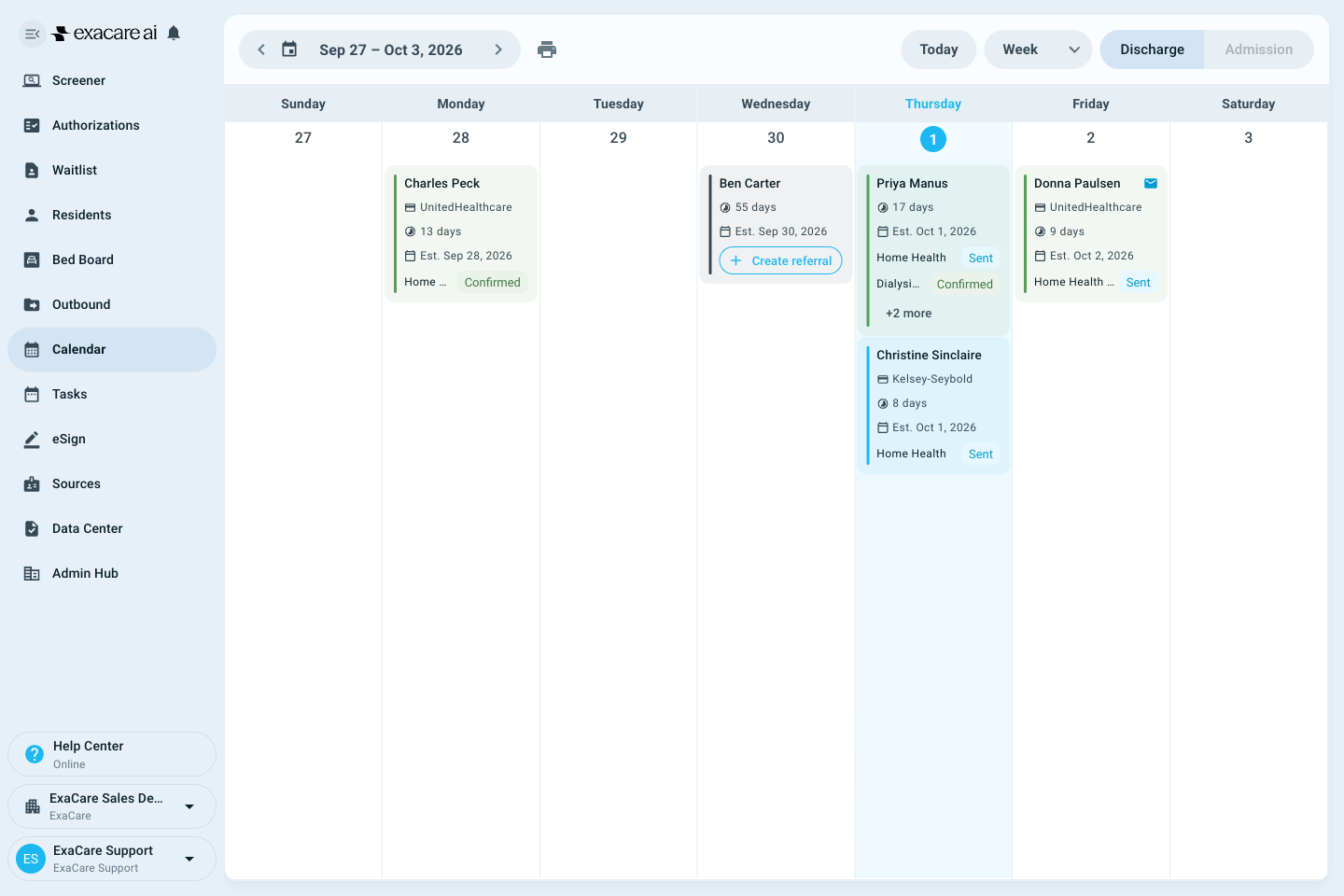
Each resident's card shows:
Resident name
Payer
Length of stay (days from start of care to the discharge date)
The discharge date
Open referrals for that resident, with their statuses. Select + more when there are more than two.
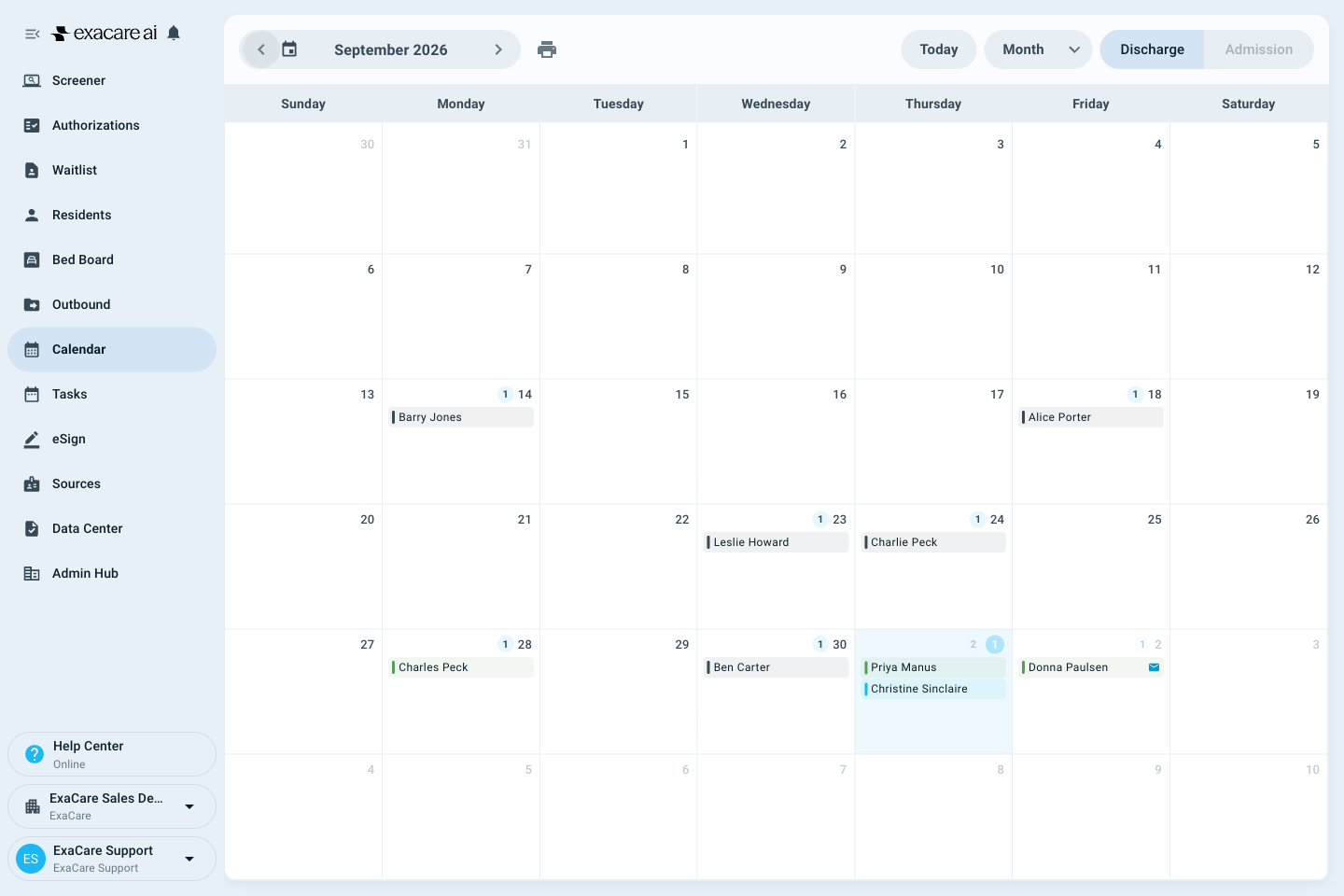
Use Week to see the full resident cards, or switch to Month for an overview. Use the arrows to browse dates and Today to return to the current period. The print icon prints the current view.
Choose how a referral uses the date. When you create a referral, Discharge (scheduled move-out) uses the resident's scheduled discharge date. Set a specific date lets you enter a separate date for that referral. Check which option you're using when plans change.
The calendar and the date follow your selected facility. If you manage more than one facility, check which facility is selected before you look for a resident.
How to set up the Discharge Calendar
Enter a scheduled discharge date for each resident who is leaving, using the Scheduled Move-Out field. The calendar fills in from these dates.
Open the Residents tab.
Find the resident. Select the three-dot menu on their row.
Select Edit admission status details.
Enter the planned discharge date in Scheduled Move-Out. The date can't be before the move-in date.
Add a comment if needed.
If Start the first signature request for this admission is shown, uncheck it. You're updating discharge details for an existing resident, so you don't need to start a new admission signature request.
Select Save Changes.
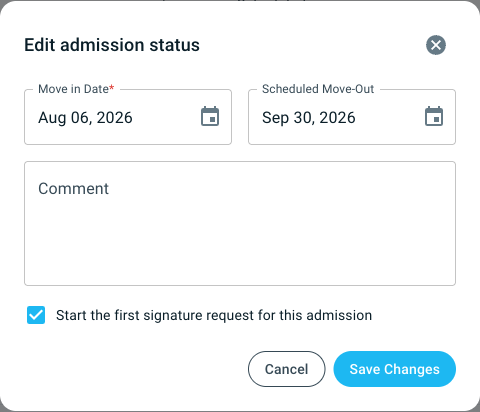
The resident now appears on the calendar on that date.
Tip: check the Move-Out Date column in the Residents table. Use Customize Table if it's hidden. N/A means no discharge date has been entered; check for a separately dated referral if that resident still appears on the calendar.
Make this part of your routine. Keeping scheduled discharge dates current helps your team see upcoming discharges and coordinate the referrals that use those dates.
How to manage scheduled and completed discharges
Scheduled discharges
A discharge is scheduled until you record it by changing the resident's admission status to Moved-Out. On the calendar, a scheduled discharge shows its date with the label Est. (estimated).
To change the date:
Open the Calendar.
On the resident's card, select the date.
Update Scheduled Move-Out in the Edit admission status form.
If Start the first signature request for this admission is shown, uncheck it.
Select Save Changes.
You can also change the date from the resident's admission status details in the Residents tab. Both places update the same date.
To take a resident off the calendar (for example, the family changed the plan and the resident is staying):
Open the resident's admission status details in the Residents tab.
Clear Scheduled Move-Out and remove any comment that no longer applies.
If Start the first signature request for this admission is shown, uncheck it.
Select Save Changes.
Clearing the scheduled date removes the planned discharge. Changing the payer doesn't clear that date. If the resident still appears on the calendar, check whether an open referral has a separate date. Don't change the resident's status to Moved-Out when they're staying.
Completed discharges
Record a completed discharge after the resident leaves:
Open Residents and find the resident.
Select their current Admission Status, then choose Moved-Out.
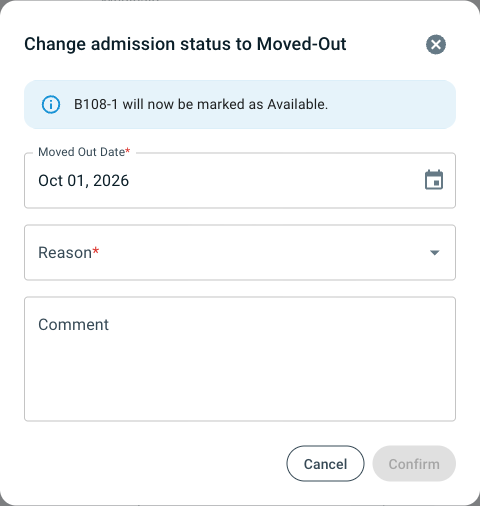
Enter the actual discharge date in Moved Out Date and choose a Reason. Add a comment if needed.
Review the bed availability notice, then select Confirm.
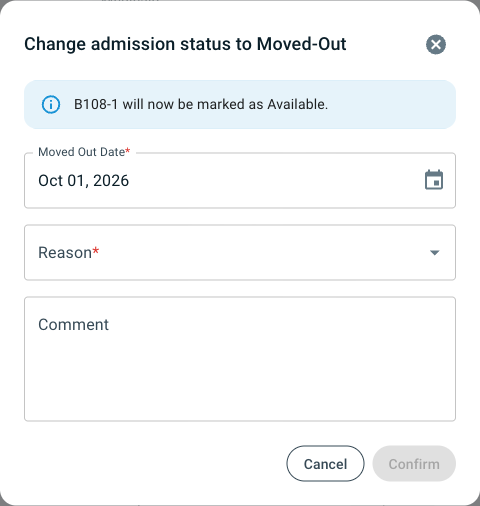
After you record the discharge by changing the status to Moved-Out:
The date label changes from Est. to Discharged.
The resident stays on the calendar on the day they left, so you can look back at past discharges.
You can no longer change the actual discharge date from the calendar.
A scheduled date passing doesn't automatically change the resident's status to Moved-Out. An overdue planned discharge can still show Est.
How to manage referrals from the calendar
Create a referral
Open the Calendar and find the resident's card.
Select Create referral.
The resident is already selected. Choose the referral type.
Under Referral date, keep Discharge (scheduled move-out) to use the resident's scheduled discharge date, or choose Set a specific date for a separate referral date.
Continue through Recipients, Documents, and Confirm. Review the recipient and documents before sending.
Select Confirm and send when ready to send the referral.
The Create referral button appears on a card when the resident has no referral yet, or when a recipient has declined a referral. A resident can have more than one referral, for example Home Health and Dialysis; create each one separately. If there's no Create referral button on the card, open Outbound and choose Create Outbound Referral, then select the resident.
For the full referral steps, see How to Send an Outbound Referral.
Follow up on a referral
Each referral appears on the resident's card with a status:
Status | What it means |
|---|---|
Draft | The referral is started but not sent. |
Sent | The referral has been sent. Open it to check the recipient’s response. |
Confirmed | You confirmed the placement with the recipient. |
Declined | A recipient declined the referral. A Create referral button appears so you can send to another recipient. |
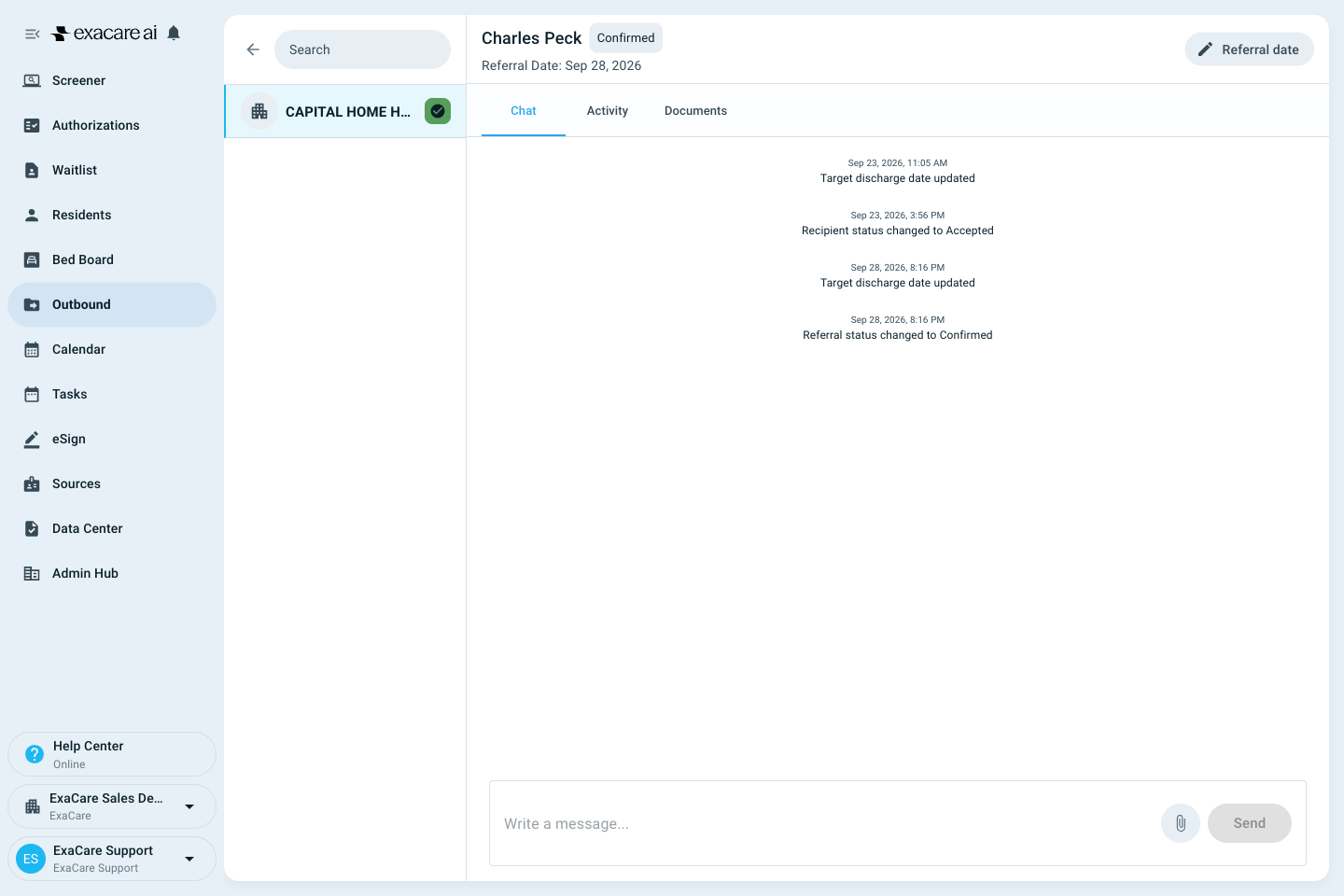
Select a referral on the card to open it. You can read messages, add documents, and see the activity log.
A mail icon on the card means the recipient sent a message you haven't read.
If a resident has more than two referrals, select + more on the card to see the rest.
A referral you close no longer appears on the card. The resident can remain on the calendar if they still have a discharge date or another open referral.
What happens when the date changes
Referrals using Discharge (scheduled move-out) follow the resident's scheduled discharge date. A referral created with Set a specific date has its own date, which you should review separately when plans change. Open the referral and check Referral Date before relying on it for discharge coordination.
FAQs
Q: A resident is leaving, but they're not on the calendar. Why?
A: Check the selected facility and the week or month you're viewing. Then open the resident's admission status details in Residents and check Scheduled Move-Out. Add the date if it's missing.
Q: Why does the app say "move-out" when I'm scheduling a discharge?
A: The app uses move-out labels for discharge. Scheduled Move-Out is the planned discharge date. Moved-Out is the admission status you select to record that the resident has left, and Moved Out Date is the actual discharge date.
Q: The discharge was canceled. How do I take the resident off the calendar?
A: Clear Scheduled Move-Out and remove any outdated comment in their admission status details. If the resident still appears, check for a separately dated open referral. Don't select Moved-Out; that records an actual discharge.
Q: Can I change the date from the calendar?
A: Yes, for a scheduled discharge, including one with no referral. In Week view, select the Est. date on the resident's card. A completed Discharged date isn't editable from the calendar.
Q: A resident has a date and a Create referral button, but no referral. Do I have to send one?
A: No. Residents with a discharge date appear on the calendar even if they're going home or don't need a referral.
Q: Why did a referral disappear from the resident's card?
A: Closed referrals aren't shown on the calendar. Open the Outbound tab to see closed referrals.
Q: Where do I see length of stay for all residents?
A: The calendar shows length of stay when the dates needed to calculate it are available. For a report across residents, open Data Center → Bed board snapshot. Under Full Bed Board - Customize your view, open Additional Columns to Include and select Length Of Stay Days.
When to contact exacare Support
Contact Support if the Calendar is missing from your left-hand navigation, a date doesn't update, you see something that might be an error or your question isn't answer here/
Reach us through the Help Center button near the bottom of the left-hand navigation, or by email help@exacare.com