3. Manage Your Payer List & Upload Contracts
Last updated: June 11, 2026
This guide explains how to add payers, upload contracts, and manage contract details within exacare.
Add Payers & Upload Contracts
Step 1: Access the Payer List
From the main dashboard, navigate to:
Admin Hub > Screener Settings > Payer List
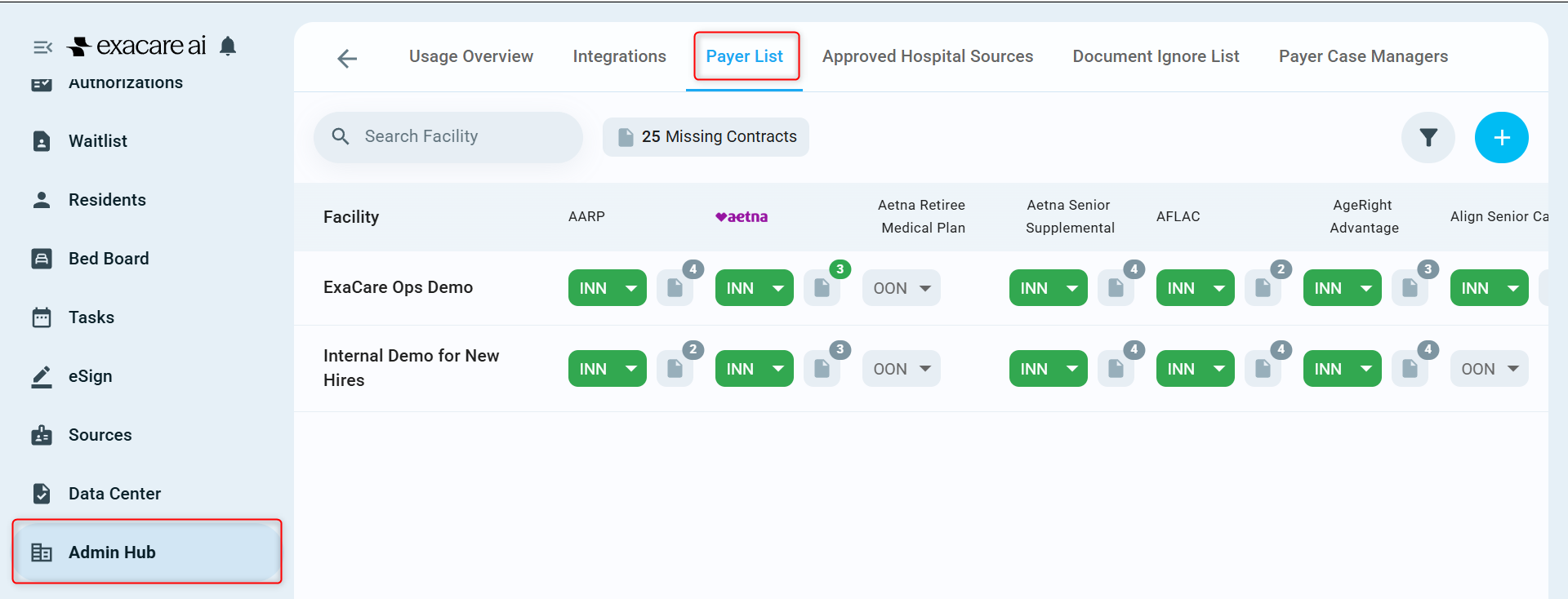
Step 2: Add or Manage Payers
a. Click Manage Payers.
b. To add a new payer:
Scroll to the bottom
Click Add Payer
c. Select or search a payer from the dropdown list (400+ options available).
d. Click Save Changes.
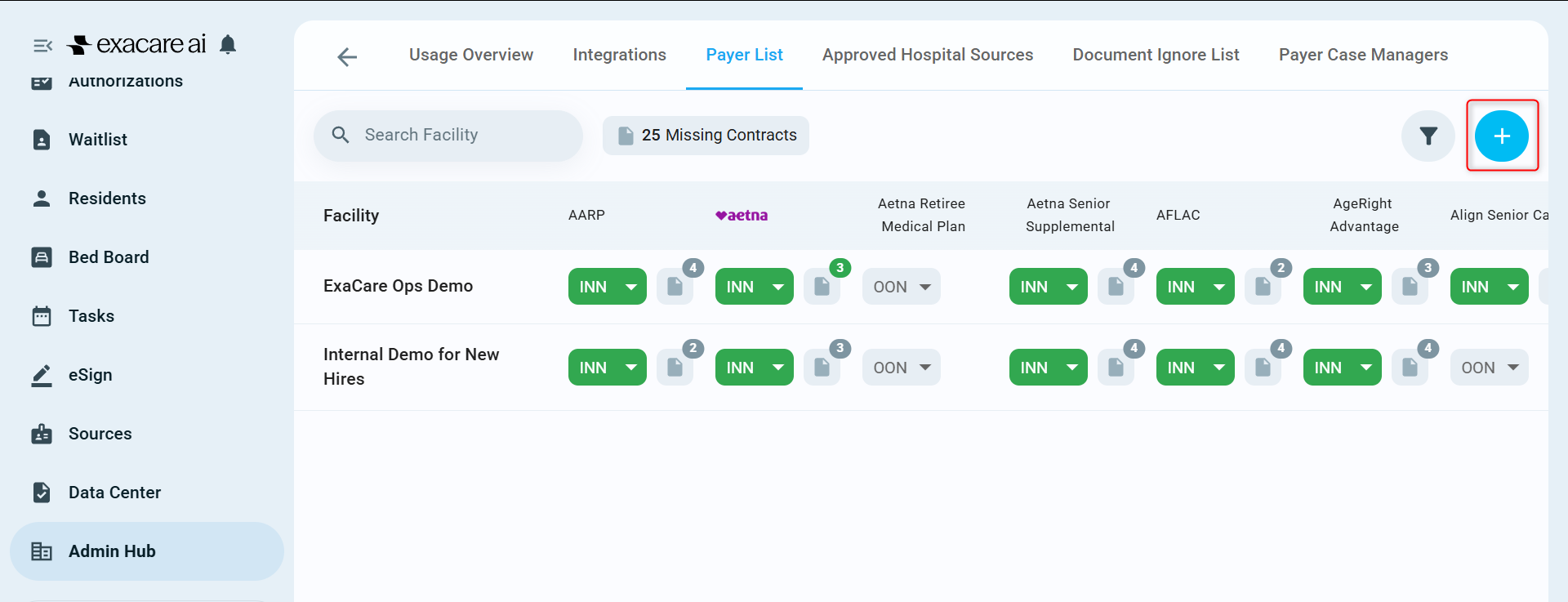
Step 3: Configure Network Status
a. Locate the newly added payer column(s).
b. For each facility:
Toggle In-Network (INN) where applicable
Leave as Out-of-Network (OON) if not applicable
Step 4: Upload a Contract
a. Click the + icon next to the in-network indicator (INN).
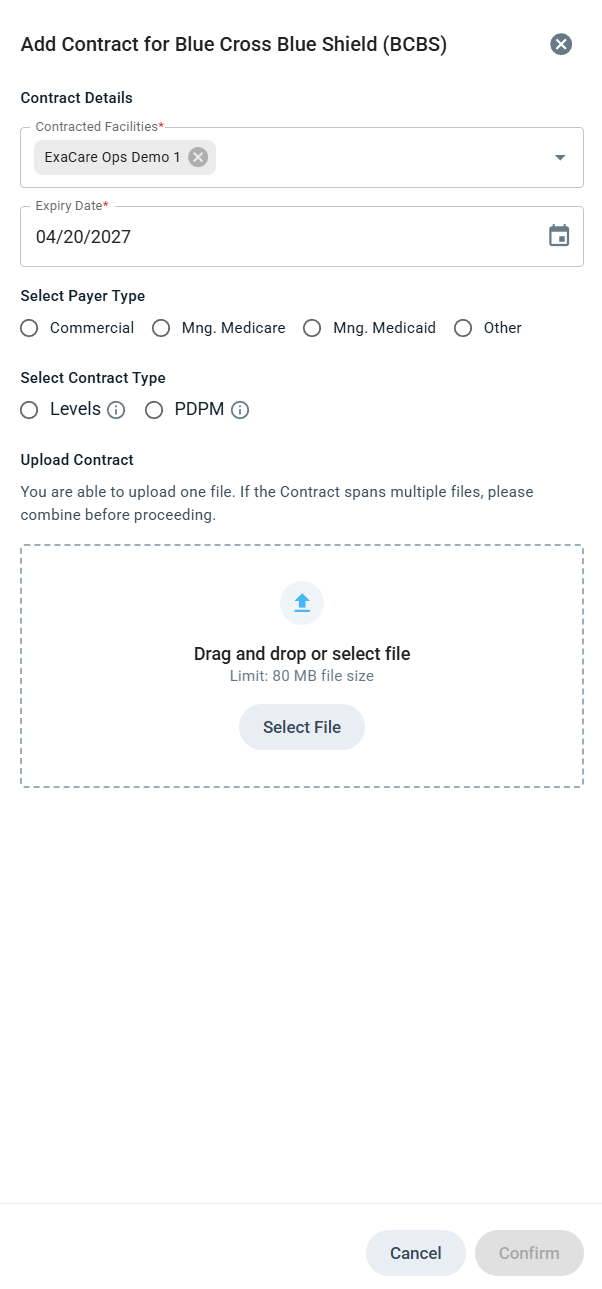
b. In the sidebar:
Select applicable Contracted facility(ies)
Set the expiry date
Choose payer type:
Commercial
Managed Medicare
Managed Medicaid
Other
c. Select contract type
Levels (contract upload required)
PDPM (contract upload optional, as authorization reports are based on CMS Chapter 8 guidelines)
d. Upload Contract
Note:
Consolidate all documents into a single file before uploading.
Only one contract per payer type may be uploaded per facility.
e. Select Confirm
Step 5: Add Additional Contracts
Repeat upload steps for each Payer type (e.g., Commercial, Medicare, Medicaid)
Please note: Only one contract may be uploaded per payer type for each facility.
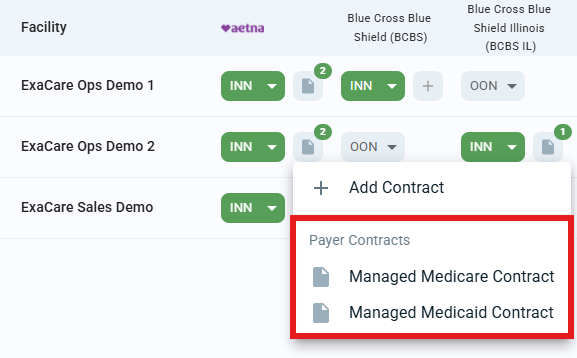
Manage Contracts
1. Expired Contracts
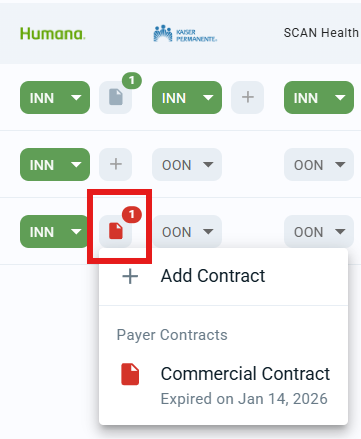
a. Look for the red review icon indicating expired contracts.
b. Click to view expired contracts. You may:
Delete the old contract and upload a new contract
Edit existing contract and update the expiry date
2. Edit a Contract
a. Open the contract.
b. Click the pencil icon.
c. Update details (e.g., expiry date).
d. Click Save Changes.
Important Notes
Expired contracts do not prevent authorizations; they serve as a reminder to renew or follow up with the payer.
PDPM and OON submissions are generated in accordance with CMS Chapter 8 guidelines.
A contract can be applied to multiple facilities, however cannot be applied to multiple payer types as each contract will vary.