1. Staff Overview
Last updated: June 11, 2026
Understanding User Roles
Roles determine what a staff member can see and change within exacare. See User Roles to get a refresher on this topic.
How to Add a New Staff Member
When a new person joins your team, you can get them set up in just a few clicks:
Click the Admin Hub in your navigation bar.
Click Staff Overview.
Click the Add Staff Member button in the top right corner.

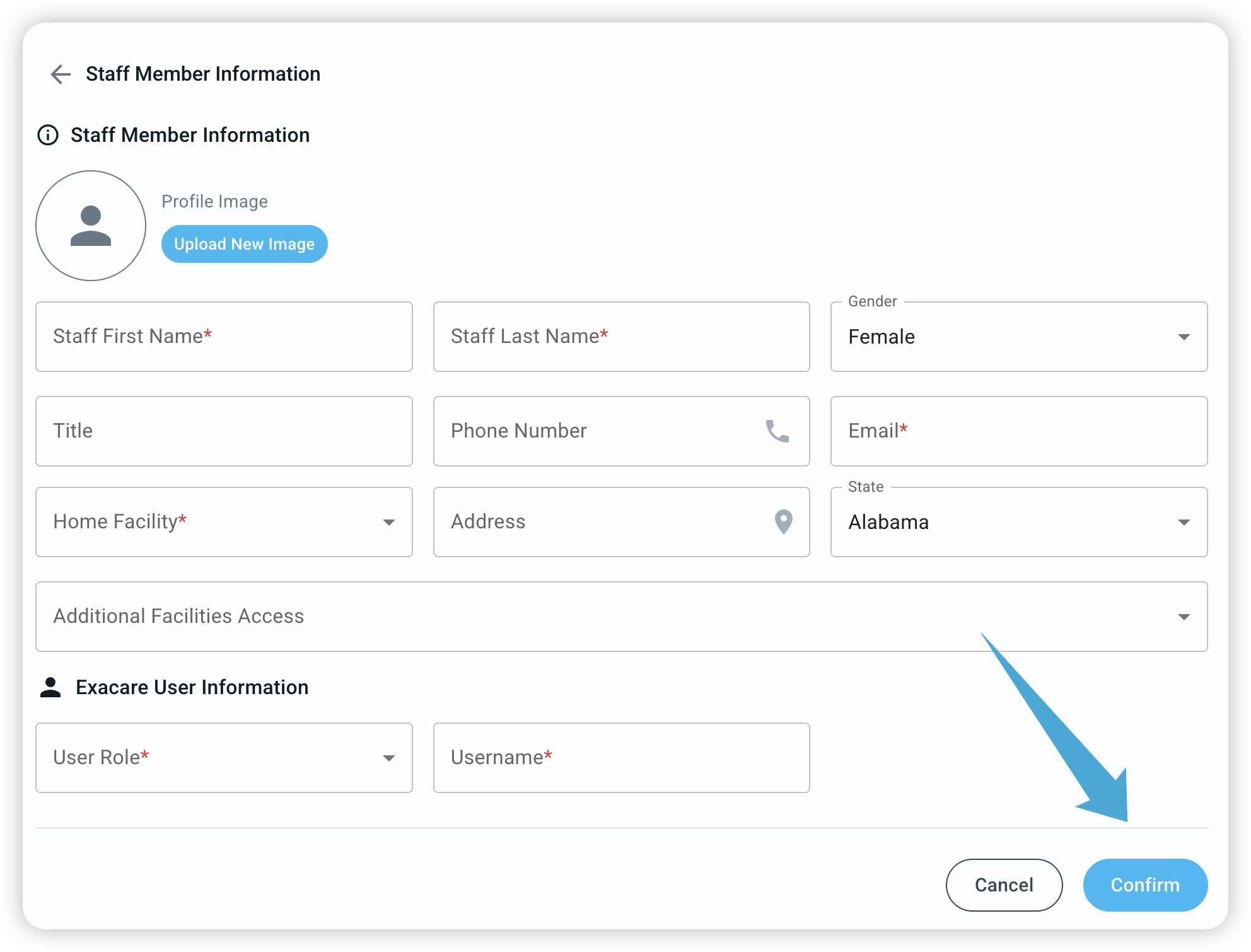
Enter their basic details (Name, Email, and Phone Number).
Select their Home Facility. If they work across multiple locations, click Additional Facilities to add more.
Choose a User Role (see the "Understanding User Roles" section above).
Click 'Confirm' to save.
Editing Permissions and Access
If you need to change what a specific person can do in the system:
Click the Admin Hub in your navigation bar, to view your staff list.
Click Staff Overview.
Click on a staff member’s name from the list to open their profile.
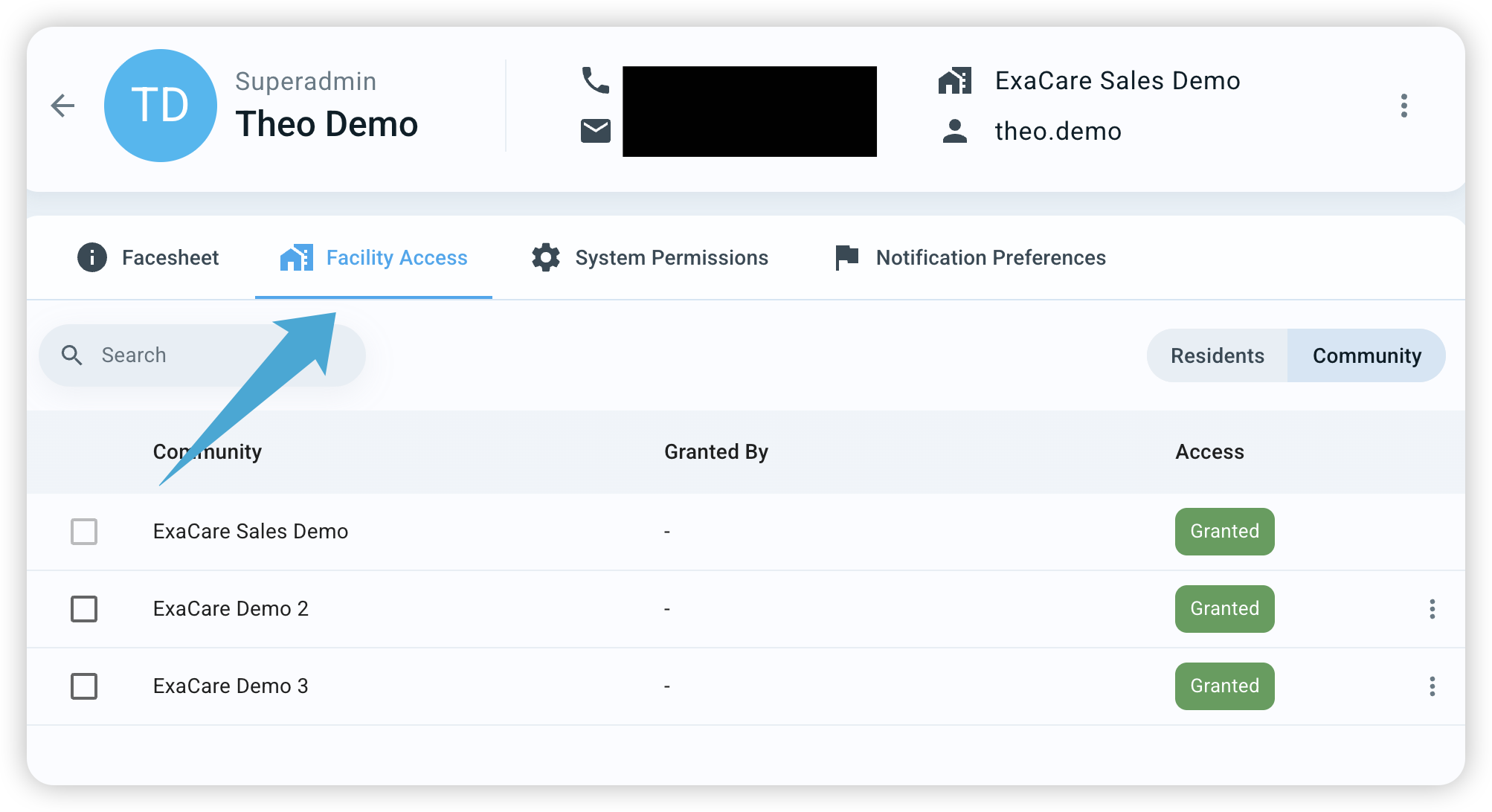
Select 'Facility Access' to see which locations the user can access. To grant access to a new facility, click the three dots (...) next to the facility name and select Grant Permission.
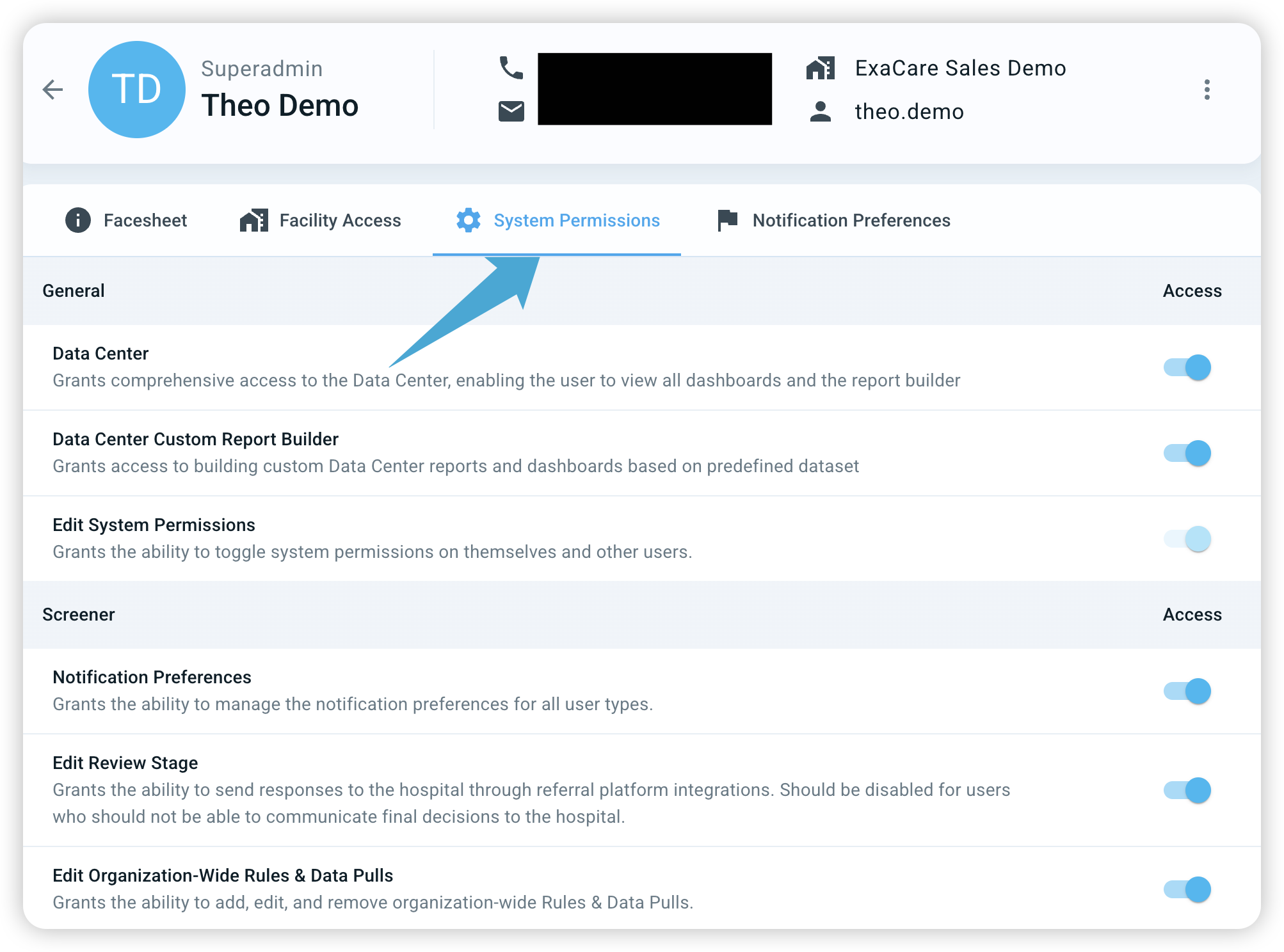
System Permissions: Use this tab to toggle specific features permissions On or Off. For example, you can turn off "Data Center" access if a user should not be able to view dashboards or build reports. (See the Account Permissions article to learn more about your own permissions).
Managing Notifications
Control how and when you (or your staff) receive updates about new referrals or documents. (See the Notification Preferences article to learn how to configure your notifications).
Go to the Notification Preferences tab.
Choose your delivery method: Bell (in-app), Email, or SMS (text).
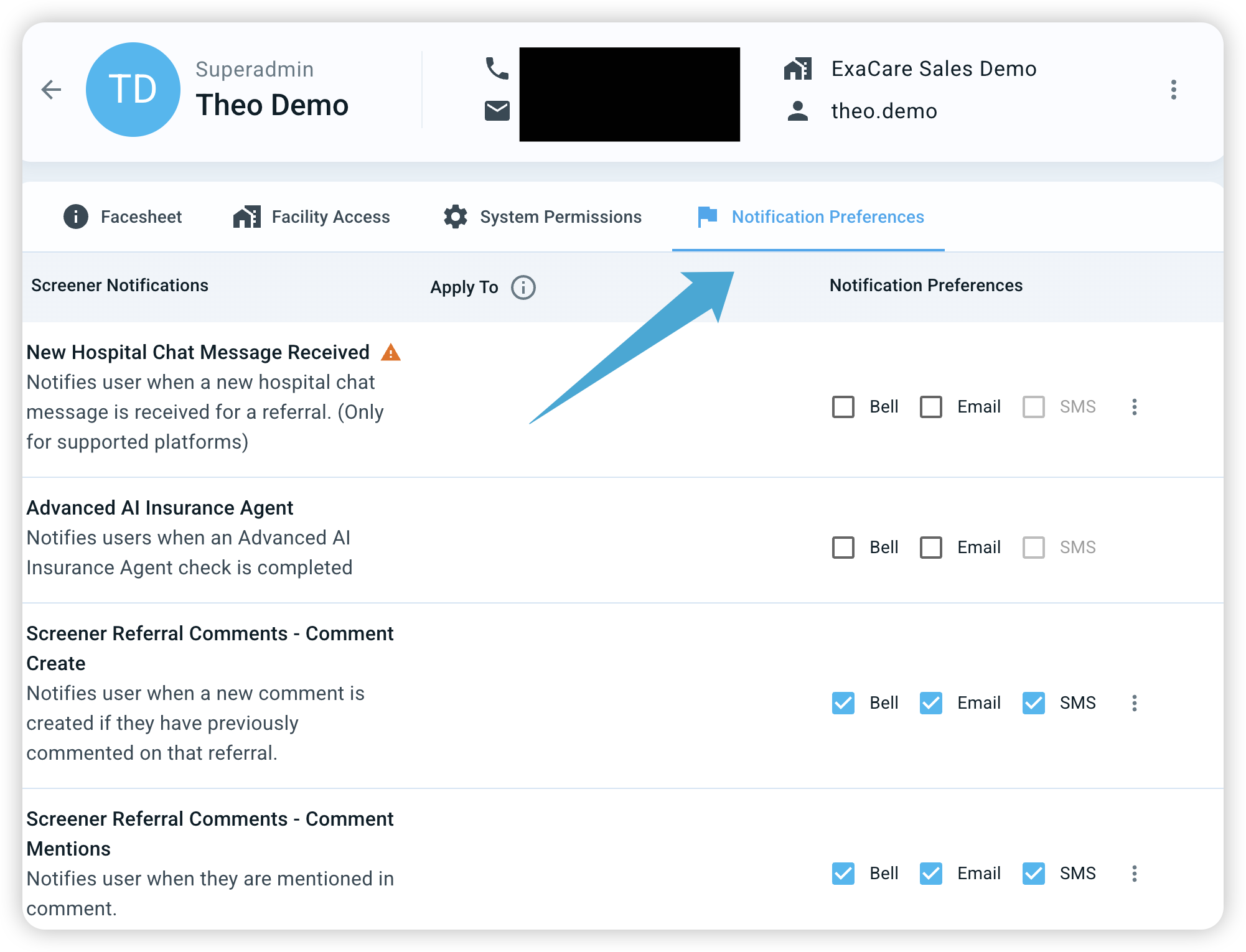
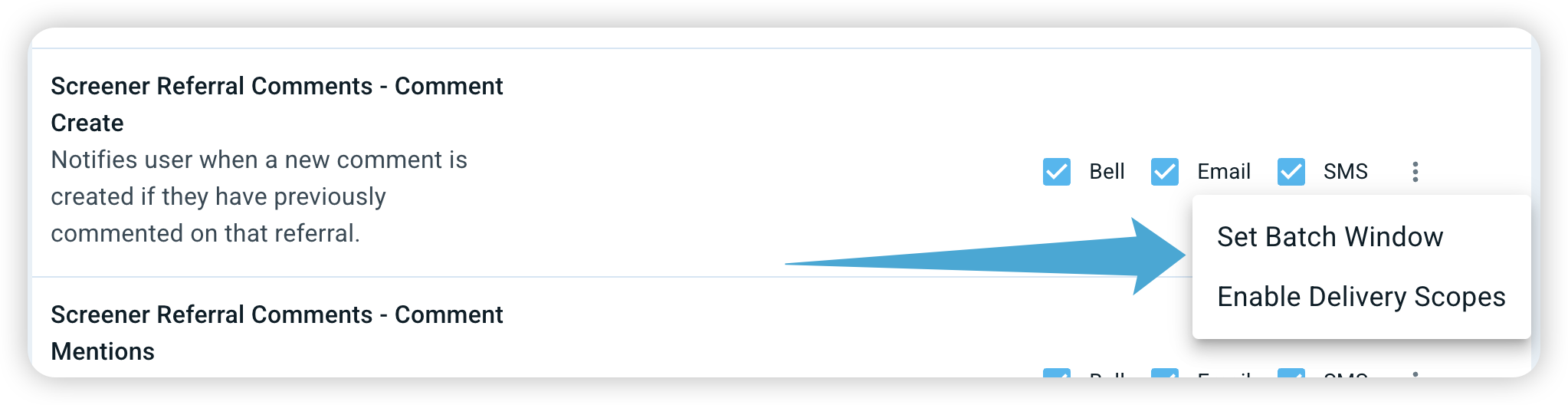
Set a Batch Window: If you don't want to receive notifications all day, click the three dots (...) and select 'Set Batch Window'. For example, you can choose to receive all your notifications once every two hours.
Enable Delivery Scope: This allows you to filter notifications. You can choose to only receive alerts from specific facilities or specific referring hospitals.
Quick Tip: Use the "Batch Window" for notifications if you find yourself getting too many notifications throughout the day. It’s a great way to stay focused while still getting regular updates!