Setting Up Templates
Last updated: June 22, 2026
Templates are the documents you want signed. An admin/superadmin creates a customized template once, and anyone can then use it when sending a signing request. Check out the short video tutorial below to get started!
Before you start
You will need:
A PDF of the document you want to turn into a template (for example, your admission agreement or arbitration agreement)
Superadmin or admin permissions in exacare ai. Only superadmins or admins can create and publish templates
Creating a template
Navigate to Admin Hub > eSign Documents Templates and click Create eSign Template. The setup has four steps.
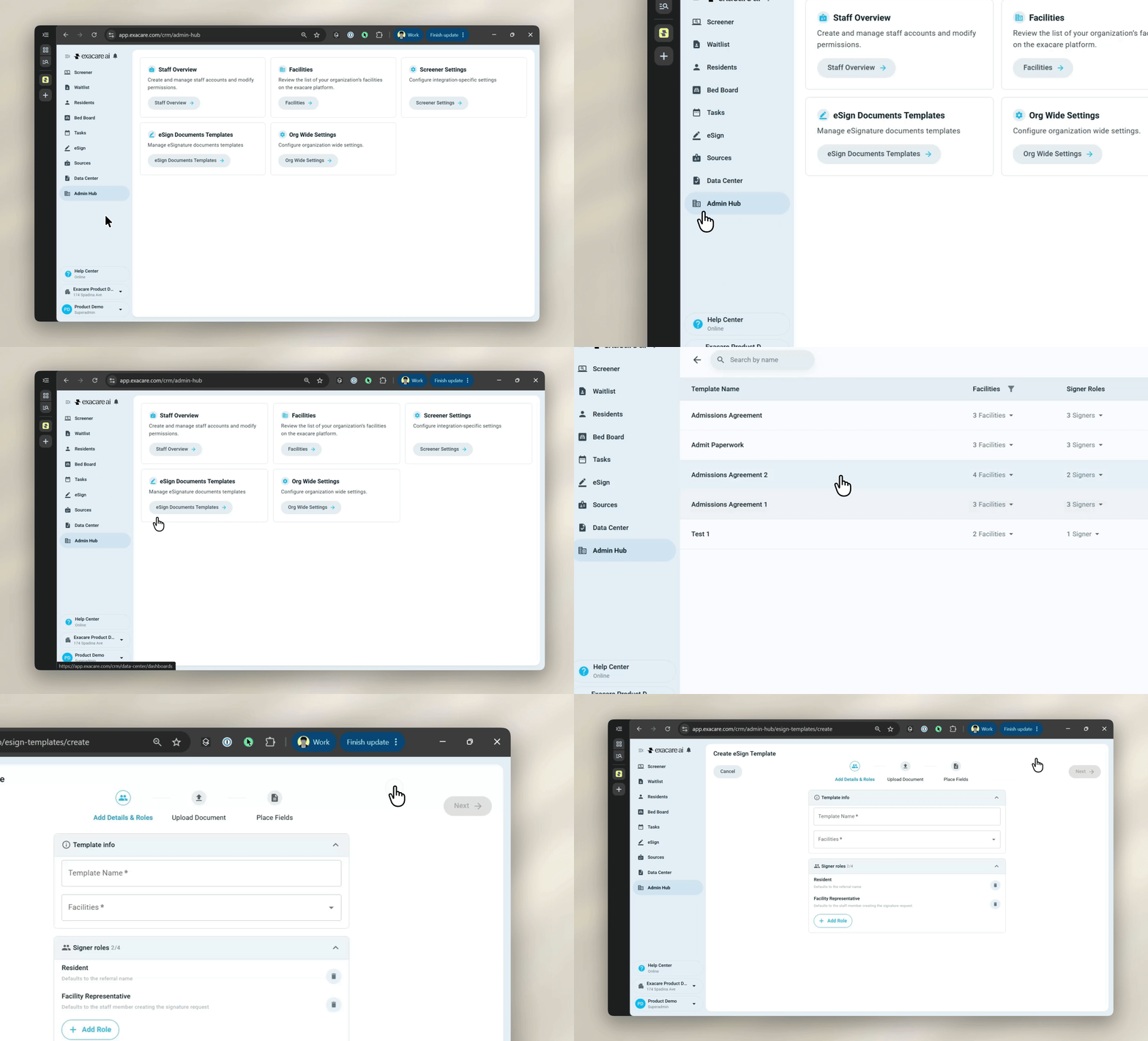
Step 1: Set up your template
Provide a template name, add signer roles applicable to the template, and mark the facilities that will have access to the template.
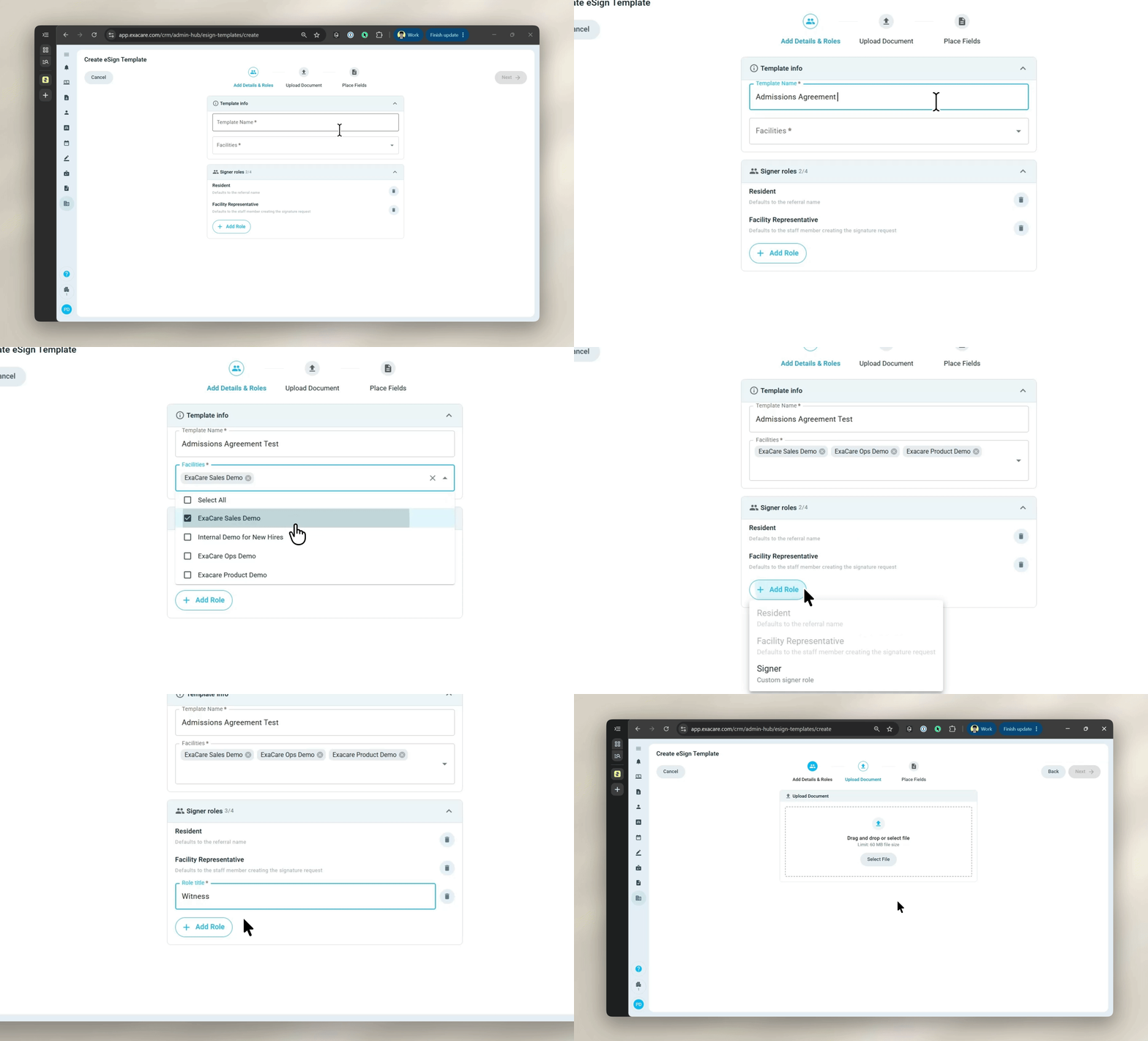
Signer roles:
A signer role tells eSign who is supposed to sign each part of a document. When building the template you will specify:
“This signature line is for the Resident”
“This initial box is for the Resident’s Representative”
“This date field is for a Witness”
You are not picking a specific person yet but labeling which type of signer each field belongs to.
There are two default roles, Facility Representative and Resident:
When you send the request, Facility Representative role will default to the person creating the request
Resident role will default to the name of the referral you’re creating the request for
You can add custom roles for additional signers. Common examples:
Resident Representative
Power of Attorney
Responsible Party
When you publish a template with a custom role, each signing request using that template will prompt the sender to assign a real person to that role.
Note: Each template can have up to 4 signer roles total.
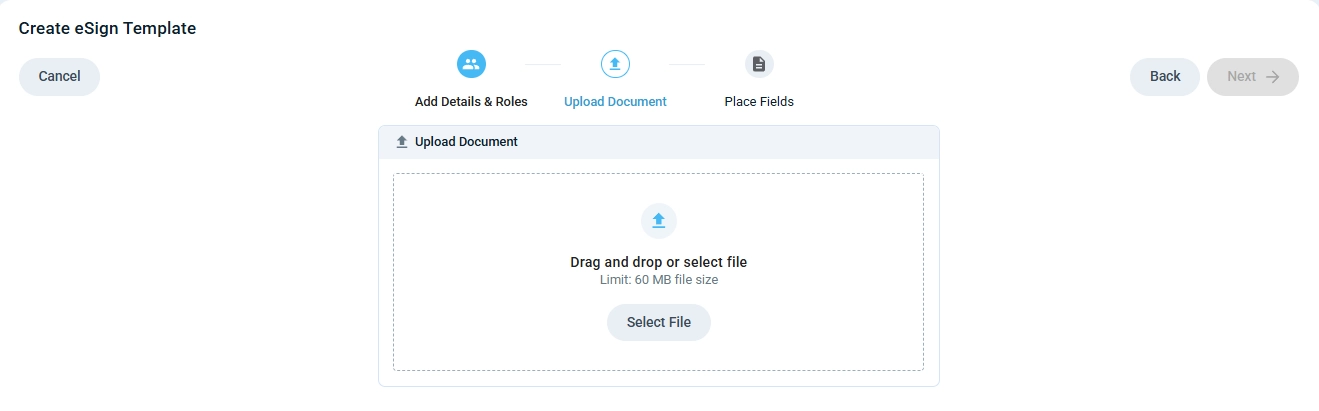
Step 2: Upload your document
Upload the PDF (admission agreement, arbitration agreement, etc.)
Step 3: Add fields
Drag and drop fields onto the document. There are two field categories:
Signer fields are completed by the signer at signing time (when the request is sent)
Sender fields are automatically populated from the info within exacare's platform (e.g., referral facesheet, facility info), while some sender fields (i.e., Custom Text fields) must be manually populated and reviewed before sending.
Signer fields
Signer fields are fields completed by the person signing the document. Available types:
Signature: a drawn or typed signature.
Initials: abbreviated signature.
Text box: free-form text entry.
Checkbox: a single checkbox to check or leave unchecked.
Date: date signed (will auto-populate with the date the field is signed, so no manual input is needed).
Radio group: multiple options where the signer selects exactly one option (useful for yes/no consent, etc.).
For consent questions or advance directives where the signer must choose one of several options, use a radio group (shown below). Add each option as a choice, and the signer will only be able to select one.
Each signer field can be marked as required or optional depending on the circumstances.
Sender fields
Sender fields auto-populate at the moment the signing request is sent, using data from within the exacare platform.
How sender fields work
Place a sender field on the document where the value should appear.
When the request is sent, exacare reads the live value from the exacare platform and stamps it onto the document.
If the value is empty, the field falls back to the default value you set on the template, if one is configured (see Default values below).
Custom values
Custom values are sender fields that the sender fills in manually before sending. Each text box should have a clear label. If a text box is not listed in the "Sender fields" (e.g., room number), you can add text boxes labeled as "Room Number" to be filled in at send time.
Default values
Each sender field can have a default value set on the template. During send time, the values entered during initial template mapping become the default values for all future signature requests using that template. These default values can be changed at send time. Defaults are useful for fields that are usually the same across residents (e.g., private room rate), or as a fallback when facesheet data may be missing.
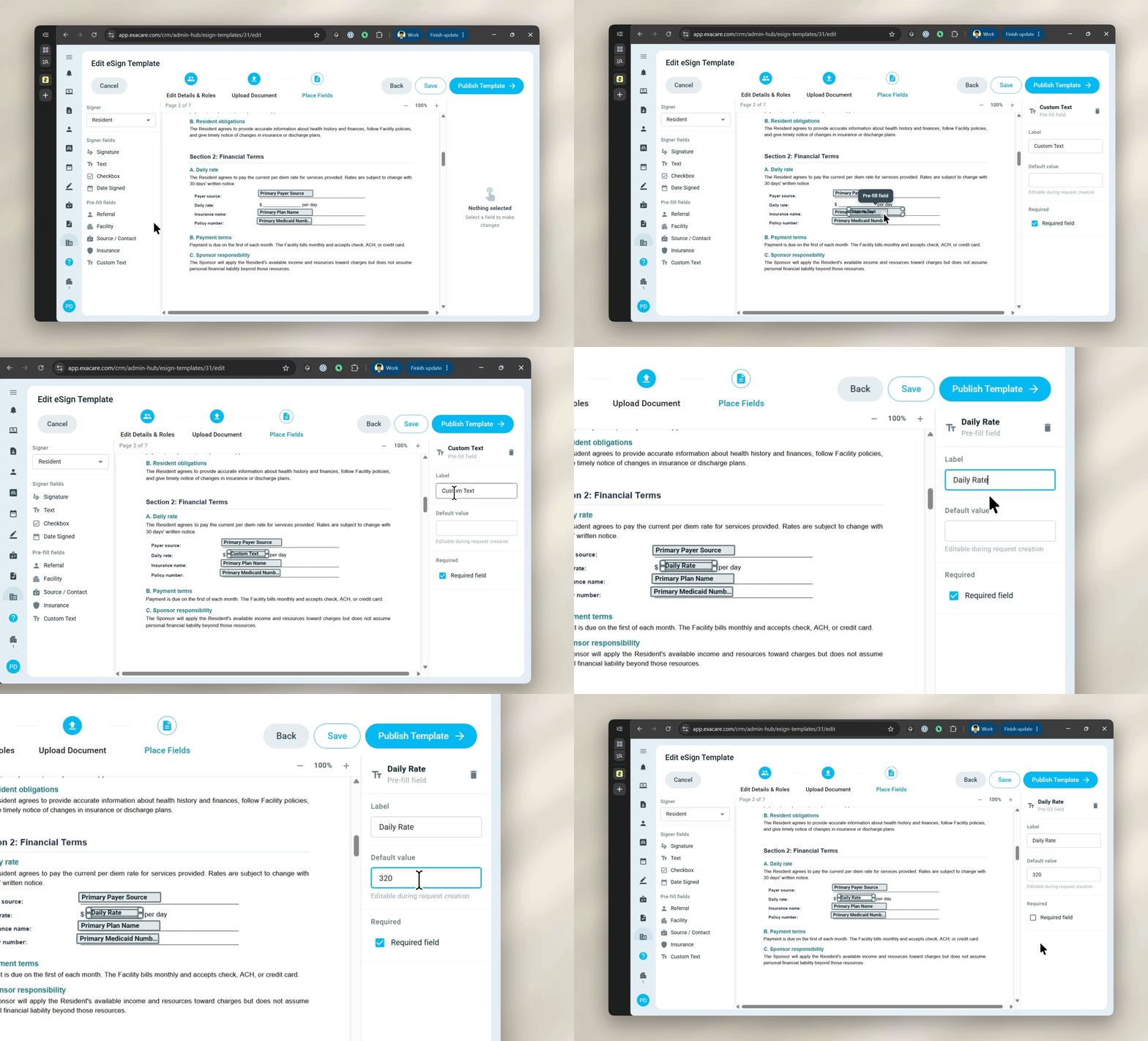
Categories of sender fields
The sender field set matches what is in the exacare platform (e.g., referral facesheet, facility info). Common fields include:
Referral and demographic info
Resident name (first, last, and full name)
Date of birth
SSN
Current address
Phone number
Facility name
Facility and source info
Facility/source name
Facility address
Facility/source contact phone
Insurance info (for each of primary, secondary, and tertiary)
Payer name
Plan name
Member ID / MBI
Medicaid number
Group plan number
Policy number
Please Note: Sender fields, read the facesheet at send time. If you update the facesheet right before sending a request, the latest values will be used for the document.
Step 4: Assign signer roles
Map each signer field to a role. See the Signer roles section below for how to set this up.
Step 5: Review and publish
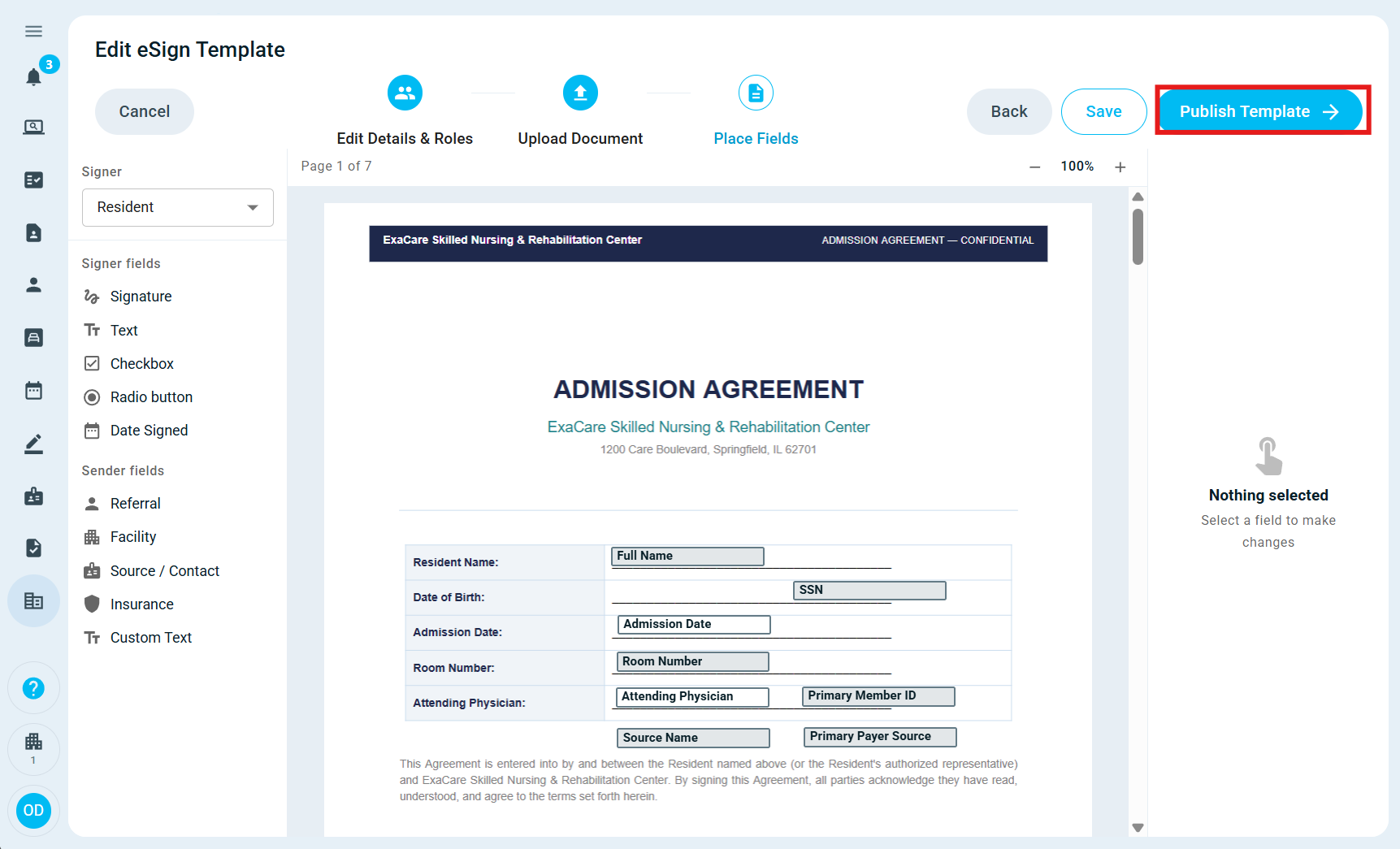
Preview the template to confirm field placement, then click Publish Template. The template is now available for sending.
Handling Resident or Representative templates
Some documents can be signed by either the resident or their representative, depending on the situation. Since each template version has a fixed set of roles, the cleanest pattern is:
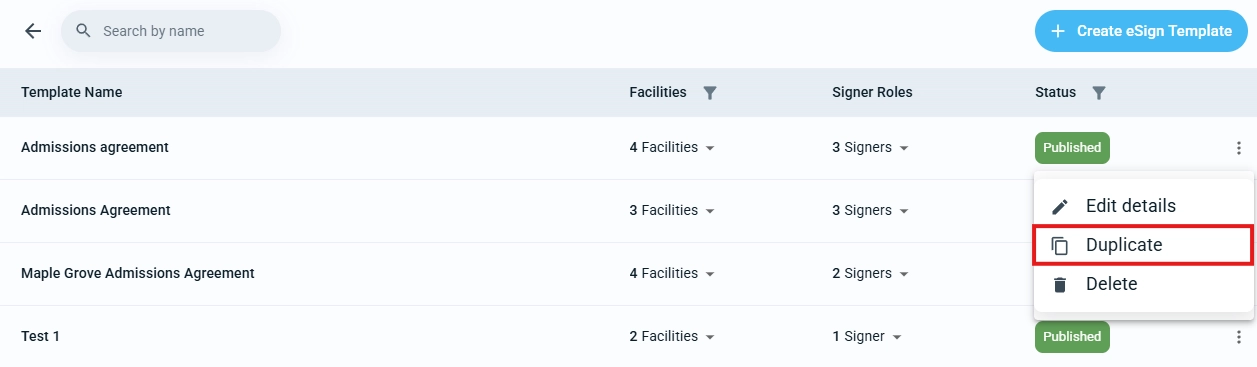
Create two versions of the template, one that uses the Resident role and one that uses a Resident representative custom role. You can duplicate a template from the eSign Documents Templates section of the Admin Hub (see below).
At send time, the operator picks the version that matches who will actually be signing. This keeps the role assignment unambiguous and avoids conditional logic at signing time.
Editing and versioning
Draft templates can be edited freely before publishing.
Updating templates: A template can be updated after publishing, but only for new signature requests. Existing in-progress requests remain as is and are not affected by template changes.
To update fields on an already-sent request: Cancel the existing request, make your changes to the template and re-publish it, then create a new signing request with the updated version.
Unpublishing or editing a template does not affect signing requests that are already in progress.