Why Did the Patient Push to PCC but Documents Did Not?
Last updated: June 9, 2026
When you push a referral from exacare ai to PointClickCare, the patient details and the documents may not appear in PCC at the exact same time. A patient can be created or updated successfully while the document upload is still processing, delayed, or blocked by a document-specific issue.
Use this guide when the patient appears in PCC, but one or more selected documents are missing.
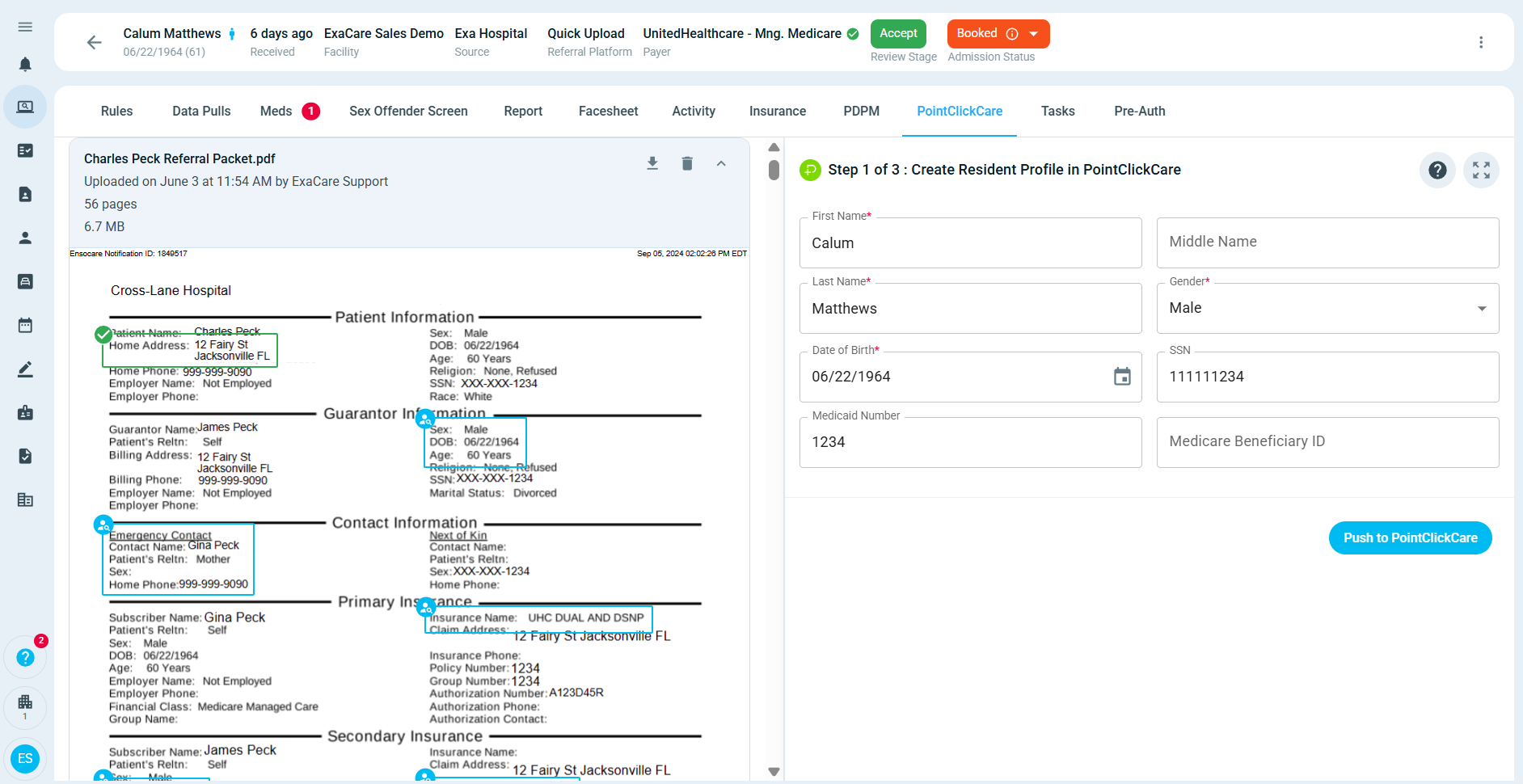
When to use this
Use this article if:
The patient or resident profile was created in PCC.
You completed the Push to PCC workflow in exacare ai.
The patient details, allergies, conditions, or other information appear in PCC, but the documents do not.
exacare ai showed the push as complete, but the documents are not visible where you expected them in PCC.
Important notes
Document uploads are a separate part of the PCC push. This means a successful patient push does not always mean every selected document has finished uploading.
Documents may be delayed or fail to appear because:
The documents were not selected in the Docs step.
PCC is still processing the document upload.
The documents were pushed to a different PCC document area or category.
The resident was merged with an existing PCC record.
The resident is a readmission or was previously pushed to PCC.
One or more documents are too large, damaged, or not accepted by PCC.
PCC is experiencing a temporary issue.
Check the patient and document location in PCC
Open the patient or resident profile in PCC.
Confirm you are viewing the correct facility and resident record.
Check the document areas in PCC, such as Docs or Misc, depending on your organization’s PCC setup.
If you do not see the documents there, check the Inbound area in PCC, if your PCC permissions allow it.
If you do not have access to the document or Inbound area in PCC, ask your PCC administrator to confirm whether the documents are visible.
Confirm the documents were selected in exacare ai
Go back to the referral in exacare ai.
Open the PointClickCare tab.
Review the final push step for documents.
Confirm the documents you expected to send were selected.
If the push is still in progress, wait for it to finish before checking PCC again.
What to try next
If the patient is in PCC but the documents are still missing:
Wait a few minutes, then refresh PCC.
Confirm you are checking the correct resident record, especially if the patient was merged.
Confirm the documents were selected during the Docs step in exacare ai.
Try pushing the documents one more time if there is no error message and you are confident the correct PCC resident is selected.
Do not retry the push repeatedly if the documents still do not appear. Repeated retries may not fix document-specific issues and can make troubleshooting harder.
Special cases
The patient was merged in PCC
If the patient was merged with an existing PCC record, the documents may attach to the matched resident record. Check the resident profile that was selected during the merge.
If the merge does not look correct, contact exacare ai support before retrying.
The patient is a readmission
Readmissions can be more complex if the patient was previously pushed to PCC from exacare ai. If the resident was discharged and is being admitted again, contact support if documents do not appear after one retry.
Some documents appear, but others do not
If only some documents are missing, the missing documents may be too large, damaged, or rejected by PCC. Contact support with the names of the missing documents.
Contact exacare ai support
Contact support if:
The documents do not appear after one retry.
You see an error during the PCC push.
The patient was merged or readmitted and the documents are missing.
Some documents appear, but others do not.
You are unsure which PCC record the documents should attach to.
Please include:
Facility name
Patient or resident name
Referral link in exacare ai
Date and approximate time of the push
Which documents are missing
Whether the patient was created new, merged, or readmitted in PCC
Screenshot of the exacare ai push status
Screenshot of where you checked for the documents in PCC
Expected result
After a successful document push, the selected documents should appear in the correct PCC resident profile under the document area configured for your organization, such as Docs, Misc, or a custom document category.