PCC Bed Board Sync
Last updated: September 21, 2026
What is PCC Sync?
PCC Sync listens to resident movement in PointClickCare and reflects it on your exacare ai Bed Board in real time, so your teams no longer have to enter the same admission, discharge, or bed change in two places.
As each event comes in, exacare ai does one of two things: it automatically applies the change to your Bed Board, or it flags it for review when a decision from your team is needed. Events arrive within seconds of being saved in PCC.
PCC Sync is a one-way sync from PCC to exacare ai. Nothing you do in the exacare Bed Board is applied back into PCC.
How it Works
A resident is admitted, discharged, transferred, or placed on leave in PCC.
PCC sends the event to exacare ai in real time.
exacare ai identifies the resident on your screener tab
exacare ai either applies the change to the Bed Board automatically or flags it in Review Required.
Every event is logged under Residents > PCC Updates so you can see what happened and when.
For the best PCC Sync experience, ensure you are pushing your booked residents to PCC. This linkage allows us to easily identify the correct resident consistently. Residents who haven't been pushed are still matched by name and date of birth.
Where to Find Census Updates
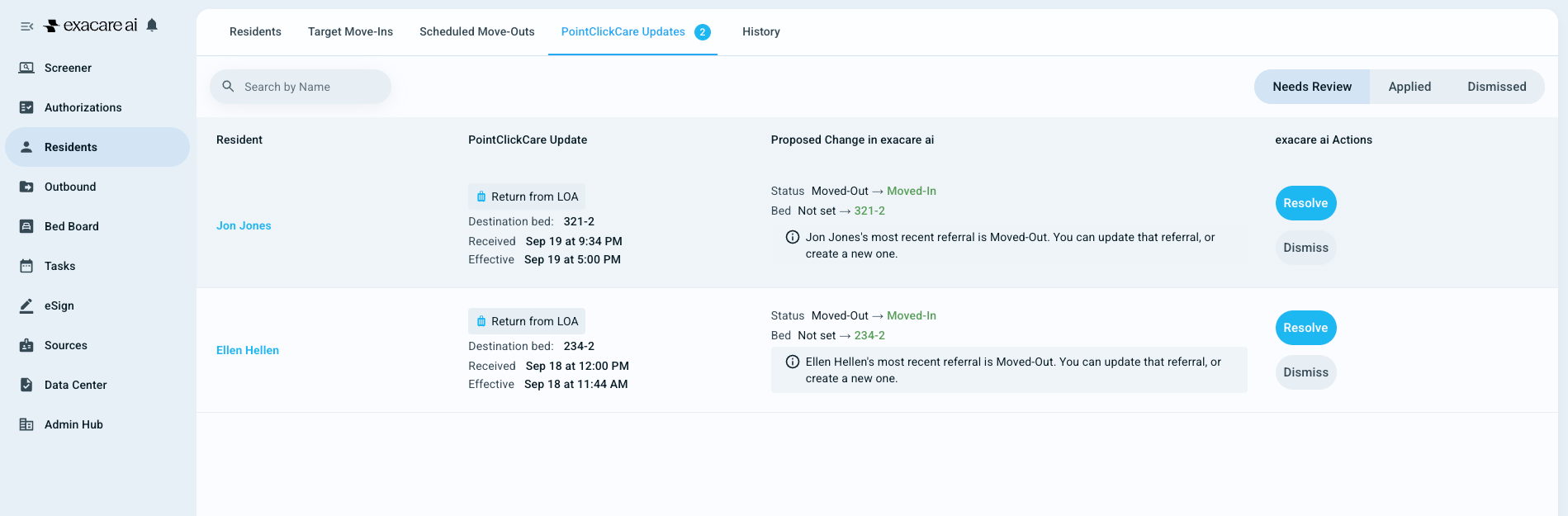
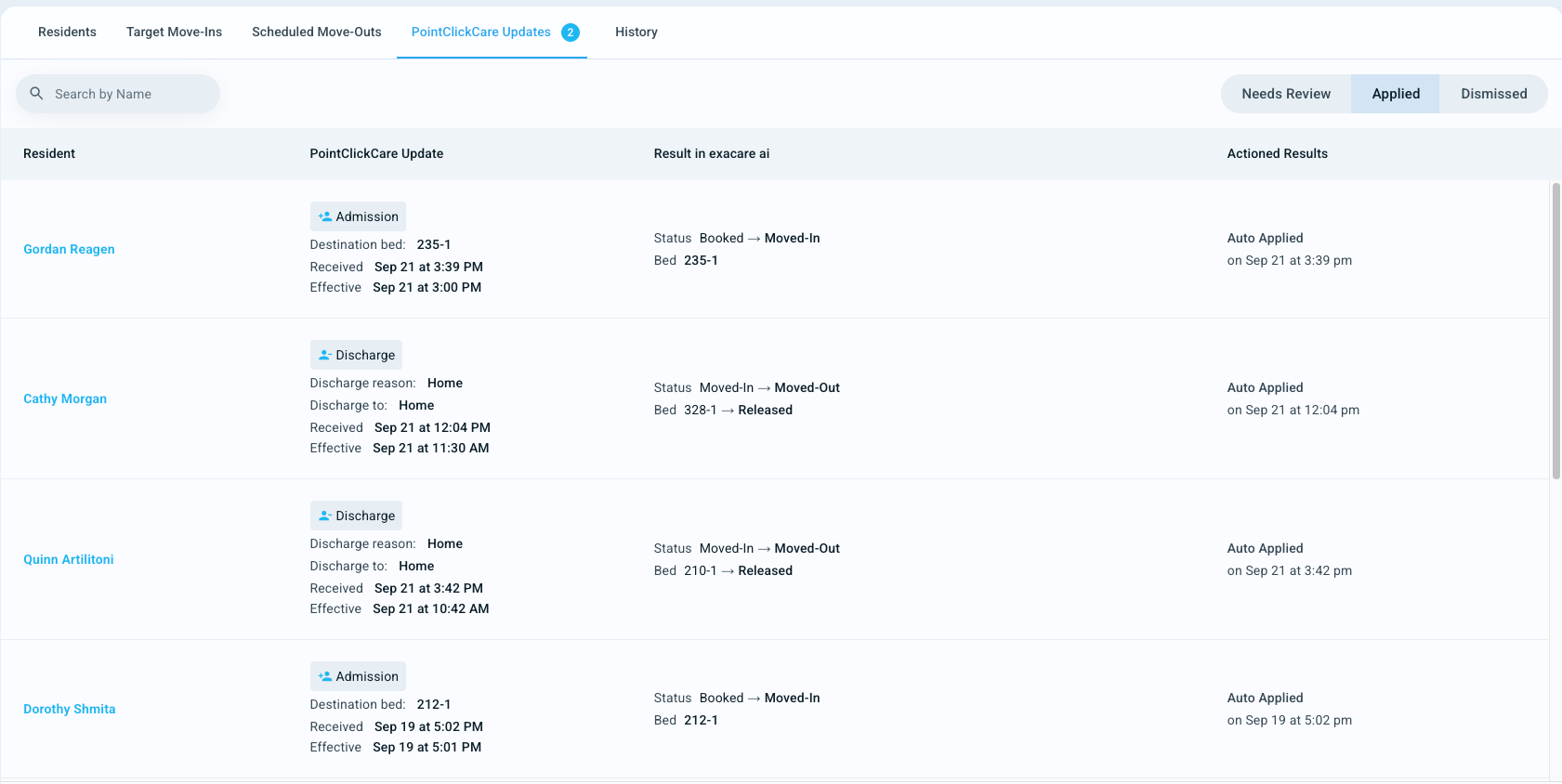
Go to Residents > PCC Updates. A blue badge shows how many review required events are waiting for you. The page has three tabs:
Review Required (opens by default): events exacare ai could not finish on its own. These need an action from your team.
Auto Applied: a running log of everything that was applied automatically or manually. There is nothing to do here as it's for your reference.
Dismissed: events that were dismissed or superseded by a newer event.
Events that apply automatically
These land in the Auto Applied tab with no action required:
Admissions — the resident is moved into the PCC bed.
Bed changes — the resident is moved to the new bed and the old bed is released.
Discharges — the resident is moved out and the bed is released.
LOA / hospital leave — the resident is marked as hospitalized and the bed is held.
Events that require review
A small number of events need a human decision. These are usually cases where a new referral is expected from the hospital, and you'll need to decide whether to move in that new referral or automatically quick upload a referral if none was sent. They appear in Review Required with a blue action button that walks you through the fix.
We recommend checking the Review Required tab once or twice a day to resolve these. Below are some of the events you may encounter:
1. Return from LOA / hospital
When a resident returns from the hospital, the hospital usually sends you a new referral. exacare ai does not automatically move the old referral back in, because you may need to link the return to that new referral instead. To resolve it:
Steps to resolve:
Open the Readmit drawer from the flagged item in Review Required.
Choose which referral to move in:
If the hospital sent a new referral to exacare, accept it and select that referral in the drawer.
If the hospital didn't send a referral, choose to automatically create a new one.
Click Next and select the bed which was held for the resident.
The referral currently hospitalized gets automatically Moved Out.
The newly selected referral gets Moved In to the held bed.
2. A moved out resident is readmitted
A resident currently marked Moved-Out or Lost has new activity in PCC (Admit, Bed Transfer, LOA, Hospitalize, Return from Leave, or Readmit). This is flagged for Review Required because exacare ai needs to know if this is a new stay or a continuation of the previous one.
Steps to resolve:
Open the Move-Out dialog from the flagged item in Review Required.
Choose one of two options:
Restore the moved-out resident — Select Undo to return the resident to their previous status.
Create a new referral — Select Create a new referral if you want the event treated as a brand-new referral rather than a continuation of the previous stay.
exacare applies the status and bed assignment from the PCC event.
3. An Occupied Bed Conflict
When you'll see this: PCC tries to move a resident into a bed already occupied or held in exacare ai.
Steps
Open the flagged item in Review Required.
Click Apply — exacare ai warns that the current resident will be removed.
Confirm to move in the new resident
If the previous resident shouldn't be moved out, reassign them to the correct bed afterward.
4. Late Cancellations
PCC cancels an event (admit, discharge, transfer, leave, etc.) after the original event was already applied in exacare ai.
Steps
Open the flagged item in Review Required and confirm the reversal, or click Already Applied if it was handled manually.
Manual Bed Board actions, tags, and bed notes still work exactly as before. PCC Sync simply does most of the routine updates for you!