1. Push a Resident to MatrixCare
Last updated: June 11, 2026
Please refer to the training video below for a Push to MatrixCare Tutorial:
Step 1: Push the referral from exacare ai to MatrixCare:
In exacare
Locate and select the referral in the ‘Screener’ page that you want to Push to MatrixCare:

Navigate to the tab titled ‘MatrixCare’ and you will be prompted to ‘Create Resident Profile in MatrixCare’ -> at this point, you are not pushing any documents over, this step just creates the patient profile in PCC.

Under ‘Referral Information’, the required fields are ‘First Name’, ‘Last Name’, ‘Gender’ and ‘Date of Birth’, however, you must additionally fill in at least one of ‘Middle Name’, ‘SSN’ or ‘Street Address’:
If only a partial SSN is included in the Admissions Package, you can use 0’s or 1’s to make the field numerical as it must only contain numbers. You can edit this directly in MatrixCare later as well.
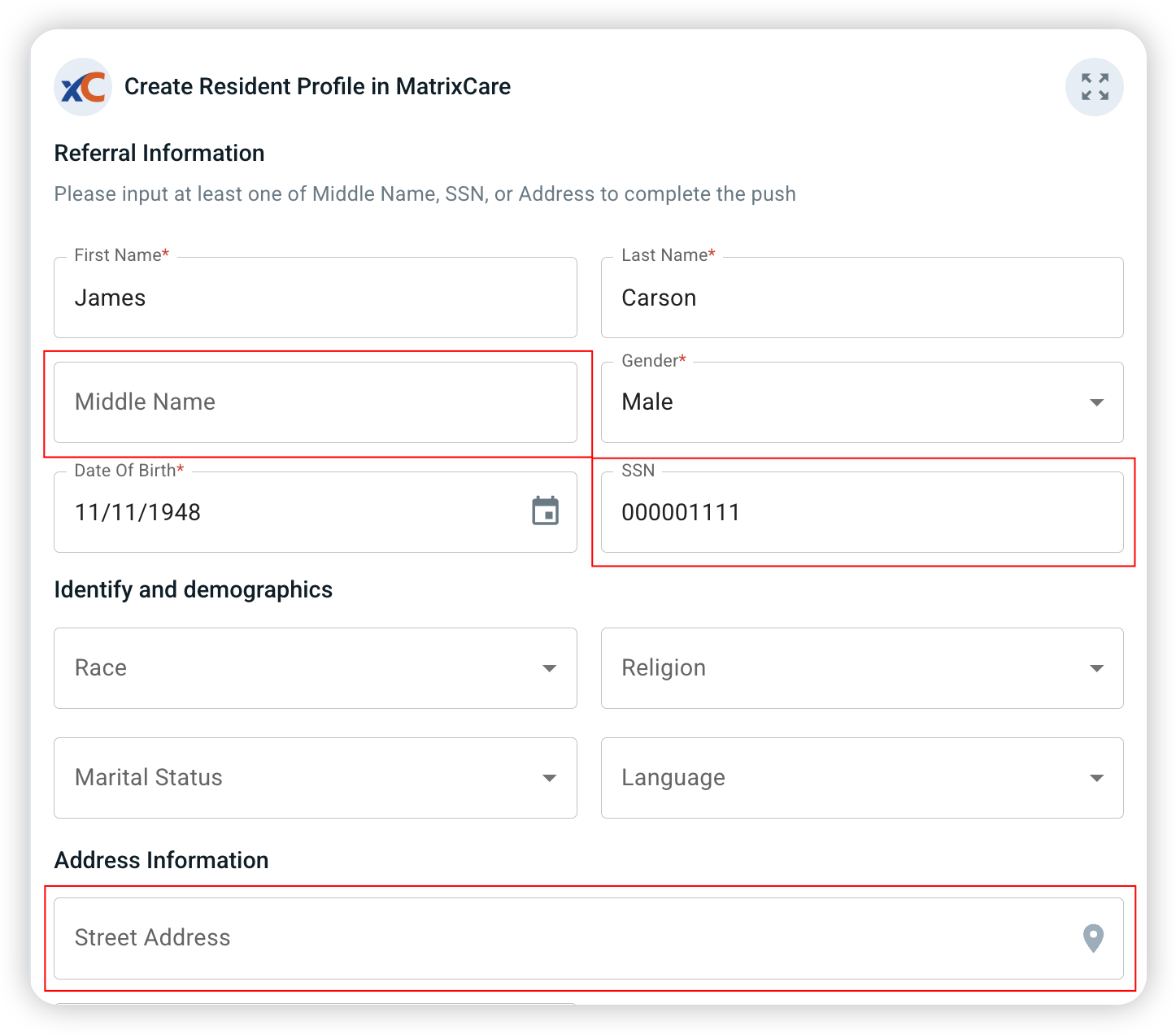
The only other required field is ‘State’ under ‘Address Information’. Click ‘Create Resident’ to proceed:

After clicking ‘Create Resident’, this page will show, indicating the Resident Details have been pushed to MatrixCare:
Note:
Exacare matches resident profiles in MatrixCare based on first name, last name, date of birth (DOB), sex, and SSN (if provided).
To ensure documents are pushed to the correct profile, it’s recommended to always include the SSN when pushing profiles.
Refer to the MatrixCare FAQ for the current matching scenarios and outcomes.

In MatrixCare
To view the referral in MatrixCare, log into your account, and select the correct facility:

Navigate from ‘Home’ -> ‘Resident’ -> ‘Search Resident’:

Enter their Last Name and click ‘Search’:

Search results will appear at the bottom of the page. Click into the referral:

You have now located the referral profile in MatrixCare:

Step 2: Push the documents from exacare ai to MatrixCare:
In exacare
After you have created the resident profile in MatrixCare, select ‘+ Push Additional Docs’ to send documents from exacare:

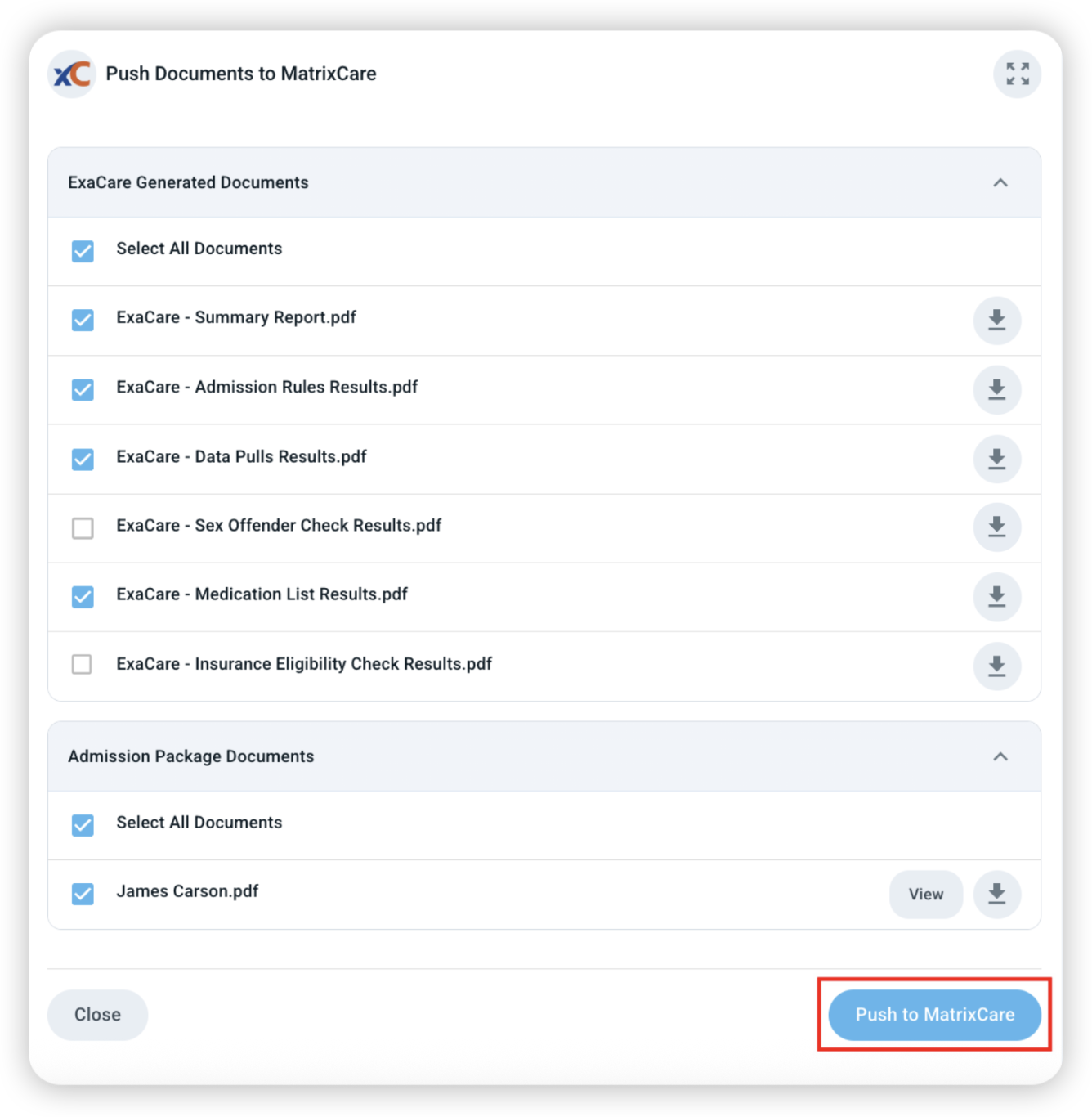
This contains ‘exacare Generated Documents’, ‘Admission Package Documents’ and ’Storage Documents’. Select which ones you would like to push over and click ‘Push to MatrixCare’:
Note:
‘Exacare Generated Documents’ includes documents that were created in exacare
‘Admission Package Documents’ includes documents that were sent by the hospital, or quick uploaded into exacare
’Storage Documents’ includes documents added to exacare that did not affect the AI analysis and have no impact on results such as Rules and Data Pulls, Meds table, Reports, etc. You can choose to directly add storage documents here.

Push Completed
In exacare
Now you will be able to see which documents have been pushed:

In MatrixCare
To view the documents in MatrixCare, navigate to ‘Residents’ -> ‘Resident Documents’:

Click ‘Expand All’ and you will be able to see the documents that have pushed from exacare to MatrixCare:
This section may be called ‘Import/Other’ on your MatrixCare instead of ‘Admission Records’ If you do not see this section, open Filters and check Import/Other in filters.

See the 'Push to MatrixCare FAQ' article if you have more questions about the process.